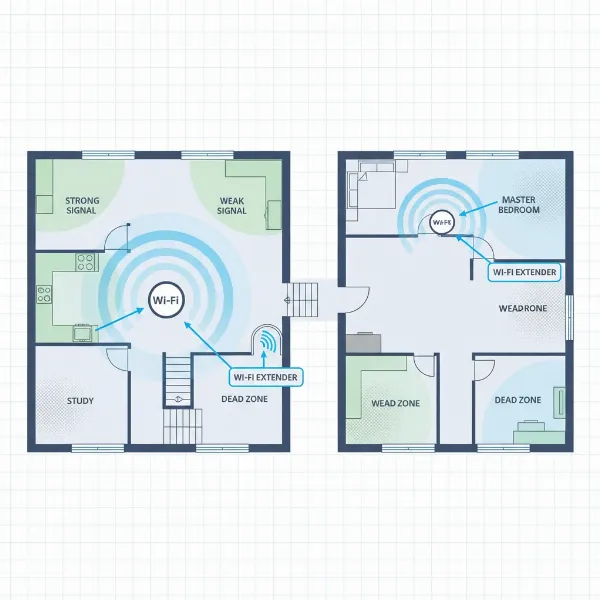
Are you experiencing frustrating Wi-Fi dead zones, dropped connections, or sluggish speeds in certain areas of your home? You’re not alone. Many households struggle to maintain a strong, reliable Wi-Fi signal throughout their entire living space, turning a simple task like streaming a movie or participating in a video call into a test of patience. Fortunately, a Wi-Fi extender offers a practical and often cost-effective solution to bridge these gaps, expanding your wireless coverage and ensuring a seamless online experience for all your devices. This comprehensive guide will walk you through everything you need to know about choosing the perfect Wi-Fi extender to meet your specific needs and transform your home network.
1. What is a Wifi Extender and How Does It Work?
A Wi-Fi extender, also known as a Wi-Fi booster or range extender, is a device designed to expand the coverage of your existing wireless network. Its primary function is to capture the Wi-Fi signal from your main router and rebroadcast it to areas of your home where the signal is weak or non-existent, effectively eliminating “dead zones.” Think of it as a middleman that takes your router’s signal and amplifies it, sending it further into your home or office.
The way a Wi-Fi extender operates is relatively straightforward. It connects wirelessly to your primary router and then creates a secondary network that extends coverage to previously unreachable areas. While often used interchangeably, it’s worth noting that some older “Wi-Fi repeaters” might simply rebroadcast the signal on the same frequency band, which can sometimes halve your internet speed. Modern Wi-Fi extenders, however, often use more sophisticated methods, such as dual-band technology, to minimize speed degradation and provide a more robust connection. For larger homes or more demanding users, advanced solutions like mesh Wi-Fi systems offer a more integrated, whole-home coverage experience, using multiple nodes to create a single, seamless network.
Common types of Wi-Fi extenders include wall-plug models, which plug directly into an electrical outlet for convenience, and desktop models, which might offer more advanced features and multiple Ethernet ports. Powerline extenders use your home’s electrical wiring to transmit network data, providing a wired backbone for the Wi-Fi signal in distant rooms.
[image-1|wifi-extender-concept|A conceptual illustration of a Wifi extender boosting a signal in a multi-story home, with the main router on the ground floor and the extender on the first floor extending the signal to a previously dead zone bedroom. The signal waves are clearly visible.|
Conceptual illustration of a Wi-Fi extender boosting a signal in a two-story house. The main Wi-Fi router is on the ground floor, emitting a signal that reaches partially upstairs. A compact, white Wi-Fi extender, plugged into a wall outlet on the first floor, is rebroadcasting the signal, clearly extending coverage to a previously weak-signal bedroom further down the hall. The signal waves are distinct and show an expanded range. The house interior is modern and warm, with a focus on connectivity. From a slightly elevated perspective, realistic style.]
2. Benefits of Using a Wifi Extender
Investing in a Wi-Fi extender offers several compelling advantages, particularly for homeowners grappling with inconsistent wireless coverage. These devices provide a practical and often budget-friendly solution to common network challenges.
First and foremost, Wi-Fi extenders eliminate dead zones. These are those frustrating spots in your home—be it a bedroom, basement, or patio—where your Wi-Fi signal is weak or completely non-existent. An extender picks up the signal before it fades and retransmits it, bringing connectivity to these formerly unreachable areas. Secondly, they improve signal strength and stability. Even in areas where you do get a signal, it might be too weak for reliable streaming or gaming. An extender boosts this signal, leading to more consistent speeds and fewer dropouts.
Compared to upgrading your entire router or installing a full mesh Wi-Fi system, an extender is typically a cost-effective solution. For a fraction of the price, you can achieve significant improvements in coverage. Installation is also notably simple, with most modern extenders featuring easy, plug-and-play setup processes that don’t require extensive technical expertise. Many support WPS (Wi-Fi Protected Setup) for one-touch pairing with your router. Finally, extenders offer flexibility and support for more devices. They can be easily relocated if your network needs change, and by expanding coverage, they enable reliable connections for additional smart home devices, streaming services, and computers throughout your property.
3. When Do You Need to Use a Wifi Extender?
Recognizing the signs that you need a Wi-Fi extender can save you from daily connectivity frustrations. Several common scenarios indicate that an extender could significantly improve your home internet experience.
You likely need a Wi-Fi extender if your home has multiple floors or a large layout. Wi-Fi signals struggle to penetrate floors and travel long distances, often resulting in weak spots upstairs, in the basement, or at the far ends of a sprawling single-story home. Similarly, thick walls or other physical obstacles like concrete, metal fixtures, or even large appliances can severely degrade your Wi-Fi signal, creating barriers that prevent it from reaching all corners of your property. An extender can bypass or mitigate these signal blockers by rebroadcasting the signal from a more strategic location.
Furthermore, if you wish to use Wi-Fi in outdoor areas such as your garden, backyard, balcony, or a detached garage, an extender can push the signal beyond the confines of your main house. For households with many devices connecting simultaneously—smart TVs, gaming consoles, laptops, smartphones, and smart home gadgets—an extender can help distribute the load and maintain stable connections, especially when your primary router is overwhelmed. Essentially, if you regularly encounter poor speeds, dropped connections, or complete dead zones in specific areas, a Wi-Fi extender is a strong candidate for resolving these issues.
[image-2|home-wifi-deadzone|An infographic illustrating common scenarios where a Wifi extender is needed in a multi-story house, showing a red “dead zone” icon in an attic and a weak signal icon on a patio, with arrows indicating where an extender could resolve these issues. The design is clean and informative, perfect for a buying guide.|
Infographic illustration of a typical multi-story home with Wi-Fi signal challenges. The main router is on the ground floor, emitting green signal waves that weaken on higher floors and outdoors. A prominent red “dead zone” icon is visible in the attic, and a “weak signal” icon is on the outdoor patio. Arrows from potential extender locations (e.g., hallway on the second floor, near a window for the patio) point towards these problem areas, indicating how a Wi-Fi extender can resolve them. Clean, modern, editorial style.]
4. Factors to Consider When Choosing a Wifi Extender
Selecting the right Wi-Fi extender involves evaluating several key factors to ensure it effectively addresses your network needs and integrates seamlessly with your existing setup. Making an informed choice will prevent future headaches and maximize your investment.
- Wifi Speed: The extender’s speed rating (e.g., AC1200, AX3000) indicates its maximum theoretical throughput. Ideally, you should choose an extender that supports speeds equivalent to or higher than your primary router to avoid creating a bottleneck. Look for extenders compatible with the latest Wi-Fi standards like Wi-Fi 6 (802.11ax), Wi-Fi 6E, or even Wi-Fi 7 for future-proofing and faster performance, especially if your router already supports them.
- Frequency Bands: Most modern extenders are dual-band, supporting both 2.4GHz and 5GHz frequencies. The 2.4GHz band offers a wider range and better wall penetration but is generally slower and more prone to interference. The 5GHz band provides faster speeds but with a shorter range. Dual-band extenders allow devices to connect to the optimal band. Some high-end models are tri-band, offering an additional 5GHz band, which is excellent for dedicated backhaul to the router, reducing congestion and improving overall speed.
- Coverage Range: Consider the area you need to cover. Extenders often specify their maximum coverage in square feet or meters. Choose a model with a range suitable for the size of your home and the specific dead zones you wish to eliminate. Remember that advertised ranges are often under ideal conditions and real-world performance may vary due to obstacles.
- Number of Ethernet Ports: If you have wired devices like gaming consoles, smart TVs, or desktop computers in areas with poor Wi-Fi, an extender with Gigabit Ethernet ports can provide a stable, high-speed wired connection, offering better performance than Wi-Fi for these devices.
- Additional Features: Look for features that enhance performance and usability. MU-MIMO (Multi-User, Multiple Input, Multiple Output) allows the extender to communicate with multiple devices simultaneously, improving efficiency. Beamforming technology directs Wi-Fi signals directly to your connected devices, rather than broadcasting in all directions. WPS (Wi-Fi Protected Setup) simplifies installation with a push of a button. Many extenders also come with mobile apps for easy setup, management, and signal strength indicators to help with optimal placement.
- Brand and Price: Stick to reputable brands known for their networking equipment, such as TP-Link, Netgear, Linksys, ASUS, and D-Link. While extenders are generally more affordable than mesh systems, prices vary based on features and performance. Set a budget that aligns with your needs, but be wary of overly cheap, unbranded devices that may offer poor performance or reliability.
- Compatibility: Ensure the chosen extender is compatible with your existing Wi-Fi router. Most modern extenders work with a wide range of routers, but checking specifications can prevent compatibility issues. For optimal performance, matching the Wi-Fi standard (e.g., Wi-Fi 5 or Wi-Fi 6) of your router and extender is often recommended.
- Ease of Installation: A user-friendly setup process is crucial. Many extenders offer one-touch setup via a WPS button or guided installation through a mobile app or web interface. This makes it easy for non-technical users to get the device up and running quickly.
5. Comparing Popular Wifi Extenders on the Market
Choosing the best Wi-Fi extender can be challenging with numerous options available. Here’s a comparison of popular models, highlighting their key specifications and features to help you make an informed decision.
| Feature | TP-Link AX3000 Wi-Fi 6 Range Extender RE715X | Netgear Nighthawk Wi-Fi 6 Mesh Range Extender EAX80 | TP-Link AC1200 Wi-Fi Range Extender RE315 | Linksys Max-Stream AC1900+ RE7000 |
|---|---|---|---|---|
| Brand | TP-Link | Netgear | TP-Link | Linksys |
| Wifi Speed (Max) | AX3000 (3 Gbps total) | AX6000 (6 Gbps total) | AC1200 (1.2 Gbps total) | AC1900 (1.9 Gbps total) |
| Bands | Dual-band (2.4GHz & 5GHz) | Dual-band (2.4GHz & 5GHz) | Dual-band (2.4GHz & 5GHz) | Dual-band (2.4GHz & 5GHz) |
| Wifi Standard | Wi-Fi 6 | Wi-Fi 6 | Wi-Fi 5 | Wi-Fi 5 |
| Coverage (Sq Ft) | Up to 2,000 sq ft | Up to 2,500 sq ft | Up to 1,500 sq ft | Up to 1,500 sq ft |
| Ethernet Ports | 1 Gigabit Ethernet Port | 4 Gigabit Ethernet Ports | 1 Fast Ethernet Port (100Mbps) | 1 Gigabit Ethernet Port |
| Key Features | OneMesh compatible, Adaptive Path Selection, High Speed Mode, Signal Indicator | Smart Roaming, High Power Amplifiers, Dedicated Wi-Fi 6 backhaul, Nighthawk App | OneMesh compatible, Intelligent Signal Light, Access Point Mode | Spot Finder Technology, Seamless Roaming, Cross-Band Technology |
| Pros | Excellent speed and Wi-Fi 6 support, great overall performance, easy setup | Top-tier speed, strong coverage, multiple Ethernet ports, advanced features | Very affordable, compact, easy setup, good for smaller homes/apartments | Good for eliminating specific dead spots, decent speeds for Wi-Fi 5, Gigabit Ethernet |
| Cons | Higher price point than basic models, may have high latency at far distances | Expensive, larger footprint, possibly more complex setup | Lower speeds, limited coverage, Fast Ethernet port can be a bottleneck | Wi-Fi 5 standard, not ideal for very large homes or cutting-edge performance |
| Price (approx.) | $100-$120 | $200-$250 | $30-$40 | $80-$100 |
Note: Prices are approximate and subject to change based on retailers and promotions.
The TP-Link AX3000 RE715X is a strong contender for overall performance, offering robust Wi-Fi 6 speeds and good coverage, making it suitable for modern homes with multiple devices. For those seeking maximum speed and coverage for larger homes and heavy usage, the Netgear Nighthawk EAX80 stands out with its powerful Wi-Fi 6 capabilities and multiple Gigabit Ethernet ports, though it comes at a higher cost. If you’re on a tighter budget or need to fill a small dead zone, the TP-Link RE315 is an excellent entry-level option, providing solid Wi-Fi 5 performance for smaller areas. The Linksys RE7000 offers a good balance of features for its price, particularly effective at targeting specific problem areas in medium-sized homes.
6. How to Install and Use a Wifi Extender
Installing and optimizing your Wi-Fi extender doesn’t have to be a daunting task. Most modern devices are designed for user-friendly setup, often taking just a few minutes.
Step-by-Step Installation Guide:
- Choose the Right Location: This is the most crucial step. Plug your extender into an electrical outlet roughly halfway between your main Wi-Fi router and the “dead zone” you want to cover. Ensure it receives at least a moderately strong signal from your router. Placing it too far from the router will result in a weak signal to extend, while placing it too close won’t effectively cover the problem area. Avoid obstructions like thick walls, metal objects, and appliances (microwaves, cordless phones) that can interfere with the signal. Many extenders have LED indicators that help you find the optimal spot.
- Power On and Initial Setup: Plug in the extender and wait for its power light to become stable (usually solid green or blue).
- Method 1: Using the WPS Button (Wi-Fi Protected Setup)
- Press the WPS button on your main router (often labeled with a double-arrow icon).
- Within two minutes, press the WPS button on your Wi-Fi extender.
- The extender’s signal indicator lights should change to solid green or blue, confirming a successful connection.
- Method 2: Using the Extender’s Web Interface or Mobile App
- Connect your computer or smartphone to the extender’s default Wi-Fi network (its name is usually printed on the device or in the manual, e.g., “TP-Link_Extender” or “NETGEAR_EXT”). There might not be a password initially.
- Open a web browser and type the extender’s default IP address (e.g., 192.168.0.254 or tplinkrepeater.net) or navigate through the brand’s dedicated mobile app.
- Follow the on-screen instructions to create an admin password (if prompted), select your main Wi-Fi network from the list, enter your router’s Wi-Fi password, and configure the extender’s network name (SSID). You can often choose to keep the same network name as your router for seamless roaming or create a new one.
- Method 1: Using the WPS Button (Wi-Fi Protected Setup)
- Final Placement & Optimization: Once configured, you can unplug the extender and move it to its optimal location (the halfway point) if you started close to the router. The signal indicator lights will help confirm if the new placement still provides a strong connection to the router.
Troubleshooting Common Issues:
- Connection Drops: If your devices frequently disconnect from the extender, it might be placed too far from the main router. Try moving it closer until the signal indicator shows a strong connection.
- Slow Speeds: This could be due to suboptimal placement (too far from the router or in an area with heavy interference) or using an older single-band repeater that halves bandwidth. Ensure it’s in an open area, away from interference. Also, check for firmware updates for your extender, as manufacturers often release updates to improve performance and stability.
- No Internet Access After Setup: Double-check that you’ve connected to the correct network and entered the right Wi-Fi password. A factory reset of the extender and re-running the setup process can often resolve configuration errors.
- Device Compatibility: While most extenders are universally compatible, some older routers might not work perfectly with newer extender features. Check for firmware updates for both devices.
“A well-placed Wi-Fi extender acts as a vital bridge, turning frustrating dead zones into vibrant connection points without the need for complex rewiring or a complete network overhaul. The key is finding that sweet spot between your router and the weak signal area.” – Dr. Elena Rodriguez, Senior Network Architect
7. Buying Guide: Your Personal Wifi Extender Selection
Navigating the array of Wi-Fi extenders can feel overwhelming, but a systematic approach based on your specific needs will simplify the process. This buying guide helps you focus on what truly matters for your home.
- Define Your Budget: Wi-Fi extenders range from $30 entry-level models to $250+ high-performance units. Determine how much you’re willing to spend. Remember, a more expensive model doesn’t always mean the best fit for your specific issue. Sometimes, a basic extender is all you need to fill a small dead spot.
- Assess Your Usage Needs:
- Simple Coverage Extension: If you just need to bring basic internet to a single dead zone for web browsing or email, a simpler, more affordable dual-band extender (e.g., AC1200) might suffice.
- High-Speed Streaming/Gaming: For demanding activities like 4K streaming, online gaming, or large file transfers in extended areas, prioritize extenders with higher speed ratings (e.g., AX3000 or above) and Gigabit Ethernet ports. Wi-Fi 6/6E compatibility is also a big plus.
- Whole-Home Seamless Connectivity: If you have a very large home, multiple floors, or want a single network name that you never have to switch, consider a mesh Wi-Fi system as an alternative or an extender that supports OneMesh/seamless roaming with your existing router.
- Check Router Compatibility: While most extenders are universal, ensuring your chosen model is compatible with your current router’s Wi-Fi standard (e.g., Wi-Fi 5 or Wi-Fi 6) can lead to better performance and easier setup. If your router supports advanced features like OneMesh or EasyMesh, look for an extender that supports the same to create a more integrated network.
- Read Reviews and Expert Opinions: Before making a final decision, always consult independent reviews from tech publications and user feedback on retailer websites. Pay attention to comments regarding ease of setup, actual speed performance, and reliability in real-world home environments. This can provide valuable insights that specifications alone might not reveal.
By carefully considering these points, you can confidently choose a Wi-Fi extender that effectively banishes dead zones and delivers robust, extended connectivity throughout your home.
8. Mua Wifi Extender ở đâu? (Where to Buy a Wifi Extender?)
When you’re ready to purchase a Wi-Fi extender, you have numerous reputable options both online and in brick-and-mortar stores.
Major electronics retailers are excellent places to start. Online giants like Amazon and Walmart.com offer a vast selection from various brands, often with competitive pricing and customer reviews to guide your choice. For those who prefer to see products in person or get immediate assistance, big-box electronics stores such as Best Buy and department stores like Target typically stock a range of popular Wi-Fi extender models. Additionally, office supply stores like Staples and home improvement retailers like The Home Depot also carry networking equipment, including extenders.
When buying online, remember to:
- Compare prices: Check multiple retailers for the best deals.
- Read customer reviews: Pay attention to recent reviews for insights into current performance and reliability.
- Check return policies: Ensure you can return the device if it doesn’t meet your expectations or isn’t compatible with your setup.
Purchasing from established retailers ensures you’re buying genuine products with warranty support.
[image-3|shopping-wifi-extender|A person browsing Wi-Fi extenders on a tablet, with various device boxes and a shopping cart icon in the background, illustrating the online shopping experience for networking devices. The focus is on ease of selection and purchase.|
A close-up of a person’s hands holding a tablet, actively browsing different Wi-Fi extender models on an e-commerce website. In the softly blurred background, there are various retail packaging boxes for Wi-Fi extenders, a shopping cart icon, and subtle hints of an online store interface, emphasizing the convenience of online shopping. The lighting is soft and focused on the tablet, giving a modern, accessible feel. Realistic style.]
Conclusion
Navigating the digital landscape of your home shouldn’t be a struggle, and with the right Wi-Fi extender, it doesn’t have to be. These ingenious devices offer a powerful and practical solution to common connectivity problems, effectively eliminating dead zones, boosting signal strength, and extending your internet’s reach to every corner of your property. By considering factors such as speed, frequency bands, coverage, and compatibility, you can choose a Wi-Fi extender that perfectly complements your existing network and caters to your unique usage demands. Don’t let weak signals dictate where you can work, stream, or play. Take control of your home network and unlock a world of seamless connectivity. What will you do with your newly extended Wi-Fi?
Câu Hỏi Thường Gặp
Does a Wifi extender reduce internet speed?
|
Our Picks for the Best Wifi extender in 2026
As an Amazon Associate I earn from qualifying purchases.
|
||
| Num | Product | Action |
|---|---|---|
| 1 | WiFi Extender WiFi Booster 1200 Mbps Dual Band (5GHz/2.4GHz) WiFi Extenders Signal Booster for Home, Internet Extended Booster WiFi Repeater (White) |

|
| 2 | WiFi Extender, WiFi Extenders Signal Booster for Home Up to 5000 sq.ft and 50 Devices, WiFi Range Extender, Wireless Repeater, Long Range Amplifier with Ethernet Port, 1-Tap Setup, Alexa Compatible |
|
| 3 | TP-Link AC1200 WiFi Extender, 2023 Engadget Best Budget Pick, 1.2Gbps Signal Booster for Home, Dual Band 5GHz/2.4GHz, Covers Up to 1500 Sq.ft and 30 Devices,Support Onemesh, One Ethernet Port (RE315) |
|
| 4 | TP-Link WiFi Extender with Ethernet Port, Dual Band 5GHz/2.4GHz, Up to 44% More Bandwidth Than Single Band, Covers Up to 1200 Sq.ft and 30 Devices, Signal Booster Amplifier Supports OneMesh(RE220) |
|
| 5 | 1200Mbps WiFi Extender Signal Booster for Home, Dual Band 5GHz/2.4GHz Wireless Internet Repeater with 4 External Antennas, Covers Up to 3600 Sq.ft & Supports 80 Devices, AP Mode with Ethernet Port |
|
| 6 | TP-Link AX3000 WiFi 6 Range Extender | PCMag Editor's Choice | Dual-Band Wireless Repeater w/Ethernet Port | Up to 2400 Sq. Ft., 64 Devices | Internet Signal Booster | APP Setup | EasyMesh (RE715X) |
|
| 7 | WiFi Extender Signal Booster for Home 2026 Internet Repeater Long Range Up to 9995 Sq. Ft. Whole Home WiFi Coverage |
|
| 8 | 2026 WiFi Extender Signal Booster - 2.4GHz 300Mbps WiFi Booster for Home, Covers Up to 9999 Sq. Ft, Easy Setup, Ethernet Port & Access Point, Stable Internet Performance with 60+ Devices(White) |
|
| 9 | TP-Link AC1900 WiFi Range Extender RE550 | Dual-Band Wireless Repeater Amplifier w/Gigabit Ethernet Port | Up to 2200 Sq. Ft., 32 Devices | Internet Signal Booster | APP Setup | EasyMesh Compatible |
|
| 10 | WiFi Extender Signal Booster, WiFi Booster Dual Band 5.8GHz&2.4GHz, Covers Up to 10000 Sq.ft, 1.2Gbps WiFi Repeater with One Ethernet Port, One-tap Setup |
|
A Wi-Fi extender can sometimes reduce internet speed because it needs to receive and then rebroadcast the signal, which can introduce latency and bandwidth limitations. Older or single-band extenders, especially those that use the same band to communicate with both the router and your devices, may effectively halve the available bandwidth. However, modern dual-band or tri-band extenders often mitigate this by using a dedicated band for communication with the router (backhaul), minimizing speed reduction for connected devices. Optimal placement and a strong initial signal from the router are crucial for maintaining good speeds.