Remote learning has transformed education, making a reliable internet connection essential for students, especially those in first grade attending online classes. Dealing with patchy Wi-Fi, dropped video calls, or frustrating lag can quickly turn a learning opportunity into a struggle. A robust and stable Wi-Fi signal is no longer a luxury but a fundamental tool for success in today’s digital classroom. This comprehensive guide will navigate the world of Wi-Fi extenders, helping you understand how they work, their benefits, and what to look for to ensure your first-grader enjoys an uninterrupted and smooth online learning experience.
1. What is a WiFi Extender and How Does It Work?
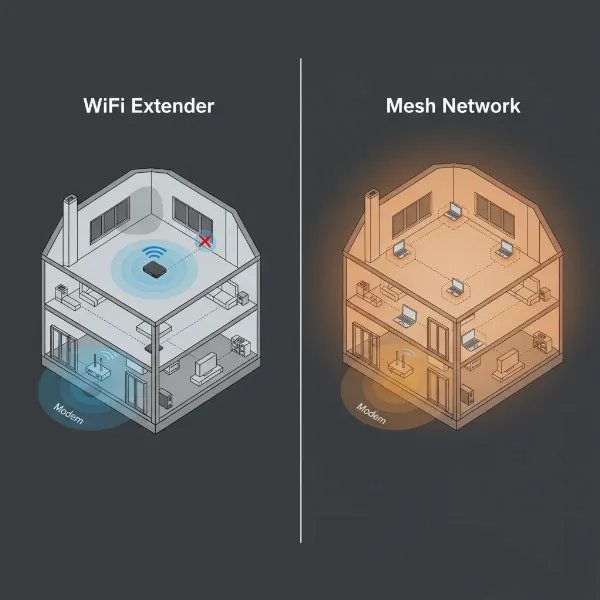
A Wi-Fi extender, also known as a range extender or repeater, is a device designed to expand the coverage of your existing Wi-Fi network. It works by capturing the wireless signal from your primary router and then rebroadcasting it, creating a secondary network that reaches areas previously prone to “dead zones” or weak signals. Think of it as a signal booster that picks up your router’s Wi-Fi and projects it further, allowing devices in distant rooms or floors to connect with improved strength and stability.
Typically, Wi-Fi extenders come in two main forms: wall-plug units, which are compact and plug directly into an electrical outlet, and desktop units, which are larger and may offer more Ethernet ports and advanced features. Unlike a mesh Wi-Fi system, which replaces your entire network with multiple interconnected access points, an extender works in conjunction with your existing router to simply stretch its signal.
2. Benefits of Using a WiFi Extender
Integrating a Wi-Fi extender into your home network offers several compelling advantages, particularly for households with online learners. The most immediate benefit is the expansion of Wi-Fi coverage to areas where the signal was previously weak or nonexistent. This means your child can attend their first-grade online class from their bedroom, a quiet study nook, or even the kitchen table without worrying about connectivity issues.
Beyond just extending reach, a good Wi-Fi extender can significantly improve the speed and stability of your connection. For video calls, streaming educational content, and uploading assignments, consistent speed and low latency are crucial to prevent freezing, glitching, or frustrating delays. Using an extender can help maintain these critical performance metrics. Furthermore, extenders are a cost-effective solution compared to upgrading your entire internet plan or replacing a perfectly functional router. They are also generally easy to install and set up, often requiring just a few simple steps to get them running.
3. When Do You Need a WiFi Extender?
You might find yourself needing a Wi-Fi extender if certain common scenarios are disrupting your home’s internet connectivity. If your home has multiple floors or a large layout, Wi-Fi signals can struggle to penetrate and maintain strength across the entire space. Similarly, thick walls, concrete, or other physical obstructions can severely weaken your Wi-Fi signal, creating frustrating dead zones.
An extender also becomes invaluable if you wish to use Wi-Fi in outdoor areas like a backyard, patio, or balcony for studying or leisure. Finally, in homes with many devices connected simultaneously – a common situation with online learning, remote work, and entertainment – an extender can help distribute the load and ensure each device gets a strong, stable signal without compromising overall network performance.
4. Factors to Consider When Choosing a WiFi Extender
Selecting the right Wi-Fi extender involves evaluating several key factors to ensure it meets your specific needs for online learning and beyond.
- Wi-Fi Speed and Standard: Look for extenders that support modern Wi-Fi standards like Wi-Fi 6 (802.11ax) or even Wi-Fi 7 (802.11be) for future-proofing. These standards offer significantly faster speeds and better efficiency compared to older ones like Wi-Fi 5 (802.11ac) or Wi-Fi 4 (802.11n). It’s often recommended to choose an extender with speeds equivalent to or higher than your main router to fully leverage your internet plan.
- Dual-Band (2.4GHz and 5GHz): A dual-band extender offers both 2.4GHz and 5GHz frequencies. The 2.4GHz band provides wider coverage but is generally slower and more prone to interference from other household devices. The 5GHz band offers faster speeds and less interference but has a shorter range. Having both allows for more flexible network configuration, directing high-bandwidth activities like online classes to the faster 5GHz band.
- Coverage Range: Consider the size of the area you need to cover. Extenders have varying ranges, so choose one that can comfortably extend the signal to your desired dead zone. Some extenders can cover up to 2,200 square feet.
- Ethernet Ports: If you have devices like desktop computers, gaming consoles, or smart TVs that benefit from a wired connection, an extender with one or more Gigabit Ethernet ports can provide a more stable and faster connection.
- Additional Features: Look for features such as MU-MIMO (Multiple User, Multiple Input, Multiple Output) for efficient data transfer to multiple devices simultaneously, or Beamforming, which directs Wi-Fi signals directly to connected devices rather than broadcasting them in all directions. Some extenders also offer USB ports for sharing files or connecting printers.
- Brand and Price: Opt for reputable brands known for network equipment, such as TP-Link, Netgear, and Asus. While performance is key, balance features with your budget, as prices can vary significantly depending on the technology and capabilities.
5. Comparing Popular WiFi Extender Types on the Market
Choosing the right Wi-Fi extender can seem daunting with so many options available. Here’s a comparison of popular extender models that are often well-regarded for their performance and features, particularly relevant for supporting online learning needs.
| Product Name | Brand | Wi-Fi Speed | Bands | Coverage Range | Ethernet Ports | Additional Features | Price Category | Pros | Cons |
|---|---|---|---|---|---|---|---|---|---|
| TP-Link RE715X | TP-Link | AX3000 (Wi-Fi 6) | Dual-band | Expansive | 1 Gigabit | OneMesh, 160 MHz channel support, Tether app control | Mid-to-High | Excellent speed and coverage, Wi-Fi 6 for multiple devices, easy app management, mesh-capable. | May be an over-specification for very small homes; still an extender, not a full mesh system replacement. |
| Netgear EAX17 | Netgear | AX1800 (Wi-Fi 6) | Dual-band | Good | 1 Gigabit | High compatibility, Nighthawk Mesh support | Mid-range | Highly compatible with various routers, good Wi-Fi 6 performance, stable connection. | Performance might not match higher-end AX3000 models, particularly in very large or complex environments. |
| Asus RP-AX58 | Asus | AX3000 (Wi-Fi 6) | Dual-band | Up to 2,200 sq ft | 1 Gigabit | AiMesh compatibility, consistent upload speeds | Mid-to-High | Strong Wi-Fi 6 speeds, wide coverage, good for Asus router users, reliable for video conferencing. | Signal strength could be better in some edge cases; full mesh benefits require an Asus AiMesh router. |
| TP-Link RE220 | TP-Link | AC750 (Wi-Fi 5) | Dual-band | Basic | 1 Fast Ethernet | Smart signal indicator | Budget | Affordable, easy to set up, good for small-scale extensions or single dead zones, dual-band support. | Lower speeds due to Wi-Fi 5, Fast Ethernet port limits wired speeds, less ideal for multiple high-bandwidth devices or large areas. |
“A Wi-Fi extender is an excellent solution to expand Wi-Fi coverage without the need to replace your primary router, making it ideal for maintaining strong signals for online learning.”
6. How to Set Up and Optimize Your WiFi Extender
Setting up a Wi-Fi extender is typically a straightforward process, often involving just a few steps. Most modern extenders offer WPS (Wi-Fi Protected Setup) for a quick connection:
- Placement is Key: The most crucial step is finding the optimal location for your extender. Place it roughly halfway between your main router and the “dead zone” where your first-grader needs a stronger signal. The extender needs to be close enough to your router to receive a strong signal itself, and close enough to the target area to effectively rebroadcast it. Avoid placing it behind large metal objects like refrigerators or microwaves, or in enclosed spaces.
- Plug In and Power On: Plug the extender into an electrical outlet. Wait for the power indicator light to turn on.
- Connect to Your Network:
- WPS Method: Press the WPS button on your router, then immediately press the WPS button on your extender. The indicator lights will typically show a successful connection within a minute or two.
- Manual Method (via App/Browser): Alternatively, connect your computer or phone to the extender’s temporary Wi-Fi network (usually named something like “TP-Link_Extender” or “NETGEAR_EXT”). Then, open a web browser and follow the on-screen instructions, or use the extender’s dedicated mobile app (e.g., TP-Link Tether app) to select your main Wi-Fi network and enter its password.
- Test and Adjust: Once connected, give the extender a new, recognizable name (e.g., “Home_Wi-Fi_EXT”). Then, perform a speed test in the area where your child will be taking classes. If the speed isn’t significantly improved, try slightly repositioning the extender or adjusting its external antennas (if applicable) and retest until you achieve satisfactory coverage and speed.
7. Where to Buy a WiFi Extender?
Finding a suitable Wi-Fi extender is easier than ever with numerous purchasing options available. You can typically find a wide selection at major electronics retailers like Best Buy, Walmart, or Target. Online marketplaces such as Amazon, Newegg, and the official websites of brands like TP-Link, Netgear, and Asus also offer extensive ranges, often with competitive pricing and detailed customer reviews.
When buying online, always verify the seller’s reputation and read recent product reviews to ensure reliability and customer satisfaction. Check the return policy and warranty information before making a purchase. Remember that prices can fluctuate, so comparing options across different platforms is always a good strategy to find the best deal.
8. Buying Guide: How to Purchase the Right WiFi Extender
To make an informed decision when purchasing a Wi-Fi extender for your first-grader’s online classes, keep these practical tips in mind:
- Determine Your Budget: Wi-Fi extenders range from budget-friendly options to high-performance models. Define how much you’re willing to spend, keeping in mind that a slightly higher investment can yield significantly better performance and longevity.
- Assess Your Specific Needs: Clearly identify why you need an extender. Is it to eliminate a single dead spot in a small room, or to cover a large, multi-story home? Do you need it primarily for stable video calls, or for heavy streaming and gaming across multiple devices? This will guide your choice of speed, range, and features.
- Check Router Compatibility: While most extenders are designed to be universally compatible with any router, ensuring seamless integration, especially with advanced features like OneMesh or AiMesh, might mean sticking to the same brand as your existing router. Always check the extender’s specifications to confirm compatibility with your current network setup.
- Read User Reviews: Customer reviews and expert assessments provide invaluable real-world insights into an extender’s performance, ease of use, and reliability. Pay attention to feedback regarding signal stability, actual speeds, and setup difficulties.
Conclusion
Ensuring a stable and fast internet connection for a first-grader’s online classes is paramount for their educational success. Wi-Fi extenders offer a practical and often cost-effective solution to bridge the gaps in your home’s wireless coverage, transforming frustrating dead zones into reliable learning spaces. By understanding the core functions of extenders, considering critical factors like speed, band support, and placement, and choosing a reputable model, you can significantly enhance your child’s online learning experience. Don’t let a weak Wi-Fi signal hold back their potential; empower them with a strong connection. What improvements will a reliable Wi-Fi extender bring to your home’s learning environment?
Frequently Asked Questions
Does a WiFi extender reduce internet speed?
|
Our Picks for the Best Wifi extender in 2026
As an Amazon Associate I earn from qualifying purchases.
|
||
| Num | Product | Action |
|---|---|---|
| 1 | TP-Link WiFi Extender with Ethernet Port, Dual Band 5GHz/2.4GHz, Up to 44% More Bandwidth Than Single Band, Covers Up to 1200 Sq.ft and 30 Devices, Signal Booster Amplifier Supports OneMesh(RE220) |

|
| 2 | TP-Link AX3000 WiFi 6 Range Extender | PCMag Editor's Choice | Dual-Band Wireless Repeater w/Ethernet Port | Up to 2400 Sq. Ft., 64 Devices | Internet Signal Booster | APP Setup | EasyMesh (RE715X) |
|
| 3 | WiFi Extender Signal Booster for Home 2026 Internet Repeater Long Range Up to 9995 Sq. Ft. Whole Home WiFi Coverage |
|
| 4 | 2026 WiFi Extender Signal Booster - 2.4GHz 300Mbps WiFi Booster for Home, Covers Up to 9999 Sq. Ft, Easy Setup, Ethernet Port & Access Point, Stable Internet Performance with 60+ Devices(White) |
|
| 5 | 1200Mbps WiFi Extender Signal Booster for Home, Dual Band 5GHz/2.4GHz Wireless Internet Repeater with 4 External Antennas, Covers Up to 3600 Sq.ft & Supports 80 Devices, AP Mode with Ethernet Port |
|
| 6 | TP-Link AC1200 WiFi Extender, 2023 Engadget Best Budget Pick, 1.2Gbps Signal Booster for Home, Dual Band 5GHz/2.4GHz, Covers Up to 1500 Sq.ft and 30 Devices,Support Onemesh, One Ethernet Port (RE315) |
|
| 7 | WiFi Extender, WiFi Extenders Signal Booster for Home Up to 5000 sq.ft and 50 Devices, WiFi Range Extender, Wireless Repeater, Long Range Amplifier with Ethernet Port, 1-Tap Setup, Alexa Compatible |
|
| 8 | WiFi Extender Signal Booster, WiFi Booster Dual Band 5.8GHz&2.4GHz, Covers Up to 10000 Sq.ft, 1.2Gbps WiFi Repeater with One Ethernet Port, One-tap Setup |
|
| 9 | TP-Link AC1900 WiFi Range Extender RE550 | Dual-Band Wireless Repeater Amplifier w/Gigabit Ethernet Port | Up to 2200 Sq. Ft., 32 Devices | Internet Signal Booster | APP Setup | EasyMesh Compatible |
|
| 10 | WiFi Extender WiFi Booster 1200 Mbps Dual Band (5GHz/2.4GHz) WiFi Extenders Signal Booster for Home, Internet Extended Booster WiFi Repeater (White) |
|
A Wi-Fi extender can sometimes reduce internet speed because it acts as a relay, needing to receive and then rebroadcast the signal. This process can introduce some latency and bandwidth reduction, particularly if the extender is placed too far from the main router or uses a single band for both receiving and transmitting. Dual-band extenders help mitigate this by using one band to communicate with the router and another for client devices, or by intelligent band steering.