Do you constantly find yourself battling sluggish internet speeds or experiencing frustrating “dead zones” in certain areas of your home? It’s a common dilemma in our increasingly connected world, where seamless Wi-Fi is no longer a luxury but a necessity for work, entertainment, and staying in touch. Before you consider a costly router upgrade or complex wiring solutions, a Wi-Fi extender might be the answer you’re looking for. This comprehensive guide, informed by years of experience in network equipment, delves into what Wi-Fi extenders are, how they work, and whether they truly deliver on their promise to boost your home network.
1. What is a Wifi Extender and How Does It Work?
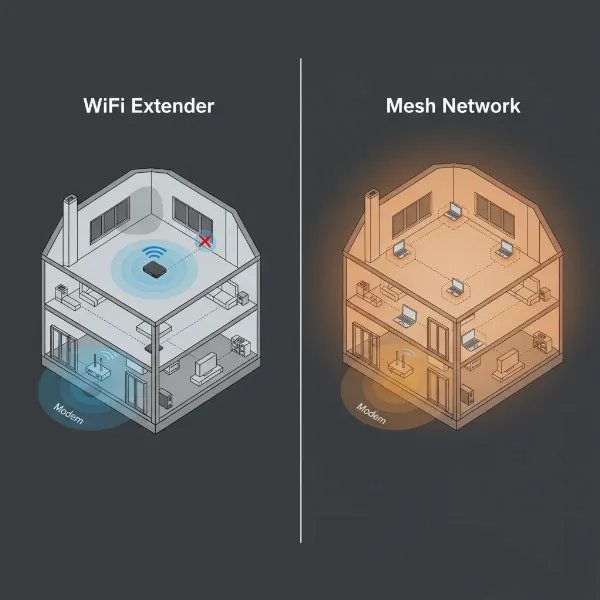
A Wi-Fi extender is a device designed to expand the coverage of your existing wireless network, reaching areas where your primary router’s signal is weak or non-existent. Often referred to interchangeably as Wi-Fi boosters or repeaters, these devices act as an intermediary, capturing the signal from your main router and rebroadcasting it to create a larger, more consistent Wi-Fi footprint. Think of it as a helpful relay station for your internet signal.
The core function of a Wi-Fi extender involves establishing two connections. First, it connects wirelessly (or occasionally via an Ethernet cable) to your main router, receiving the existing Wi-Fi signal. Second, it then creates a secondary network, effectively amplifying and retransmitting that signal further into your home or office. This process allows devices that were previously out of range to connect to a stronger signal, improving connectivity and speed in those problematic areas. While some older repeaters might use the same frequency band for both receiving and retransmitting, which can reduce speed, modern dual-band extenders often mitigate this by utilizing different bands, offering a more efficient extension of your network.
Different types of Wi-Fi extenders include traditional plug-in wall units, desktop models, and powerline adapters that use your home’s electrical wiring to transmit network data. Each type serves the same fundamental purpose: to bridge the gap between your router and your devices in distant corners.
2. Benefits of Using a Wifi Extender
Deploying a Wi-Fi extender can offer several compelling advantages, making it a popular choice for many households struggling with connectivity issues. The most immediate benefit is the expansion of Wi-Fi coverage to previously unreachable “dead zones” within your home. These are the areas where your signal consistently drops or is too weak for reliable internet use, such as basements, upstairs bedrooms, or even outdoor spaces like patios.
Beyond simply extending reach, a well-placed Wi-Fi extender can also improve the stability and perceived speed of your connection in these extended areas. By providing a stronger signal, it reduces buffering, lag during online gaming, and interruptions during video calls. Furthermore, opting for a Wi-Fi extender is often a more cost-effective solution than upgrading your entire internet package or investing in a new, more powerful router. Many models are straightforward to install, featuring simple plug-and-play setups or Wi-Fi Protected Setup (WPS) buttons that make pairing with your existing router incredibly easy, often within minutes. This ease of setup and affordability present a compelling case for their use.
 A person smiling while using a laptop on a patio with a strong Wi-Fi signal, thanks to a Wi-Fi extender.
3. When Do You Need a Wifi Extender?
Deciding if a Wi-Fi extender is the right solution depends largely on your specific network challenges and home environment. If you live in a multi-story house or a sprawling single-level home, you’ve likely encountered areas where the Wi-Fi signal noticeably weakens. This is a prime indicator that an extender could be beneficial, as it can push the signal into these expansive zones that your primary router struggles to cover.
Thick walls, concrete structures, or even large household appliances can act as significant physical barriers, absorbing or blocking Wi-Fi signals and creating frustrating dead spots. An extender can bypass or mitigate these obstacles by being placed strategically beyond them. If you frequently use Wi-Fi in outdoor areas like a garden, garage, or balcony, an extender can help maintain a strong connection where your main router’s signal typically fades. Additionally, in homes with numerous connected devices—smart TVs, gaming consoles, phones, tablets, and smart home gadgets—an extender can offload some of the network strain, ensuring that all devices receive adequate bandwidth, particularly in extended coverage areas. If your home falls within the 1,500 to 2,800 square feet range and you experience consistent slowdowns or drops far from your router, an extender is often a suitable fix before considering more extensive network overhauls.
4. Factors to Consider When Choosing a Wifi Extender
Selecting the right Wi-Fi extender involves more than just picking the first model you see. To ensure optimal performance and value, several key factors warrant your attention.
First, Wi-Fi Speed and Bands are paramount. Aim for an extender that supports speeds at least comparable to, if not higher than, your primary router and your internet plan. Most modern extenders are dual-band (2.4GHz and 5GHz), offering better performance by using the less congested 5GHz band for faster data transfer, especially when placed strategically. While 2.4GHz provides better range and penetrates walls more effectively, 5GHz offers superior speed over shorter distances. Consider your existing router’s Wi-Fi standard (e.g., Wi-Fi 6 or Wi-Fi 7) and choose an extender that matches or supports it to avoid creating bottlenecks.
Coverage Area is another crucial consideration. Evaluate the size of the “dead zone” you need to cover and select an extender with a stated range that meets or exceeds that requirement. You want to ensure it can effectively bridge the distance between your router and the problematic area while still receiving a strong initial signal.
Ethernet Ports can be a valuable addition. If you have wired devices like gaming consoles, smart TVs, or desktop PCs in the extended zone, an extender with Gigabit Ethernet ports allows for a more stable and faster wired connection, bypassing potential wireless interference.
Look for Additional Features such as MU-MIMO (Multi-User, Multiple-Input, Multiple-Output) for better handling of multiple devices simultaneously, Beamforming for directing signals to connected devices, and intuitive mobile apps (like TP-Link Tether) for easy setup and management. Always choose products from Reputable Brands known for quality and consistent firmware updates, which are vital for security and performance. Lastly, balance these features against your Budget, recognizing that while higher-end models offer more advanced capabilities, there are many effective budget-friendly options available for simpler needs.
5. Comparing Popular Wifi Extender Types on the Market
The market offers a diverse range of Wi-Fi extenders, each with unique features and catering to different needs and budgets. From robust, feature-rich models to more economical options, understanding their differences can guide your purchase.
Here’s a comparison of some popular Wi-Fi extenders that represent various capabilities and price points:
| Product Name | Brand | Wi-Fi Standard | Max Speed (Combined) | Ethernet Ports | Key Features | Price Range (Approx.) | Pros | Cons |
|---|---|---|---|---|---|---|---|---|
| TP-Link RE705X | TP-Link | Wi-Fi 6 | 2400 Mbps | 1x Gigabit | OneMesh, Intelligent Signal Light | $60 – $80 | Excellent overall performance, easy setup | Not the cheapest option |
| Netgear EAX17 AX3000 | Netgear | Wi-Fi 6 | 3000 Mbps | 1x Gigabit | Universal compatibility, Nighthawk app | $80 – $100 | Highly compatible, strong signal range | Can be bulky, blocks adjacent outlets |
| Mercusys ME60X | Mercusys | Wi-Fi 6 | 1200 Mbps | 1x Gigabit | Budget-friendly, compact design | $30 – $40 | Very affordable, good for small extensions | Limited range for larger homes |
| Netgear EXS27 BE5000 | Netgear | Wi-Fi 7 | 5000 Mbps | 1x Gigabit | Tri-band, Multi-Gigabit speeds, future-proof | $150 – $200+ | Cutting-edge Wi-Fi 7, handles many devices | Premium price, Wi-Fi 7 router needed for full utilization |
This table highlights how different models balance speed, features, and cost. For instance, the TP-Link RE705X is a solid all-rounder for most Wi-Fi 6 homes, offering a balance of speed and features. The Netgear EAX17 stands out for its broad compatibility, making it a safe bet for various existing router brands. If budget is a primary concern for extending coverage to a single problematic room, the Mercusys ME60X provides an economical Wi-Fi 6 solution. For users looking to future-proof their network or those with many high-bandwidth devices and a Wi-Fi 7 router, the Netgear EXS27 BE5000 offers top-tier performance at a higher investment.
6. How to Install and Use a Wifi Extender
Setting up a Wi-Fi extender is generally a straightforward process, designed to be accessible even for those without extensive networking experience. The key to successful installation and optimal performance lies in strategic placement and following a few simple steps.
Step-by-Step Installation:
- Choose the Optimal Location: This is the most critical step. Plug your extender into an electrical outlet roughly halfway between your main Wi-Fi router and the “dead zone” you want to cover. Crucially, the extender must still receive a strong, stable signal from your router to effectively retransmit it. Avoid placing it near thick walls, large metal objects, or appliances like microwaves and cordless phones, which can cause significant interference. Many extenders have indicator lights to help you determine ideal placement, showing the strength of the signal they are receiving from the router.
- Power On the Extender: Plug the extender into the chosen outlet and wait for its power indicator light to turn on, signaling it’s ready.
- Connect to Your Router: Most extenders offer two primary methods for initial connection:
- WPS (Wi-Fi Protected Setup) Button: If your router has a WPS button, this is often the quickest method. Press the WPS button on your router for about 3 seconds, then, within two minutes, press the WPS button on your extender. The devices should automatically connect, indicated by a specific light on the extender.
- Web Interface or Mobile App: If WPS isn’t available or preferred, plug the extender in near your router. Connect your computer or mobile device wirelessly to the extender’s default Wi-Fi network (usually printed on the extender or in its manual). Open a web browser and navigate to the extender’s setup page (common addresses include
tplinkrepeater.net,mywifiext.net, orextender.linksys.com). Follow the on-screen instructions to select your existing Wi-Fi network and enter its password.
- Relocate and Test: Once configured, you can unplug the extender and move it to your preferred optimal location. Test the Wi-Fi signal strength in the extended areas with your devices. You should notice a significant improvement in connectivity and speed.
Tips for Optimizing Performance:
- Firmware Updates: Regularly check for and install firmware updates from the manufacturer’s website. These updates often improve performance, add features, and patch security vulnerabilities.
- Elevate the Extender: Placing the extender on a shelf or higher surface rather than on the floor can sometimes improve signal distribution.
- Dedicated Bands: If your extender is dual-band, consider dedicating one band (e.g., 2.4GHz) for older devices and longer range, and the 5GHz band for newer, speed-hungry devices closer to the extender.
Troubleshooting Common Issues:
- Connection Drops/Slow Speeds: Re-evaluate placement. If the extender is too far from the router, it won’t receive a strong enough signal to rebroadcast effectively. Move it closer to the router or away from sources of interference.
- No Internet Access After Setup: Double-check that you entered the correct Wi-Fi password for your main router during setup. Ensure the extender is successfully connected to your router (check its indicator lights).
- Device Compatibility: While most modern extenders are universally compatible, some older routers might encounter issues. Ensure both devices support compatible Wi-Fi standards. If problems persist, a router firmware update might help, or consider upgrading your main router if it’s very old.
7. Where to Buy a Wifi Extender?
When you’re ready to invest in a Wi-Fi extender, you’ll find a wide array of options both online and in physical retail stores. Major online marketplaces are often the go-to for many consumers, offering extensive selections and competitive pricing. Retail giants like Amazon, Walmart, and Argos (in the UK) stock numerous models from leading brands, providing the convenience of doorstep delivery. These platforms also benefit from a wealth of customer reviews, which can be invaluable for gauging real-world performance and reliability before making a purchase.
For those who prefer a hands-on shopping experience or need immediate assistance, electronics retailers are a solid choice. Stores specializing in technology often have knowledgeable staff who can help you navigate the options and ensure compatibility with your existing network setup. Additionally, some internet service providers (ISPs) may offer their branded Wi-Fi extenders, which are often pre-configured for seamless integration with their own gateways. However, it’s always wise to compare their offerings with independent third-party devices, as there might be more feature-rich or cost-effective options elsewhere. When buying online, always verify the seller’s reputation and review their return policy, just in case the extender doesn’t meet your specific needs.
8. Buying Guide: How to Choose the Right Wifi Extender
Navigating the world of Wi-Fi extenders can feel overwhelming, but a clear buying guide can simplify your decision. Focusing on your specific situation and requirements will ensure you pick a device that genuinely enhances your home network.
First, establish your Budget. Wi-Fi extenders range from entry-level models under $50 to high-performance units exceeding $150. Knowing how much you’re willing to spend will narrow down your choices considerably. Next, clearly define your Usage Needs. Are you simply trying to eliminate a single small dead zone, or do you need to cover a large multi-story home? Is high-speed streaming or online gaming a priority in the extended areas, or is it mostly for casual browsing? Your answers will dictate the necessary speed, band support (dual-band is generally recommended), and feature set.
Compatibility is non-negotiable. Ensure the extender you choose is compatible with your existing router’s Wi-Fi standard (e.g., Wi-Fi 6, Wi-Fi 7). While most modern extenders offer broad compatibility, double-checking prevents future headaches. Opting for an extender from the same brand as your router can sometimes simplify setup, especially if they support unified network technologies like TP-Link’s OneMesh. Finally, always Read User Reviews. Real-world feedback from other consumers provides valuable insights into a product’s actual performance, ease of use, and common issues that specifications alone might not reveal. This holistic approach will empower you to make an informed decision and find a Wi-Fi extender that truly delivers value.
Conclusion
The question of whether a Wi-Fi extender is “worth it” ultimately depends on your specific needs and expectations. While some users encounter limitations, for many, these devices offer an affordable and effective way to conquer persistent dead zones and boost signal strength in hard-to-reach areas of their homes. They provide a practical solution for extending connectivity without the cost or complexity of a full router upgrade or mesh system. By carefully considering factors such as compatibility, speed requirements, and optimal placement, you can significantly improve your home Wi-Fi experience.
Ultimately, a Wi-Fi extender can bridge the gap, bringing stable internet to every corner of your living space. Are you ready to eliminate those frustrating dead zones and enjoy seamless connectivity throughout your entire home?
Frequently Asked Questions
Does a Wifi extender reduce internet speed?
|
Our Picks for the Best Wifi extender in 2026
As an Amazon Associate I earn from qualifying purchases.
|
||
| Num | Product | Action |
|---|---|---|
| 1 | TP-Link AC1900 WiFi Range Extender RE550 | Dual-Band Wireless Repeater Amplifier w/Gigabit Ethernet Port | Up to 2200 Sq. Ft., 32 Devices | Internet Signal Booster | APP Setup | EasyMesh Compatible |

|
| 2 | WiFi Extender Signal Booster for Home 2026 Internet Repeater Long Range Up to 9995 Sq. Ft. Whole Home WiFi Coverage |
|
| 3 | WiFi Extender WiFi Booster 1200 Mbps Dual Band (5GHz/2.4GHz) WiFi Extenders Signal Booster for Home, Internet Extended Booster WiFi Repeater (White) |
|
| 4 | TP-Link AX3000 WiFi 6 Range Extender | PCMag Editor's Choice | Dual-Band Wireless Repeater w/Ethernet Port | Up to 2400 Sq. Ft., 64 Devices | Internet Signal Booster | APP Setup | EasyMesh (RE715X) |
|
| 5 | WiFi Extender, WiFi Extenders Signal Booster for Home Up to 5000 sq.ft and 50 Devices, WiFi Range Extender, Wireless Repeater, Long Range Amplifier with Ethernet Port, 1-Tap Setup, Alexa Compatible |
|
| 6 | TP-Link AC1200 WiFi Extender, 2023 Engadget Best Budget Pick, 1.2Gbps Signal Booster for Home, Dual Band 5GHz/2.4GHz, Covers Up to 1500 Sq.ft and 30 Devices,Support Onemesh, One Ethernet Port (RE315) |
|
| 7 | 2026 WiFi Extender Signal Booster - 2.4GHz 300Mbps WiFi Booster for Home, Covers Up to 9999 Sq. Ft, Easy Setup, Ethernet Port & Access Point, Stable Internet Performance with 60+ Devices(White) |
|
| 8 | 1200Mbps WiFi Extender Signal Booster for Home, Dual Band 5GHz/2.4GHz Wireless Internet Repeater with 4 External Antennas, Covers Up to 3600 Sq.ft & Supports 80 Devices, AP Mode with Ethernet Port |
|
| 9 | TP-Link WiFi Extender with Ethernet Port, Dual Band 5GHz/2.4GHz, Up to 44% More Bandwidth Than Single Band, Covers Up to 1200 Sq.ft and 30 Devices, Signal Booster Amplifier Supports OneMesh(RE220) |
|
| 10 | WiFi Extender Signal Booster, WiFi Booster Dual Band 5.8GHz&2.4GHz, Covers Up to 10000 Sq.ft, 1.2Gbps WiFi Repeater with One Ethernet Port, One-tap Setup |
|
A Wi-Fi extender can sometimes reduce internet speed because it acts as a go-between for your devices and your main router. Many extenders communicate on the same frequency band with both the router and your connected devices, which can create a bottleneck. However, modern dual-band extenders often mitigate this by using one band to communicate with the router and another to connect to devices, minimizing speed loss. Proper placement and a good quality extender can help maintain more consistent speeds.