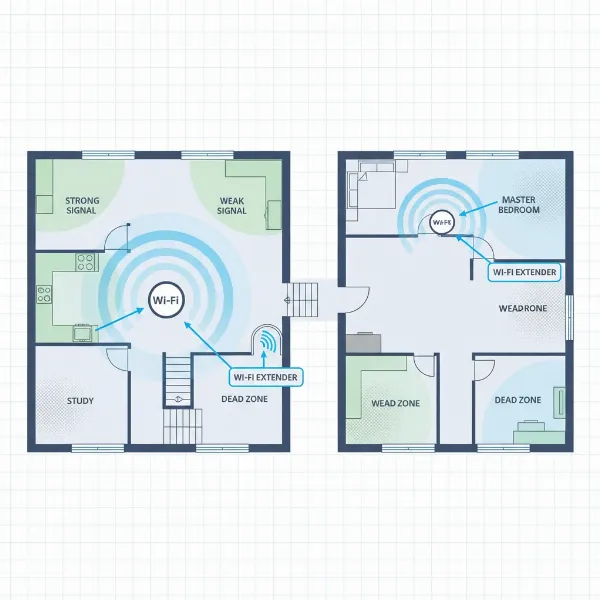
Do you ever find yourself struggling with frustrating Wi-Fi dead zones in your home, where signals drop, videos buffer, and online calls cut out? You’re not alone. Many modern homes, with their larger footprints and numerous smart devices, push the limits of a single router’s capabilities. A Wi-Fi extender offers a compelling solution, bridging the gap between your router and those connectivity black holes. This comprehensive guide will delve into what Wi-Fi extenders are, how they work, their benefits, and what to consider before making a purchase, helping you determine if it’s the right choice for your home network.
1. What is a WiFi Extender and How Does It Work?
A Wi-Fi extender, often referred to as a Wi-Fi booster or repeater, is a network device designed to expand the coverage area of your existing wireless local area network (WLAN). It functions by capturing your router’s current wireless signal, amplifying it, and then rebroadcasting it to create an extended network coverage in areas where the original signal is weak or non-existent. Essentially, it acts as a middleman, relaying data between your main router and devices situated far from it.
The operational principle is straightforward: the extender connects to your primary wireless router, usually wirelessly, but sometimes via a wired connection. It then establishes a secondary network that effectively extends your Wi-Fi’s reach. When a device connects to the extender, the extender communicates with your main router to provide internet access, creating a relay system for your Wi-Fi signal. While traditional extenders might broadcast a separate network name (SSID), many modern “mesh-ready” extenders can integrate into your existing network, offering a single, seamless network experience.
[image-1|wifi-extender-working-principle|Illustration of a Wi-Fi extender amplifying and rebroadcasting a signal to cover a dead zone in a home.|
An illustrative diagram showing a central Wi-Fi router broadcasting a signal, with a weak signal area on one side of a house. A Wi-Fi extender is strategically placed halfway between the router and the dead zone, emitting a strong, extended Wi-Fi signal that covers the previously weak area. The house has multiple rooms and floors, indicating common scenarios for signal degradation. The style should be clean and infographic-like.]
2. Benefits of Using a WiFi Extender
Implementing a Wi-Fi extender into your home network can yield several significant advantages, transforming previously problematic connectivity into a smooth and reliable experience. One of the primary benefits is the elimination of dead zones, extending Wi-Fi coverage to all corners of your home, including basements, upper floors, and remote rooms where signals previously struggled to reach. This broadens your network’s footprint, ensuring consistent connectivity.
Beyond just extending coverage, a Wi-Fi extender can improve signal strength and stability. This means less buffering when streaming 4K video, smoother online gaming sessions, and more reliable video calls. For many households, an extender is a cost-effective solution compared to investing in a brand-new, more powerful router or a complete mesh Wi-Fi system, making it an attractive option for budget-conscious users. Furthermore, most Wi-Fi extenders are remarkably easy to install and use, often featuring simple setup processes via a WPS button or a user-friendly mobile app, negating the need for extensive technical knowledge. They are also compatible with most existing routers and devices, offering flexibility to relocate them as your network needs evolve.
3. When Do You Need a WiFi Extender?
Recognizing the signs that you might benefit from a Wi-Fi extender is key to optimizing your home network. You likely need an extender if you live in a large home or a multi-story house where a single router struggles to cover all areas adequately. The average home size has increased significantly, making it challenging for one central router to provide consistent signal strength everywhere.
Physical obstructions within your home, such as thick walls, concrete, metal objects, or even large appliances, can severely weaken Wi-Fi signals, creating frustrating dead spots. If you experience noticeably slower speeds, frequent disconnections, or no signal at all in certain rooms, an extender can help bypass these barriers. Additionally, if you desire Wi-Fi connectivity in outdoor areas like your patio, garden, or garage, an extender can effectively extend your network beyond the confines of your main living space. Finally, with the proliferation of multiple devices connecting simultaneously—from smart TVs and gaming consoles to laptops and smart home gadgets—an extender can help manage the load and ensure a stable connection for all your devices.
4. Factors to Consider When Choosing a WiFi Extender
Selecting the right Wi-Fi extender involves evaluating several critical factors to ensure it effectively addresses your network issues and meets your specific needs. Understanding these elements will help you make an informed decision.
-
Wi-Fi Speed and Standards: Always choose an extender that supports speeds equivalent to or higher than your existing router, to avoid creating a bottleneck. Look for devices compatible with the latest Wi-Fi standards like Wi-Fi 6 (802.11ax) or even Wi-Fi 6E/7 for future-proofing, especially if your primary router also supports these. This ensures faster data transfer rates and better performance.
-
Frequency Bands: Dual-band extenders (supporting both 2.4GHz and 5GHz) offer superior performance. The 2.4GHz band provides greater range and better penetration through walls, while the 5GHz band offers faster speeds and less interference for demanding tasks. Tri-band extenders, while more expensive, provide a dedicated backhaul channel for communication between the router and extender, minimizing speed degradation.
-
Coverage Area: Consider the square footage or meterage the extender is designed to cover. Manufacturers often provide a range, but remember that real-world performance is affected by environmental factors. Optimal placement, typically halfway between your router and the dead zone, is crucial for maximizing the extender’s coverage.
-
Ethernet Ports: If you need to connect wired devices like gaming consoles, desktop PCs, or smart TVs in the extended area, choose an extender with one or more Gigabit Ethernet ports. This provides a stable, high-speed connection for devices that benefit from it.
-
Additional Features: Modern extenders offer various features that enhance usability and performance. Look for:
- MU-MIMO (Multi-User, Multiple-Input, Multiple-Output): Improves efficiency by allowing the extender to communicate with multiple devices simultaneously.
- Beamforming: Directs Wi-Fi signals towards connected devices rather than broadcasting in all directions, improving signal strength.
- WPS (Wi-Fi Protected Setup): Simplifies the installation process with a single button press.
- Companion Apps (e.g., TP-Link Tether): For easy setup, management, and optimal placement guidance.
- Mesh-ready or OneMesh compatibility: Allows the extender to create a single, seamless network with compatible routers, enabling seamless roaming without manually switching networks.
-
Brand and Price: Opt for reputable brands known for network equipment like TP-Link, Netgear, and Asus, as they generally offer better reliability and support. Prices vary widely based on speed, features, and brand, so align your budget with your specific needs. While budget-friendly options suffice for basic browsing, higher-end models are better for gaming or 4K streaming.
-
Compatibility: Ensure the extender is compatible with your existing Wi-Fi router. While most are universally compatible, choosing an extender from the same brand as your router can sometimes unlock additional features or provide a more streamlined setup, particularly with mesh-ready systems.
“A Wi-Fi extender is a great way to push your internet connection to those hard-to-reach places. However, selecting the right one depends heavily on understanding your current network’s limitations and where you need the biggest boost.” – Emily Chen, Network Architect.
5. Comparing Popular WiFi Extenders on the Market
The market offers a diverse range of Wi-Fi extenders, each with its own strengths and weaknesses. Here’s a comparison of some popular models, highlighting their key specifications and suitability. This table focuses on common models and their general performance characteristics as of early 2026.
| Feature | TP-Link RE715X (AX3000) | Asus RP-AX58 (AX3000) | TP-Link RE315 (AC1200) | Netgear EXS27 (BE5000) |
|---|---|---|---|---|
| Brand | TP-Link | Asus | TP-Link | Netgear |
| Wi-Fi Speed | AX3000 (up to 3 Gbps) | AX3000 (up to 3 Gbps) | AC1200 (up to 1.2 Gbps) | BE5000 (up to 5 Gbps) |
| Bands | Dual-band Wi-Fi 6 | Dual-band Wi-Fi 6 | Dual-band Wi-Fi 5 | Dual-band Wi-Fi 7 (future-proof) |
| Coverage | Excellent, large homes (up to 2,500 sq ft+) | Large homes (up to 2,200 sq ft) | Smaller homes/apartments (up to 1,500 sq ft) | Very large homes, high-demand |
| Ethernet Ports | 1 Gigabit Ethernet | 1 Gigabit Ethernet | 1 Fast Ethernet (10/100 Mbps) | Multiple Gigabit Ethernet |
| Features | OneMesh, Tether app, 160MHz channel, Smart indicator | AiMesh, stylish design, high upload speeds | Tether app, Signal indicator | Wi-Fi 7, sleek design, high compatibility |
| Price Category | Mid-to-High | Mid-to-High | Budget-friendly | Premium |
| Pros | Fast, great coverage, seamless roaming with OneMesh, robust performance. | Stylish, good for gaming/remote work, integrates with Asus AiMesh. | Very affordable, easy setup, good value for basic extension. | Extremely fast, future-proof with Wi-Fi 7, highly versatile. |
| Cons | Can be bulky, no pass-through outlet, a bit expensive. | Tall design may block outlets, better with Asus routers. | Limited speed and coverage for large homes or heavy usage. | Very expensive, potentially overkill for average homes. |
This table provides a snapshot of some leading options, but the best choice for you will ultimately depend on your budget, existing router, and specific connectivity needs.
6. Guide to Installing and Using a WiFi Extender
Setting up a Wi-Fi extender is generally a straightforward process, designed to be accessible even for non-tech-savvy users. Here’s a step-by-step guide to get you started and optimize its performance:
Step-by-Step Installation:
-
Choose the Ideal Location: Begin by plugging your extender into a power outlet near your main router for the initial setup. The most crucial step is finding its permanent location: approximately halfway between your router and the Wi-Fi dead zone. Ensure this spot still receives a strong, stable signal from your main router (ideally 50% signal strength or more). Avoid placing it behind thick walls, large metal objects, or near interfering appliances like microwaves.
-
Power On and Connect: Plug the extender into an electrical outlet. Wait for its power indicator light to turn on, signaling it’s ready for configuration.
-
Sync with Your Existing Wi-Fi Network:
- Using the WPS Button (Recommended for Ease): Press the WPS button on your main router (usually labeled with two arrows or “WPS”). Within two minutes, press the WPS button on your Wi-Fi extender. The devices will automatically connect, and an indicator light on the extender will confirm a successful connection.
- Using the Extender’s Web Interface: If your router lacks WPS, or you prefer a manual setup, connect a device (laptop/smartphone) to the extender’s default Wi-Fi network (SSID and password are often printed on the extender itself or in its manual). Open a web browser and navigate to the extender’s setup page (e.g.,
http://tplinkrepeater.netor an IP address like192.168.0.254). Log in with the default credentials (often “admin”). Follow the on-screen prompts to select your existing Wi-Fi network and enter its password.
Our Picks for the Best Wifi extender in 2026As an Amazon Associate I earn from qualifying purchases.Num Product Action 1 2026 WiFi Extender Signal Booster - 2.4GHz 300Mbps WiFi Booster for Home, Covers Up to 9999 Sq. Ft, Easy Setup, Ethernet Port & Access Point, Stable Internet Performance with 60+ Devices(White) 
2 TP-Link AC1900 WiFi Range Extender RE550 | Dual-Band Wireless Repeater Amplifier w/Gigabit Ethernet Port | Up to 2200 Sq. Ft., 32 Devices | Internet Signal Booster | APP Setup | EasyMesh Compatible
3 TP-Link AC1200 WiFi Extender, 2023 Engadget Best Budget Pick, 1.2Gbps Signal Booster for Home, Dual Band 5GHz/2.4GHz, Covers Up to 1500 Sq.ft and 30 Devices,Support Onemesh, One Ethernet Port (RE315)
4 TP-Link WiFi Extender with Ethernet Port, Dual Band 5GHz/2.4GHz, Up to 44% More Bandwidth Than Single Band, Covers Up to 1200 Sq.ft and 30 Devices, Signal Booster Amplifier Supports OneMesh(RE220)
5 WiFi Extender WiFi Booster 1200 Mbps Dual Band (5GHz/2.4GHz) WiFi Extenders Signal Booster for Home, Internet Extended Booster WiFi Repeater (White)
6 WiFi Extender Signal Booster for Home 2026 Internet Repeater Long Range Up to 9995 Sq. Ft. Whole Home WiFi Coverage
7 1200Mbps WiFi Extender Signal Booster for Home, Dual Band 5GHz/2.4GHz Wireless Internet Repeater with 4 External Antennas, Covers Up to 3600 Sq.ft & Supports 80 Devices, AP Mode with Ethernet Port
8 WiFi Extender, WiFi Extenders Signal Booster for Home Up to 5000 sq.ft and 50 Devices, WiFi Range Extender, Wireless Repeater, Long Range Amplifier with Ethernet Port, 1-Tap Setup, Alexa Compatible
9 TP-Link AX3000 WiFi 6 Range Extender | PCMag Editor's Choice | Dual-Band Wireless Repeater w/Ethernet Port | Up to 2400 Sq. Ft., 64 Devices | Internet Signal Booster | APP Setup | EasyMesh (RE715X)
10 WiFi Extender Signal Booster, WiFi Booster Dual Band 5.8GHz&2.4GHz, Covers Up to 10000 Sq.ft, 1.2Gbps WiFi Repeater with One Ethernet Port, One-tap Setup
-
Test and Optimize Placement: Once connected, unplug the extender and move it to its optimal halfway location. Plug it back in and observe its signal indicator lights. These lights typically show the strength of the connection to your router, helping you fine-tune the placement for the best signal. Test the Wi-Fi speed and coverage in the previously problematic areas.
Tips for Maximizing Performance:
- Firmware Updates: Regularly check for and install firmware updates from the manufacturer’s website. Updates often include performance enhancements, bug fixes, and security improvements.
- Elevate the Device: Placing the extender on a shelf or higher surface rather than the floor can improve signal propagation.
- Reduce Interference: Keep the extender away from other electronic devices that can emit interference.
- Secure Your Network: After setup, change the default administrator password for the extender. Ensure you are using strong Wi-Fi security protocols like WPA2 or WPA3 for your extended network.
Troubleshooting Common Issues:
- Frequent Disconnections or Slow Speeds: This is often a placement issue. The extender might be too far from the main router, receiving a weak signal to begin with. Try moving it closer to the router until the signal indicator shows a strong connection. If using a single-band extender, speed can be halved due to the extender receiving and transmitting on the same channel; consider a dual-band model.
- No Internet Access After Setup: Double-check that you connected to the correct network and entered the correct Wi-Fi password during setup. A factory reset of the extender and re-attempting setup can resolve many configuration issues.
- Device Compatibility Issues: Ensure your extender’s firmware is up to date. If issues persist with older routers, consider upgrading your router or contacting the extender’s support.
7. Where to Buy a WiFi Extender?
Finding a Wi-Fi extender is relatively easy, as they are widely available through various retail channels, both online and in physical stores.
For online shopping, major e-commerce platforms like Amazon, Best Buy, and direct manufacturer websites (e.g., TP-Link, Netgear, Asus) offer extensive selections. These platforms allow you to compare models, read customer reviews, and often provide competitive pricing and convenient delivery options. When purchasing online, always verify the seller’s reputation and return policy.
If you prefer to see the product in person or need immediate assistance, physical electronics retailers such as Best Buy, The Home Depot, Staples, Office Depot, Target, and Lowe’s stock a range of Wi-Fi extenders. These stores allow you to speak with sales associates, get hands-on with the devices, and often offer in-store pickup options. Local computer and networking specialty stores may also carry a curated selection with expert advice.
8. Buying Guide: Your Final Checklist for a WiFi Extender
Before making your final purchase decision, use this quick buying guide to ensure you’re choosing the best Wi-Fi extender for your specific situation.
- Define Your Budget: Wi-Fi extenders range from budget-friendly options under $50 to premium models costing over $100. Determine how much you’re willing to spend, keeping in mind that higher prices often translate to faster speeds, more advanced features, and broader coverage.
- Assess Your Needs: What exactly are you trying to achieve? Are you merely trying to eliminate a single dead spot in a small area, or do you need to cover multiple floors in a large house for demanding activities like 4K streaming and online gaming? Your usage dictates the required speed, band support, and coverage area.
- Check Compatibility: While most extenders are universally compatible, for optimal performance and to leverage features like seamless roaming, consider an extender from the same brand as your main router. Always double-check the Wi-Fi standards supported by both your router and the extender.
- Read Reviews: Customer and expert reviews can provide invaluable insights into real-world performance, ease of setup, and common issues. Look for consistent feedback regarding reliability and actual speed improvements.
- Consider Alternatives: For very large homes or users who demand the absolute best performance and a truly unified network, a mesh Wi-Fi system might be a superior, albeit more expensive, alternative. These systems replace your router and use multiple satellite units to create a single, powerful, and seamless network across your entire property.
Conclusion
Wi-Fi extenders are a powerful and often cost-effective solution for combating poor wireless coverage and frustrating dead zones in your home. By understanding how they work and carefully considering factors such as speed, bands, coverage, and features, you can select a device that significantly boosts your network’s reach and performance. While they may introduce a slight speed reduction compared to a direct router connection, the benefits of expanded coverage and improved signal stability often outweigh this minor drawback for many users. For those seeking to maximize their existing internet setup without a complete overhaul, an extender offers a compelling value proposition. Are you ready to say goodbye to dead zones and embrace seamless connectivity throughout your home?
Frequently Asked Questions
Does a WiFi extender slow down internet speed?
Yes, a Wi-Fi extender can sometimes reduce your internet speed. This typically happens because the extender uses a portion of its bandwidth to communicate with the main router while also broadcasting the extended signal. For single-band extenders, this can effectively halve your bandwidth. Dual-band extenders or those with dedicated backhaul channels can mitigate this issue by using one band to communicate with the router and another for client devices, leading to less speed degradation. Proper placement is also key to minimizing speed loss.