Are you tired of Wi-Fi dead zones, buffering smart devices, or dropped connections in your modern smart home? As our homes become increasingly connected, a robust and reliable Wi-Fi signal is no longer a luxury but a necessity. From smart thermostats and security cameras to voice assistants and streaming media, every device relies on a strong network. This comprehensive guide will navigate the world of Wi-Fi extenders, helping you find the perfect solution to expand your network’s reach, boost performance, and ensure every corner of your smart home stays seamlessly connected.
1. What is a Wifi Extender and How Does It Work?
A Wi-Fi extender, also known as a Wi-Fi booster or repeater, is a device designed to expand the coverage area of your existing wireless network. It acts as a bridge, capturing the Wi-Fi signal from your main router, amplifying it, and then re-broadcasting it to areas where the original signal is weak or nonexistent. This essentially stretches your Wi-Fi’s reach, eliminating dead zones and providing more consistent connectivity throughout your home.
Wi-Fi extenders typically work by connecting wirelessly to your primary router. Once connected, they create an additional network (often with a slightly modified name, though some support a single network name for seamless roaming) that your devices can connect to. When a device connects to the extender, the extender then communicates with the main router to access the internet. This two-way communication allows your smart devices, laptops, and other gadgets to stay online even when they are far from your main router. Common types include wall-plug models, desktop units, and some that can integrate into a mesh-like system.
2. Benefits of Using a Wifi Extender
Integrating a Wi-Fi extender into your smart home setup offers several tangible benefits, significantly enhancing your overall internet experience. The most immediate advantage is the extended Wi-Fi coverage, eliminating frustrating dead zones where your signal previously struggled or disappeared entirely. This means you can reliably use smart devices, stream content, and work from any room, including basements, attics, or even outdoor areas like patios.
Beyond just extending reach, a good Wi-Fi extender can notably improve the speed and stability of your connection in previously problematic areas. By boosting the signal, it ensures that your smart devices, which often require a consistent connection, operate smoothly without lag or interruptions. Compared to upgrading your entire internet plan or replacing a perfectly functional router, a Wi-Fi extender presents a cost-effective solution. They are also generally straightforward to install, often requiring just a few simple steps or the press of a button, making them accessible even for those with limited technical expertise.
3. When Do You Need a Wifi Extender?
You might find yourself needing a Wi-Fi extender in various common home scenarios where your primary router falls short. If your home has multiple stories, thick walls, or a sprawling layout, signals can struggle to penetrate, leaving certain rooms or floors without adequate coverage. Similarly, large open-plan areas or even outdoor spaces like a garden or garage might be beyond your router’s natural range, creating frustrating dead zones.
Another indicator is when you have numerous smart devices concurrently connected to your network. Each device, from smart speakers and lights to security cameras and robotic vacuums, demands bandwidth. An extender can help distribute this load and ensure a stable connection for all, preventing slowdowns. If you frequently experience buffering during streaming, dropped video calls, or unresponsive smart home devices in specific locations, a Wi-Fi extender is likely the practical and efficient solution to fortify your home’s connectivity.
4. Factors to Consider When Choosing a Wifi Extender
Selecting the ideal Wi-Fi extender requires a thoughtful approach, weighing several technical and practical considerations to ensure it meets your smart home’s unique demands. Starting with Wi-Fi Speed, it’s crucial to choose an extender that supports speeds at least comparable to, or ideally higher than, your current internet plan and main router. If your router is Wi-Fi 6 (802.11ax), opt for a Wi-Fi 6 extender to fully leverage the latest speed and efficiency improvements for your smart devices.
Next, consider the Frequency Bands. Dual-band extenders (2.4GHz and 5GHz) are standard and offer flexibility. The 2.4GHz band provides greater range and better wall penetration, suitable for older smart devices and general browsing. The 5GHz band offers faster speeds and less interference, ideal for high-bandwidth activities like streaming 4K video or online gaming, and newer smart home hubs. Some advanced extenders even offer tri-band technology, dedicating one 5GHz band exclusively for communication with the router (backhaul), which can significantly reduce speed degradation.
Coverage Range is another critical factor; assess the size of the area you need to cover and select an extender with a specified range that comfortably exceeds it. For smart homes, especially those with wired devices like smart hubs, gaming consoles, or PCs, Ethernet Ports are essential for providing stable, high-speed wired connections. Finally, look for Additional Features such as MU-MIMO (for efficient communication with multiple devices simultaneously), Beamforming (to direct signal towards connected devices), or a USB port for network storage. Always balance these features with Brand Reputation and Price, opting for reliable brands that fit your budget.
“A well-chosen Wifi extender acts like an invisible assistant, ensuring your smart home devices never miss a beat, no matter where they are located.”
5. Comparison of Popular Wifi Extenders on the Market
Choosing the right Wi-Fi extender means looking at specific models and their capabilities. Here’s a comparison of some popular options, highlighting their features and suitability for modern smart homes.
| Feature | TP-Link RE715X (AX3000) | ASUS RP-AX58 (AX3000) | TP-Link RE315 (AC1200) | Netgear Nighthawk AX8 (EAX80) |
|---|---|---|---|---|
| Brand | TP-Link | ASUS | TP-Link | Netgear |
| Wi-Fi Speed | Up to 3000 Mbps (574Mbps on 2.4GHz, 2402Mbps on 5GHz) | Up to 3000 Mbps (574Mbps on 2.4GHz, 2402Mbps on 5GHz) | Up to 1200 Mbps (300Mbps on 2.4GHz, 867Mbps on 5GHz) | Up to 6000 Mbps (1200Mbps on 2.4GHz, 4800Mbps on 5GHz) |
| Bands | Dual-Band Wi-Fi 6 (AX3000) | Dual-Band Wi-Fi 6 (AX3000) | Dual-Band Wi-Fi 5 (AC1200) | Dual-Band Wi-Fi 6 (AX6000) |
| Coverage | Up to 1,500 sq ft (approx.) | Good for large homes/multi-story | Around 1,500 sq ft for smaller homes | Excellent for massive homes/offices |
| Ethernet Ports | 1x Gigabit Ethernet | 1x Gigabit Ethernet | 1x Fast Ethernet | 4x Gigabit Ethernet |
| Additional Features | OneMesh, Intelligent Signal Light, Tether App | AiMesh (for ASUS routers), OFDMA, MU-MIMO, Tether App | OneMesh, Signal Indicator, Tether App | MU-MIMO, Beamforming, Smart Roaming, USB 3.0, Nighthawk App |
| Price Range | Mid-range to High-end | Mid-range to High-end | Budget-friendly | High-end |
| Pros | Excellent performance, Wi-Fi 6, easy setup | Wi-Fi 6, AiMesh compatibility for seamless roaming | Affordable, compact, easy setup | Very high speed, multiple Ethernet ports, USB, mesh capabilities, ideal for gamers/heavy users |
| Cons | Higher latency at far distances (like most extenders) | Works best with ASUS routers; may struggle with other brands for single SSID | Limited speed and coverage for large homes | Pricey, works best with Wi-Fi 6 router |
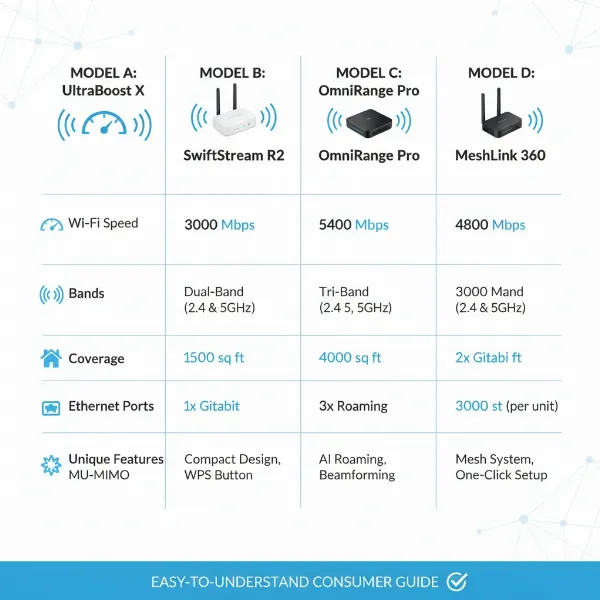 Comparison of popular Wifi extenders and their key features for smart homes
6. How to Install and Use a Wifi Extender
Setting up a Wi-Fi extender is generally a straightforward process, designed to be user-friendly. Most modern extenders offer a few installation methods:
Method 1: Using the WPS Button (Wi-Fi Protected Setup)
This is often the quickest way to get started.
- Plug in the extender: Place the extender into a power outlet near your main router.
- Press WPS on your router: Locate the WPS button on your main Wi-Fi router and press it for a few seconds. The WPS light on the router should start blinking.
- Press WPS on the extender: Within two minutes, press the WPS button on your Wi-Fi extender. Its indicator light should change, signaling a successful connection.
- Relocate: Once connected, unplug the extender and move it to a strategic location (see “Optimal Placement” below).
Method 2: Using the Extender’s Web Interface or Mobile App
This method offers more control over settings.
- Plug in the extender: Connect the extender to a power outlet near your router.
- Connect to the extender’s network: On your computer or smartphone, connect to the extender’s temporary Wi-Fi network (the default name is usually printed on the extender or in its manual).
- Access setup page: Open a web browser and enter the default IP address (e.g., 192.168.0.1, 192.168.1.1) or a specific web address (e.g., tplinkrepeater.net, mywifiext.net) provided in the manual.
- Follow on-screen instructions: Log in (default credentials are often “admin”) and follow the setup wizard to select your main Wi-Fi network and enter its password. You can often choose to keep the same network name (SSID) for seamless roaming or create a new one.
- Relocate: After setup, move the extender to its optimal position.
Optimal Placement for Best Performance:
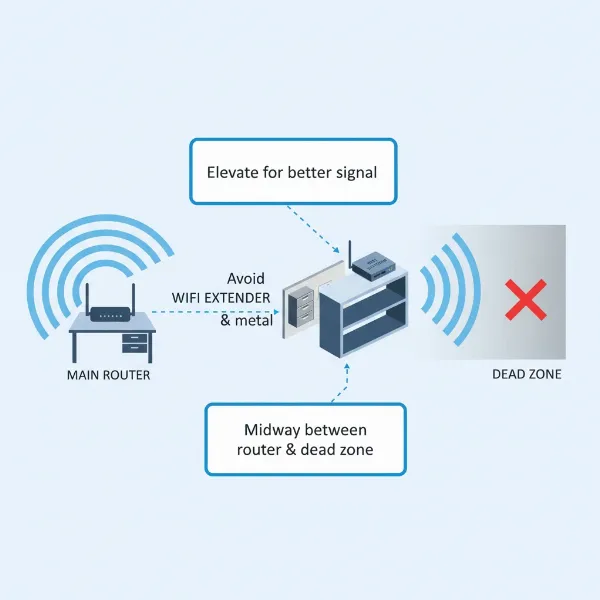
The extender’s location is critical. It should be placed roughly halfway between your main router and the Wi-Fi dead zone. Crucially, it must still receive a strong, stable signal from your main router. Avoid placing it near thick walls, large metal objects, microwaves, or cordless phones, as these can interfere with the signal. Many extenders have signal indicator lights to help you find the best spot – aim for green or strong blue lights, indicating a good connection to the router.
Troubleshooting Common Issues:
- Slow Speeds: Ensure the extender is placed where it receives a strong signal from the router. Update firmware for both router and extender. Consider if a mesh system might be a better fit for very large homes.
- Dropping Connections: Check for interference from other electronics. Ensure the extender isn’t too far from the router.
- Can’t Connect: Double-check Wi-Fi passwords. Reboot both the router and extender.
7. Where to Buy a Wifi Extender?
When you’re ready to purchase a Wi-Fi extender, you have several reliable options, both online and in physical stores. Major electronics retailers like Best Buy, Walmart, and Target often carry a wide selection of popular brands such as TP-Link, Netgear, and ASUS. These stores allow you to see products in person and sometimes get advice from sales associates.
For a broader range of choices and competitive pricing, online marketplaces like Amazon, Newegg, and the official websites of manufacturers (e.g., TP-Link, Netgear, ASUS) are excellent resources. When buying online, pay close attention to customer reviews and ratings, which can provide valuable insights into a product’s real-world performance and ease of use. Always ensure you’re purchasing from a reputable seller to guarantee product authenticity and warranty support. Comparing prices across different platforms can also help you find the best deal for your chosen extender.
 A graphic depicting popular online retailers for Wifi extenders with their logos, set against a backdrop of a smart home interface with connected devices
8. Buying Guide: How to Choose a Wifi Extender
Navigating the market for a Wi-Fi extender can be overwhelming, but a systematic approach ensures you make an informed decision tailored to your needs. Here’s a comprehensive buying guide:
-
Determine Your Budget: Wi-Fi extenders range from budget-friendly options under $50 to high-performance models exceeding $150. Establish how much you’re willing to spend, keeping in mind that higher-priced models often offer superior speed, coverage, and advanced features.
-
Identify Your Usage Needs: Clearly define why you need an extender. Are you simply trying to eliminate one small dead zone in a single room, or do you need to cover a large, multi-story home with numerous smart devices and heavy streaming? Your specific needs will dictate the required speed, coverage, and feature set. For instance, a smart home with many devices might benefit from MU-MIMO and Wi-Fi 6 for efficient communication.
-
Check Compatibility with Your Router: While most modern extenders are universally compatible, it’s always wise to confirm. If your router supports specific mesh technologies (like TP-Link OneMesh or ASUS AiMesh), choosing an extender from the same brand with compatible features can create a more seamless, single-network experience. Always check the Wi-Fi standards (e.g., Wi-Fi 5 / 802.11ac or Wi-Fi 6 / 802.11ax) to ensure your extender is as capable as your router.
-
Read Customer Reviews and Expert Assessments: Before making a final decision, consult reviews from other users and independent tech experts. These provide invaluable real-world insights into a product’s performance, reliability, and ease of setup that specifications alone cannot convey. Look for consistent positive feedback on signal stability, speed, and whether the device effectively solved similar connectivity issues.
By following these guidelines, you can confidently select a Wi-Fi extender that not only addresses your current connectivity challenges but also future-proofs your smart home network.
Conclusion
In an increasingly connected world, a robust and expansive Wi-Fi network is the backbone of any modern smart home. Wi-Fi extenders offer a practical, cost-effective solution to conquer dead zones and ensure seamless connectivity for all your devices, from smart lighting to security systems. By understanding how these devices work, recognizing when they’re needed, and carefully considering factors like speed, bands, and coverage, you can make an informed choice. Whether you opt for a budget-friendly option or a high-performance Wi-Fi 6 model, the right extender will significantly enhance your smart home experience. Don’t let a weak signal hold you back—explore the options and transform your home’s connectivity. What specific area of your home experiences the most frustrating Wi-Fi dead zones, and how would a boosted signal transform your daily routine?
Frequently Asked Questions
Does a Wifi extender reduce internet speed?
|
Our Picks for the Best Wifi extender in 2026
As an Amazon Associate I earn from qualifying purchases.
|
||
| Num | Product | Action |
|---|---|---|
| 1 | WiFi Extender Signal Booster, WiFi Booster Dual Band 5.8GHz&2.4GHz, Covers Up to 10000 Sq.ft, 1.2Gbps WiFi Repeater with One Ethernet Port, One-tap Setup |

|
| 2 | TP-Link AX3000 WiFi 6 Range Extender | PCMag Editor's Choice | Dual-Band Wireless Repeater w/Ethernet Port | Up to 2400 Sq. Ft., 64 Devices | Internet Signal Booster | APP Setup | EasyMesh (RE715X) |
|
| 3 | WiFi Extender Signal Booster for Home 2026 Internet Repeater Long Range Up to 9995 Sq. Ft. Whole Home WiFi Coverage |
|
| 4 | WiFi Extender, WiFi Extenders Signal Booster for Home Up to 5000 sq.ft and 50 Devices, WiFi Range Extender, Wireless Repeater, Long Range Amplifier with Ethernet Port, 1-Tap Setup, Alexa Compatible |
|
| 5 | 2026 WiFi Extender Signal Booster - 2.4GHz 300Mbps WiFi Booster for Home, Covers Up to 9999 Sq. Ft, Easy Setup, Ethernet Port & Access Point, Stable Internet Performance with 60+ Devices(White) |
|
| 6 | 1200Mbps WiFi Extender Signal Booster for Home, Dual Band 5GHz/2.4GHz Wireless Internet Repeater with 4 External Antennas, Covers Up to 3600 Sq.ft & Supports 80 Devices, AP Mode with Ethernet Port |
|
| 7 | TP-Link AC1200 WiFi Extender, 2023 Engadget Best Budget Pick, 1.2Gbps Signal Booster for Home, Dual Band 5GHz/2.4GHz, Covers Up to 1500 Sq.ft and 30 Devices,Support Onemesh, One Ethernet Port (RE315) |
|
| 8 | TP-Link AC1900 WiFi Range Extender RE550 | Dual-Band Wireless Repeater Amplifier w/Gigabit Ethernet Port | Up to 2200 Sq. Ft., 32 Devices | Internet Signal Booster | APP Setup | EasyMesh Compatible |
|
| 9 | TP-Link WiFi Extender with Ethernet Port, Dual Band 5GHz/2.4GHz, Up to 44% More Bandwidth Than Single Band, Covers Up to 1200 Sq.ft and 30 Devices, Signal Booster Amplifier Supports OneMesh(RE220) |
|
| 10 | WiFi Extender WiFi Booster 1200 Mbps Dual Band (5GHz/2.4GHz) WiFi Extenders Signal Booster for Home, Internet Extended Booster WiFi Repeater (White) |
|
Yes, Wi-Fi extenders can sometimes cause a slight reduction in internet speed, particularly if they are not strategically placed or if they are older models. This is because they often use one wireless band to communicate with the router and the same band to broadcast to devices, essentially splitting the available bandwidth. However, modern dual-band or tri-band extenders, especially those with Wi-Fi 6 and dedicated backhaul channels, are designed to minimize this speed loss, offering significantly better performance and a more stable connection.