In today’s hyper-connected world, a strong and stable Wi-Fi signal isn’t a luxury; it’s a necessity. Yet, many of us still grapple with frustrating dead zones, sluggish speeds, and dropped connections in our homes or offices. Whether it’s the farthest bedroom, the basement, or even the backyard patio, weak Wi-Fi can bring daily activities to a grinding halt. This is where a Wi-Fi extender, a robust solution designed to amplify your existing network, becomes an indispensable tool. It transforms your inconsistent internet experience into a seamless and reliable connection, ensuring every corner of your space is covered.
1. What is a Wifi Extender and How Does It Work?
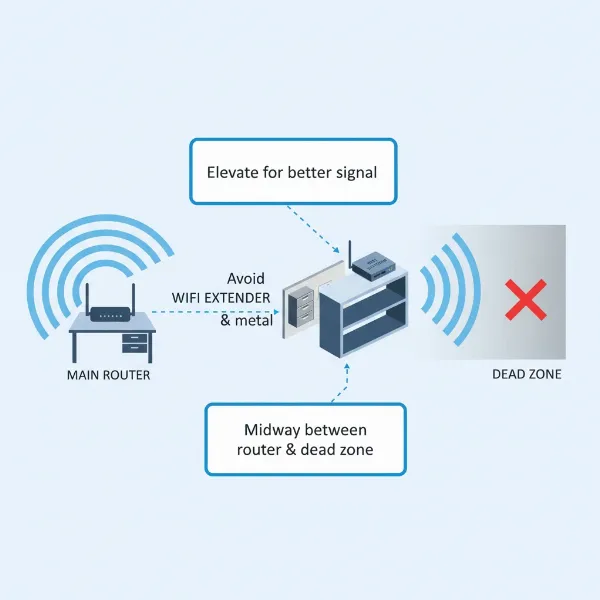
A Wi-Fi extender, also commonly known as a Wi-Fi booster or repeater, is a device engineered to broaden the reach of your existing wireless network. Its primary function is to eliminate “dead zones”—areas where your main router’s signal is weak or non-existent—by rebroadcasting the Wi-Fi signal to these previously inaccessible locations. This essentially creates a larger, more comprehensive coverage area for your home or office.
When you set up a Wi-Fi extender, it establishes a connection with your primary Wi-Fi router. It then receives the wireless signal, amplifies it, and retransmits this boosted signal. This process effectively extends the usable range of your Wi-Fi, acting as a middleman that ensures your devices, even those far from the main router, receive a strong and stable connection. Unlike a mesh Wi-Fi system which creates a single, unified network with multiple access points, a traditional Wi-Fi extender often creates a secondary network, though some modern extenders support seamless roaming features like TP-Link OneMesh or ASUS AiMesh for a more integrated experience.
There are generally two main types of Wi-Fi extenders: wireless mesh extenders (or repeaters) and wired-based extenders. Wireless extenders connect to your router wirelessly and then repeat the signal, which can sometimes reduce bandwidth as 50% is used for communicating with the router. Wired-based extenders, such as MoCA or Powerline adapters, utilize existing home wiring (coax or electrical) to create a wired connection to the router, thereby preserving wireless bandwidth for your devices and often resulting in faster, stronger signals.
2. Benefits of Using a Wifi Extender
Deploying a Wi-Fi extender can significantly enhance your internet experience, offering a multitude of benefits that address common connectivity frustrations. These devices provide a straightforward and cost-effective method to optimize your existing network without the need for a complete overhaul.
Firstly, a key advantage is the elimination of Wi-Fi dead zones. Thick walls, multiple floors, or large distances from your main router can create areas where the Wi-Fi signal simply can’t reach. An extender acts as a bridge, bringing connectivity to these previously unreachable spots. Secondly, extenders can improve the speed and stability of your Wi-Fi connection. In areas at the fringes of your router’s range, even if a signal exists, it often comes with reduced speeds and frequent dropouts. By boosting the signal, an extender ensures that devices in these areas receive a more consistent and faster connection, perfect for streaming, gaming, and online work. Thirdly, Wi-Fi extenders offer a cost-effective solution compared to upgrading your internet package or investing in an entirely new, more powerful router or mesh system. For a fraction of the cost, you can significantly expand your coverage. Lastly, most Wi-Fi extenders are designed for easy installation and user-friendly operation, often featuring simple setup processes via a dedicated app or a WPS button, making them accessible even for those without extensive technical knowledge.
3. When Do You Need to Use a Wifi Extender?
Recognizing when a Wi-Fi extender is the right solution for your network challenges can save you a great deal of frustration and improve your overall internet experience. It’s often the answer when your current router, despite its capabilities, simply isn’t cutting it across your entire property.
You likely need a Wi-Fi extender if your home has multiple floors or a large square footage, where the signal naturally weakens over distance or struggles to penetrate ceilings and floors. Similarly, if your property features thick walls, concrete, or other physical obstructions that are known to degrade Wi-Fi signals, an extender can help bypass or mitigate these interferences. For those who enjoy using Wi-Fi outdoors—whether in the garden, on a balcony, or in a detached garage—an extender can push your network’s reach beyond the confines of your indoor living space. Furthermore, if you find yourself with many devices connected simultaneously, leading to network congestion and slower speeds in certain areas, an extender can help distribute the load and provide dedicated signal boosts. Identifying these common pain points is the first step toward enjoying seamless connectivity everywhere.
4. Key Factors to Consider When Choosing a Wifi Extender
Selecting the ideal Wi-Fi extender involves evaluating several critical factors to ensure it meets your specific needs and integrates effectively with your existing network. With a variety of models available, understanding these elements will guide you toward the best purchase.
- Wi-Fi Speed and Standard: Aim for an extender that supports speeds at least comparable to, or ideally higher than, your main router. Look for the latest Wi-Fi standards like Wi-Fi 6 (802.11ax) or even Wi-Fi 7 (802.11be) for future-proofing and optimal performance, especially for demanding tasks like 4K streaming and online gaming.
- Bands (Dual-Band vs. Tri-Band): A dual-band extender (2.4GHz and 5GHz) is highly recommended. The 2.4GHz band offers wider coverage and better wall penetration, while the 5GHz band provides faster speeds for closer devices. Some high-end extenders offer tri-band for a dedicated backhaul channel to the router, minimizing speed reduction.
- Coverage Range: Consider the size of the area you need to cover. Extenders specify their coverage capabilities, and you should choose one that matches your home’s layout and the extent of your dead zones.
- Ethernet Ports: If you have wired devices like gaming consoles, smart TVs, or desktop PCs in areas with weak Wi-Fi, an extender with Gigabit Ethernet ports can provide a stable, high-speed wired connection.
- Additional Features: Look for features that enhance user experience and performance:
- OneMesh/AiMesh/Smart Roaming: These features allow for seamless switching between your router and extender without manual intervention, creating a unified network experience similar to mesh systems.
- MU-MIMO (Multi-User, Multiple-Input, Multiple-Output): Improves efficiency by allowing the extender to communicate with multiple devices simultaneously.
- Beamforming: Directs Wi-Fi signals directly towards connected devices, improving signal strength and range.
- App Control: Many modern extenders offer user-friendly apps (e.g., TP-Link Tether) for easy setup, management, and monitoring of your network.
- Brand and Price: Stick to reputable brands known for network equipment to ensure reliability and good support. While budget-friendly options exist, investing a bit more can often yield significantly better performance and features. Balance your needs with your budget.
5. Comparing Popular Wifi Extenders on the Market
Navigating the market for Wi-Fi extenders can be daunting, given the array of options available. To simplify your decision, here’s a comparison of some popular models, highlighting their key specifications, advantages, and potential drawbacks. This table focuses on a mix of budget-friendly, high-performance, and technologically advanced options, including newer Wi-Fi 6 and Wi-Fi 7 models.
| Product Name | Brand | Wi-Fi Speed (Combined) | Wi-Fi Standard | Bands | Ethernet Ports | Key Features | Price (Approx.) | Pros | Cons |
|---|---|---|---|---|---|---|---|---|---|
| RE715X AX3000 | TP-Link | AX3000 (2976 Mbps) | Wi-Fi 6 | Dual-Band | 1 Gigabit | OneMesh, Adjustable Antennas, App Control | $120 | High speed, handles heavy loads, seamless roaming with TP-Link routers | Bulky design, higher price point |
| RP-AX58 AX3000 | ASUS | AX3000 (2976 Mbps) | Wi-Fi 6 | Dual-Band | 1 Gigabit | AiMesh, 160 MHz Channel Support | $80 | Excellent performance near extender, strong with ASUS AiMesh routers | Uninformative indicator lights, confusing app, less compatible with other brands |
| EAX17 AX3000 | Netgear | AX3000 (2976 Mbps) | Wi-Fi 6 | Dual-Band | 1 Gigabit | Smart Roaming, Wide Router Compatibility | $130 | Excellent range, user-friendly setup with any router, great throughput | Expensive, 80 MHz channel (narrower for Wi-Fi 6), can block other outlets |
| EXS27 BE5000 | Netgear | BE5000 (4320 + 689 Mbps) | Wi-Fi 7 | Dual-Band (future Tri-Band) | 1 Gigabit | Wi-Fi 7 Features, Advanced Smart Roaming | $150 | Future-proof Wi-Fi 7, superior range, highly reliable smart roaming | Most expensive, bulky, may block other outlets |
| RE600X AX1800 | TP-Link | AX1800 (1775 Mbps) | Wi-Fi 6 | Dual-Band | 1 Gigabit | OneMesh, Easy Setup, Stable Performance | $100 | Easy setup, stable performance under load, good value for Wi-Fi 6 | OneMesh works best with TP-Link routers, no dedicated backhaul |
| RE315 AC1200 | TP-Link | AC1200 (1167 Mbps) | Wi-Fi 5 / 4 | Dual-Band | 1 Fast Ethernet | Adjustable Antennas, Tether App | $30 | Affordable, easy setup, decent for single-room extension | Slower LAN port, limited by older Wi-Fi standards, less effective for heavy use |
| RE220 AC750 | TP-Link | AC750 (733 Mbps) | Wi-Fi 5 / 4 | Dual-Band | None | Compact Design, WPS Button Setup | $17 | Very inexpensive, extremely easy setup, ideal for low-intensity devices | Lowest performance, not suitable for many devices or large coverage |
“The continuous evolution of Wi-Fi technology means new extenders are not just about raw speed but also about intelligent features like mesh compatibility and seamless roaming, which significantly improve the user experience.” – ReviewDrs.com Admin
This table offers a snapshot of current popular choices. The “new model” aspect is reflected in the Wi-Fi 6 and Wi-Fi 7 options, which offer significant improvements in speed, efficiency, and capacity over older Wi-Fi 5 models. For instance, the TP-Link RE715X AX3000 and ASUS RP-AX58 AX3000 stand out for their Wi-Fi 6 capabilities and integrated mesh features with their respective router ecosystems. For those seeking cutting-edge technology, the Netgear EXS27 BE5000 with Wi-Fi 7 offers the highest speeds and most advanced features, albeit at a premium price.
6. Guide to Installing and Using a Wifi Extender
Setting up a Wi-Fi extender is generally a straightforward process designed to be accessible for most users. However, a few key steps and tips can ensure optimal performance and seamless integration with your existing network.
Step-by-Step Installation:
- Unbox and Power On: Plug your Wi-Fi extender into an electrical outlet near your main router initially. Wait for its indicator lights to stabilize, signaling it’s ready for setup.
- Connect to the Extender: Most modern extenders offer two primary setup methods:
- WPS (Wi-Fi Protected Setup): Press the WPS button on your router, then immediately press the WPS button on your extender. The devices should automatically connect and configure. This is the quickest method.
- Via Web Browser/App: Connect your computer or smartphone to the extender’s default Wi-Fi network (usually printed on the device or in the manual). Open a web browser and enter the default IP address or URL (e.g.,
tplinkrepeater.netfor TP-Link). Follow the on-screen instructions to select your main Wi-Fi network and enter its password. Many brands also offer a dedicated mobile app (e.g., TP-Link Tether app, ASUS Extender app) for an even simpler guided setup.
- Optimal Placement: Once configured, unplug the extender and move it to a location roughly halfway between your router and the Wi-Fi dead zone. Ensure the extender still receives a strong signal from your main router (look for a signal indicator light on the extender itself, usually green for strong, red for weak). Avoid placing it near large metal objects, thick walls, or interference sources like microwaves and cordless phones.
- Connect Devices: Your devices should now automatically connect to the stronger signal, whether from your router or the extender, especially if using a seamless roaming feature. If not, you may see a new network name (SSID) from the extender; connect to that.
Tips for Optimizing Performance:
- Firmware Updates: Always ensure your extender’s firmware is up to date for the best performance and security.
- Dual-Band Utilization: If your extender is dual-band, ensure your devices (especially those needing high speed) are connecting to the 5GHz band when in closer proximity.
- Avoid Over-extending: Placing the extender too far from the main router will result in it receiving a weak signal, and thus rebroadcasting a weak signal, negating its purpose.
Troubleshooting Common Issues:
- No Connection/Frequent Disconnects: Re-evaluate placement. The extender might be too far from the router.
- Slow Speeds: Check if your devices are connecting to the appropriate band. Also, ensure the extender is not placed in a location with excessive interference.
- Setup Problems: Refer to the manufacturer’s manual or support website. A factory reset (usually a small button) can often resolve persistent setup issues.
7. Where to Buy a Wifi Extender?
Finding a reliable Wi-Fi extender is made easy by the numerous reputable retailers, both online and in brick-and-mortar stores. Knowing where to look can help ensure you purchase a genuine product with warranty support.
For the widest selection and often competitive pricing, major online retailers such as Amazon, Best Buy Online, Newegg, and the official stores of brands like TP-Link and Netgear are excellent choices. These platforms typically offer a vast range of models, customer reviews, and detailed product specifications, allowing for thorough comparison. When purchasing online, always verify the seller’s reputation and review return policies. Additionally, keep an eye out for deals, especially around major shopping holidays.
If you prefer to see the product in person or need immediate assistance, electronics superstores like Best Buy, Micro Center, and similar local retailers are good options. Sales associates can often provide advice, and you can pick up the extender the same day. Lastly, some internet service providers (ISPs) may offer their own branded extenders or recommendations that are optimized for their specific network equipment. While convenient, always compare their offerings with third-party options to ensure you’re getting the best value and performance.
8. Buying Guide: Your Path to the Perfect Wifi Extender
Choosing the right Wi-Fi extender doesn’t have to be complicated. By focusing on your specific circumstances and priorities, you can confidently select a device that perfectly meets your connectivity needs and budget.
1. Determine Your Budget: Wi-Fi extenders vary significantly in price, from under $20 for basic models to over $150 for advanced Wi-Fi 7 extenders. Establish how much you’re willing to spend, keeping in mind that higher prices often correlate with better performance, more features, and support for newer Wi-Fi standards like Wi-Fi 6 or Wi-Fi 7.
2. Identify Your Usage Needs: Clearly define why you need an extender. Are you merely trying to get a signal to one “dead zone” for basic browsing, or do you need to support multiple high-bandwidth activities like 4K streaming, online gaming, and video conferencing across a large area? This will dictate the required speed, range, and feature set. For simple extensions, a budget-friendly Wi-Fi 5 extender might suffice, but for demanding scenarios, a Wi-Fi 6 or Wi-Fi 7 model with mesh capabilities will be a superior choice.
3. Check Compatibility with Your Existing Router: While most extenders are universally compatible, ensuring optimal performance often means matching the Wi-Fi standard (e.g., Wi-Fi 6 extender with a Wi-Fi 6 router) or even the brand for seamless mesh features like TP-Link OneMesh or ASUS AiMesh. Check your router’s specifications before purchasing.
4. Read Reviews and Expert Opinions: Before making a final decision, consult reputable tech reviews and user feedback. Look for consistent praise regarding performance, ease of setup, and reliability. Pay attention to common complaints that might highlight potential issues relevant to your environment. Sites like TechGearLab and PCMag offer in-depth testing and comparisons that can be invaluable.
By following these guidelines, you’ll be well-equipped to select a Wi-Fi extender that effectively banishes dead zones, boosts speeds, and provides reliable internet access throughout your entire home or office.
Conclusion
In conclusion, a Wi-Fi extender serves as an invaluable solution for anyone struggling with inconsistent wireless coverage in their home or office. These devices effectively eliminate frustrating dead zones, enhance connection speeds, and bring seamless connectivity to every corner of your property. By carefully considering factors such as Wi-Fi standards like the latest Wi-Fi 6 and Wi-Fi 7, dual-band capabilities, and essential features like Ethernet ports and seamless roaming technology, you can select an extender that perfectly aligns with your specific needs. The market offers a diverse range of options, from budget-friendly Wi-Fi 5 models to high-performance Wi-Fi 7 powerhouses, ensuring there’s a perfect fit for every scenario.
Embracing the right Wi-Fi extender can transform your daily internet experience, ensuring every device stays connected with robust performance. Don’t let weak signals dictate where you can work, stream, or play. What improvements are you hoping to see in your Wi-Fi coverage?
Câu Hỏi Thường Gặp
Does a Wifi extender really make internet faster?
|
Our Picks for the Best Wifi extender in 2026
As an Amazon Associate I earn from qualifying purchases.
|
||
| Num | Product | Action |
|---|---|---|
| 1 | TP-Link WiFi Extender with Ethernet Port, Dual Band 5GHz/2.4GHz, Up to 44% More Bandwidth Than Single Band, Covers Up to 1200 Sq.ft and 30 Devices, Signal Booster Amplifier Supports OneMesh(RE220) |

|
| 2 | WiFi Extender Signal Booster, WiFi Booster Dual Band 5.8GHz&2.4GHz, Covers Up to 10000 Sq.ft, 1.2Gbps WiFi Repeater with One Ethernet Port, One-tap Setup |
|
| 3 | TP-Link AC1900 WiFi Range Extender RE550 | Dual-Band Wireless Repeater Amplifier w/Gigabit Ethernet Port | Up to 2200 Sq. Ft., 32 Devices | Internet Signal Booster | APP Setup | EasyMesh Compatible |
|
| 4 | 2026 WiFi Extender Signal Booster - 2.4GHz 300Mbps WiFi Booster for Home, Covers Up to 9999 Sq. Ft, Easy Setup, Ethernet Port & Access Point, Stable Internet Performance with 60+ Devices(White) |
|
| 5 | TP-Link AX3000 WiFi 6 Range Extender | PCMag Editor's Choice | Dual-Band Wireless Repeater w/Ethernet Port | Up to 2400 Sq. Ft., 64 Devices | Internet Signal Booster | APP Setup | EasyMesh (RE715X) |
|
| 6 | WiFi Extender WiFi Booster 1200 Mbps Dual Band (5GHz/2.4GHz) WiFi Extenders Signal Booster for Home, Internet Extended Booster WiFi Repeater (White) |
|
| 7 | 1200Mbps WiFi Extender Signal Booster for Home, Dual Band 5GHz/2.4GHz Wireless Internet Repeater with 4 External Antennas, Covers Up to 3600 Sq.ft & Supports 80 Devices, AP Mode with Ethernet Port |
|
| 8 | TP-Link AC1200 WiFi Extender, 2023 Engadget Best Budget Pick, 1.2Gbps Signal Booster for Home, Dual Band 5GHz/2.4GHz, Covers Up to 1500 Sq.ft and 30 Devices,Support Onemesh, One Ethernet Port (RE315) |
|
| 9 | WiFi Extender, WiFi Extenders Signal Booster for Home Up to 5000 sq.ft and 50 Devices, WiFi Range Extender, Wireless Repeater, Long Range Amplifier with Ethernet Port, 1-Tap Setup, Alexa Compatible |
|
| 10 | WiFi Extender Signal Booster for Home 2026 Internet Repeater Long Range Up to 9995 Sq. Ft. Whole Home WiFi Coverage |
|
A Wi-Fi extender primarily extends the reach of your existing Wi-Fi signal, rather than inherently making your internet faster than your service plan allows. However, by providing a stronger signal in areas where it was previously weak, it can improve the perceived speed and stability for devices in those dead zones, as they will no longer struggle with poor reception and frequent disconnections. This means you experience more consistent and reliable performance up to your router’s capabilities.
What is the difference between a Wifi extender and a mesh Wifi system?
A Wi-Fi extender typically rebroadcasts your existing router’s signal, often creating a separate network name you might need to switch to manually. In contrast, a mesh Wi-Fi system uses multiple nodes to create a single, unified network that provides whole-home coverage with seamless roaming, meaning your devices automatically connect to the strongest signal without manual intervention. Mesh systems generally offer better performance and more integrated management for larger homes.
Can a Wifi extender work with any router?
Most Wi-Fi extenders are designed to be universally compatible with any standard Wi-Fi router, regardless of brand. However, to leverage advanced features like seamless roaming (e.g., TP-Link OneMesh, ASUS AiMesh), it is often recommended to use an extender from the same brand as your main router. Always check the product specifications for compatibility if you have specific features in mind.
Where is the best place to put a Wifi extender?
The optimal placement for a Wi-Fi extender is roughly halfway between your main Wi-Fi router and the area where you experience a weak signal or dead zone. It needs to be close enough to your router to receive a strong signal itself, but also close enough to the desired coverage area to effectively rebroadcast that signal. Most extenders have indicator lights to help you find the ideal spot with strong signal reception from the main router.
Will a Wifi extender reduce my bandwidth?
A traditional Wi-Fi extender (repeater mode) can sometimes reduce bandwidth because it uses the same wireless channel to receive and retransmit data, essentially halving the available bandwidth for devices connected to it. However, dual-band and tri-band extenders can mitigate this by using different bands for communication with the router (backhaul) and client devices. Mesh-compatible extenders and wired (MoCA/Powerline) extenders also minimize this effect.