The frustration of dead zones and sluggish Wi-Fi can plague even the most tech-savvy homeowner. You’ve invested in a decent internet plan, but that signal just won’t reach every corner, leaving you with buffering videos and dropped calls. Is a Wi-Fi extender the magic bullet, or is it merely a temporary fix with its own set of compromises? As someone with over a decade of hands-on experience in network equipment, particularly Wi-Fi extenders, I’ve seen countless scenarios where these devices shine and where they fall short. This comprehensive guide will explore the intricacies of Wi-Fi extenders, helping you determine if one is the right solution for your home network.
1. What is a WiFi Extender and How Does It Work?
A Wi-Fi extender is a device designed to expand the coverage area of your existing Wi-Fi network. Think of it as a digital middleman, strategically placed between your main wireless router and a “dead zone” where the Wi-Fi signal is weak or non-existent. Its primary function is to capture the wireless signal from your router and then rebroadcast it, effectively extending the network’s reach.
The core mechanism involves receiving data from your router and then retransmitting it to devices further away. This process can sometimes be referred to as “half-duplex” communication when the extender uses the same radio to receive and send data simultaneously. While many terms like “Wi-Fi booster” and “Wi-Fi repeater” are often used interchangeably with “Wi-Fi extender,” their fundamental goal remains the same: to provide a stronger signal in areas where your primary router struggles. However, this retransmission can introduce a slight delay, known as latency, and may reduce the overall bandwidth available, as the extender is doing double duty.
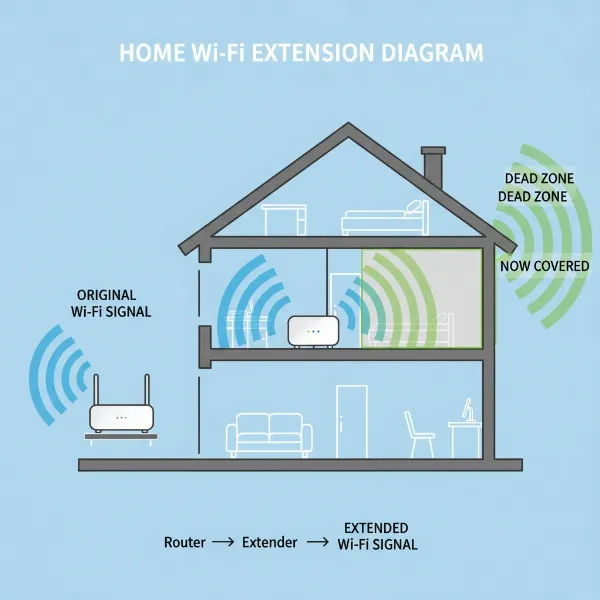 Illustration showing how a Wi-Fi extender receives a signal from a router and rebroadcasts it to cover dead zones in a home.
2. Benefits of Using a WiFi Extender
Despite some of their limitations, Wi-Fi extenders offer several compelling advantages that make them a viable option for specific use cases. One of the most significant benefits is their ability to expand Wi-Fi coverage to those frustrating “dead zones” in your home. These are areas where the signal from your main router simply can’t reach, or where it’s too weak to provide a reliable connection.
By placing an extender strategically, you can bring a usable signal to bedrooms, basements, patios, or even the garage, transforming previously unconnected spaces into functional parts of your network. This extended coverage can also lead to a perceived improvement in the speed and stability of your connection in these previously problematic areas. When devices connect to a strong signal from the extender, they won’t struggle with constant signal drops, leading to a more consistent user experience. Moreover, Wi-Fi extenders are generally a more cost-effective solution compared to upgrading your entire router or investing in a more expensive mesh Wi-Fi system. Their installation is also typically straightforward, often involving a simple WPS button press or a quick setup via a web interface, making them accessible even for those with limited technical expertise.
3. When You Need a WiFi Extender
Determining if a Wi-Fi extender is right for you often comes down to understanding your specific network challenges and living environment. You likely need a Wi-Fi extender if your home has persistent dead zones—areas where your Wi-Fi signal is consistently weak or non-existent, despite your main router being centrally located. This is particularly common in multi-story homes or properties with thick walls and numerous physical obstructions that naturally weaken Wi-Fi signals.
If you find yourself needing a better signal in specific, isolated spots, such as a home office at the far end of the house or a patio where you want to stream music, an extender can be a targeted solution. It’s also a good consideration if you’re on a tight budget and a full mesh Wi-Fi system is currently out of reach. However, it’s crucial to acknowledge that extenders are best suited for addressing localized signal issues rather than providing robust, seamless whole-home coverage for very large areas or for networks with high demands from many simultaneous devices. For those more extensive needs, other solutions might be more appropriate.
4. Factors to Consider When Choosing a WiFi Extender
Selecting the right Wi-Fi extender requires careful consideration of several key factors to ensure it effectively addresses your network issues without introducing new problems. The market offers a variety of devices, and understanding these aspects will help you make an informed decision.
-
WiFi Speed and Standards: Look for extenders that support the latest Wi-Fi standards, such as Wi-Fi 5 (802.11ac) or ideally Wi-Fi 6 (802.11ax), to ensure compatibility and maximize potential speeds. The extender’s speed rating should ideally match or exceed that of your main router to avoid creating a bottleneck. However, be aware that the actual throughput will often be less than the advertised maximum due to the nature of how extenders work.
-
Frequency Bands: Most modern extenders are dual-band, operating on both the 2.4 GHz and 5 GHz frequencies. The 2.4 GHz band offers greater range and better penetration through walls, making it suitable for devices further away. The 5 GHz band provides faster speeds with less interference but has a shorter range. Some high-end extenders are tri-band, adding a second 5 GHz band to dedicate one for communication with the router and the other for client devices, which helps reduce speed degradation.
-
Coverage Area and Placement: Consider the area you need to cover. Extenders often list their coverage range, but real-world performance varies. Optimal placement is crucial: the extender should be positioned roughly halfway between your router and the Wi-Fi dead zone, ensuring it still receives a strong, stable signal from the main router. Avoid placing it near large metal objects, thick walls, or interference sources like microwaves and cordless phones.
-
Ethernet Ports: If you have wired devices in the extended area (e.g., a gaming console, smart TV, or desktop PC), an extender with Gigabit Ethernet ports can be incredibly beneficial. This allows you to provide a stable, high-speed wired connection to these devices while still extending Wi-Fi wirelessly.
-
Additional Features:
- MU-MIMO (Multi-User, Multiple-Input, Multiple-Output): Allows the extender to communicate with multiple devices simultaneously, improving efficiency in busy networks.
- Beamforming: Directs Wi-Fi signals towards connected devices rather than broadcasting in all directions, enhancing signal strength and range for those devices.
- WPS (Wi-Fi Protected Setup): A common feature for easy, one-touch setup, although manual setup via a web interface often offers more control.
- Smart Indicators: LED lights that help you find the optimal placement by indicating signal strength from the router.
-
Compatibility: While most extenders are designed to be universally compatible with any router, it’s always wise to double-check, especially if your router is very old or uses proprietary technology.
-
Brand and Price: Opt for reputable brands known for network equipment. While extenders are generally affordable, prices vary based on features and performance. Balance your budget with your specific needs.
5. WiFi Extender vs. Alternatives on the Market
When considering a Wi-Fi extender, it’s important to understand how it stacks up against other solutions for expanding network coverage. Each option has its unique strengths and weaknesses, making it suitable for different situations.
Here’s a comparison of Wi-Fi extenders with two popular alternatives: Mesh Wi-Fi systems and Powerline adapters.
| Feature | WiFi Extender | Mesh WiFi System | Powerline Adapter |
|---|---|---|---|
| How it Works | Receives router’s signal, rebroadcasts it. | Multiple nodes communicate to create a single, seamless network. | Uses existing electrical wiring to transmit data. |
| Coverage | Expands coverage to specific dead zones. | Provides whole-home coverage, ideal for large areas. | Extends wired/wireless network via electrical outlets. |
| Speed/Performance | Can cut bandwidth in half, increased latency. | Generally high speeds, seamless roaming, low latency. | Performance depends on electrical wiring quality; provides strong wired backhaul. |
| Setup | Easy (WPS button or web interface). | Very easy, often guided by an app. | Plug-and-play, but requires units on the same electrical circuit. |
| Cost | Most affordable option. | More expensive, especially for multi-node systems. | Moderately priced, can be cheaper than mesh. |
| Network Name | Often creates a separate network name, requiring manual switching. | One seamless network name (SSID) for all nodes. | Can create a new Wi-Fi network or provide wired access. |
| Interference | Susceptible to interference, can cause congestion. | Minimizes interference with smart routing. | Immune to wireless interference, but sensitive to electrical noise. |
| Best Use Case | Small homes with specific, isolated dead zones; budget-conscious. | Large homes, multi-story houses, high-demand users, seamless roaming. | When Wi-Fi signals struggle with thick walls; for wired connections where Ethernet cabling isn’t feasible. |
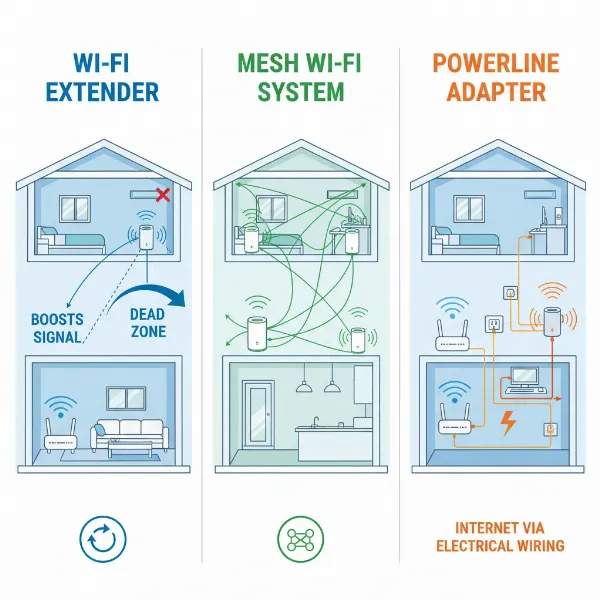 A conceptual diagram comparing a Wi-Fi extender, a Mesh Wi-Fi system, and a Powerline adapter in a home setting.
While a Wi-Fi extender is the simplest and most budget-friendly option for minor signal issues, a Mesh Wi-Fi system offers superior performance and coverage for larger homes, eliminating the need to manually switch networks. Powerline adapters are a unique solution that leverages your home’s electrical wiring, proving useful when wireless signals can’t penetrate physical barriers effectively. Each has its place, and the “best” choice truly depends on your individual circumstances.
6. How to Install and Optimize Your WiFi Extender
Installing a Wi-Fi extender is typically a straightforward process, but proper setup and placement are key to maximizing its effectiveness. Most modern extenders offer a couple of main installation methods:
Method 1: Using the WPS Button (Wi-Fi Protected Setup)
This is often the quickest and easiest way to connect your extender to your existing network.
- Plug in the Extender: Initially, plug your Wi-Fi extender into a power outlet near your main router. Wait for the power indicator light to turn solid.
- Press WPS on Router: Press the WPS button on your main Wi-Fi router. This button might be labeled “WPS” or have an icon resembling two arrows circling each other. Hold it for about 2-3 seconds.
- Press WPS on Extender: Within two minutes of pressing the router’s WPS button, press the WPS button on your Wi-Fi extender.
- Confirm Connection: The extender’s indicator lights should change to show a successful connection (e.g., a solid green Wi-Fi signal light).
- Relocate: Once connected, unplug the extender and move it to its optimal location (see “Optimal Placement Tips” below).
Method 2: Using the Extender’s Web Interface
This method offers more control and is useful if your router doesn’t have a WPS button or if you prefer manual configuration.
- Plug in the Extender: Plug the extender into a power outlet near your router and wait for the power light to stabilize.
- Connect Your Device: On a computer or smartphone, connect to the extender’s default Wi-Fi network. This network name (SSID) is usually printed on the extender itself or in its quick start guide (e.g., “TP-Link_Extender,” “NETGEAR_EXT”). There’s typically no password required initially, or a default one is provided.
- Access Setup Page: Open a web browser (e.g., Chrome, Firefox) and type the extender’s default IP address or web address into the address bar (e.g.,
http://192.168.0.254,http://re.netgear.com, orhttp://tplinkrepeater.net). These details can be found in the extender’s manual. - Follow On-Screen Instructions: You’ll be prompted to create an admin password (if it’s your first time), select your main Wi-Fi network from a list, and enter its password. You may also have the option to set a new SSID for your extended network or use the same as your main router for a more seamless experience (though this can sometimes cause confusion for devices).
- Complete Setup: Finish the wizard, and the extender will reboot.
- Relocate: Unplug and move the extender to its optimal location.
Optimal Placement Tips:
- The “Halfway” Rule: The most critical aspect of extender placement is positioning it roughly halfway between your main router and the area you want to cover. The extender must receive a strong signal from the router to effectively rebroadcast it. If it’s too far from the router, it will simply extend a weak signal, which is counterproductive.
- Avoid Obstacles: Keep the extender away from physical obstructions like thick concrete walls, large metal objects, and electrical appliances (microwaves, cordless phones, baby monitors) that can cause significant wireless interference.
- Use Signal Indicators: Many extenders come with LED indicators that visually represent the signal strength they are receiving from the router. Use these as a guide to find the best spot – aim for a strong, stable connection.
- Height Matters: Placing the extender at a similar height to your router, ideally off the floor and in an open area, can also help optimize signal propagation.
7. Where to Buy a WiFi Extender?
Finding a reliable Wi-Fi extender is relatively easy, as they are widely available from various retailers both online and in physical stores. When making your purchase, it’s always recommended to choose reputable vendors to ensure you receive a genuine product with warranty support.
Online Retailers: Major e-commerce platforms like Amazon, Best Buy, and Newegg offer a vast selection of Wi-Fi extenders from different brands, often with competitive pricing and customer reviews that can help guide your decision. Manufacturer websites such as TP-Link, Netgear, D-Link, and Linksys also sell directly and provide detailed product specifications. When buying online, always verify the seller’s reputation and read recent reviews to gauge product performance and reliability.
Physical Stores: Electronics retailers like Best Buy, Walmart, Target, and regional electronics stores typically stock a range of Wi-Fi extenders. Purchasing in person allows you to see the product, ask questions to sales associates, and take it home immediately. While the selection might be smaller than online, you get immediate gratification and easier returns if needed.
Things to Keep in Mind When Buying Online:
- Check Return Policies: Understand the return window and conditions in case the extender doesn’t meet your expectations or isn’t compatible with your setup.
- Read Customer Reviews: Pay attention to feedback regarding ease of setup, actual speed performance, and long-term reliability. Look for trends in reviews, both positive and negative.
- Compare Prices: Prices can vary significantly between retailers, so a quick comparison can help you find the best deal.
By considering these options and exercising due diligence, you can confidently purchase a Wi-Fi extender that meets your needs.
8. Buying Guide: Choosing the Right WiFi Extender
Navigating the options for Wi-Fi extenders can feel overwhelming, but by focusing on your specific needs and priorities, you can narrow down the best choice. This buying guide helps distill the essential considerations into actionable advice.
-
Define Your Budget: Wi-Fi extenders are available at various price points, from very basic models under $30 to feature-rich devices exceeding $100. Clearly establishing your budget upfront will help you focus on suitable options. Remember that while cheaper models might extend range, they could come with performance trade-offs, particularly in speed.
-
Assess Your Usage Needs:
- Simple Range Extension: If you just need a basic signal in a low-demand area for light browsing or smart home devices, a basic single-band or dual-band extender will likely suffice.
- Improved Performance for Streaming/Gaming: For more demanding tasks like 4K streaming, online gaming, or video conferencing in the extended area, prioritize dual-band or tri-band extenders with higher speed ratings (Wi-Fi 5 or Wi-Fi 6) and features like MU-MIMO or Beamforming. Consider models with Ethernet ports for wired connections to critical devices.
- Area Size and Obstacles: For small to medium-sized homes with one or two dead spots, an extender is often suitable. If you have a very large home, multiple floors, or extensive concrete/brick walls, a Mesh Wi-Fi system might be a more robust, albeit pricier, solution.
-
Check Router Compatibility: While most extenders are universally compatible, it’s always good practice to ensure the extender supports the same Wi-Fi standards (e.g., Wi-Fi 5, Wi-Fi 6) as your main router for optimal performance. Generally, an extender that matches or exceeds your router’s capabilities will perform best.
-
Read Reviews and Expert Opinions: Before making a final decision, delve into customer reviews on retail sites and look for independent expert reviews from tech publications. Pay attention to feedback on ease of setup, actual speed achieved, reliability, and customer support. This real-world insight can be invaluable in avoiding common pitfalls and ensuring the extender lives up to its promises.
 A person looking at different Wi-Fi extender boxes in a tech store, with overlaid thought bubbles showing considerations like speed, budget, and coverage.
Conclusion
The question “Is a Wi-Fi extender worth it?” doesn’t have a simple yes or no answer; rather, it’s a matter of aligning the technology with your specific needs and expectations. For those struggling with isolated Wi-Fi dead zones in small to medium-sized homes, a Wi-Fi extender can indeed be a cost-effective and relatively easy solution to boost signal strength and extend coverage. They offer a quick fix, expanding your network’s reach without the complexity or expense of a full system overhaul.
However, it’s crucial to approach extenders with realistic expectations. They are not a magic wand that can transform a weak internet connection into a powerhouse. While they expand coverage, they often do so with some trade-offs in terms of overall speed and network stability due to their operating principles. For larger homes, demanding users, or those seeking a truly seamless, high-performance whole-home network, a Mesh Wi-Fi system will almost always provide a superior experience, justifying its higher cost. Ultimately, by carefully considering your budget, the size of your home, your internet usage habits, and reviewing the available options, you can make an informed decision. Will a Wi-Fi extender solve your connectivity woes, or is it time to explore more comprehensive solutions?
Câu Hỏi Thường Gặp
Does a WiFi extender slow down internet speed?
|
Our Picks for the Best Wifi extender in 2026
As an Amazon Associate I earn from qualifying purchases.
|
||
| Num | Product | Action |
|---|---|---|
| 1 | WiFi Extender Signal Booster, WiFi Booster Dual Band 5.8GHz&2.4GHz, Covers Up to 10000 Sq.ft, 1.2Gbps WiFi Repeater with One Ethernet Port, One-tap Setup |

|
| 2 | WiFi Extender WiFi Booster 1200 Mbps Dual Band (5GHz/2.4GHz) WiFi Extenders Signal Booster for Home, Internet Extended Booster WiFi Repeater (White) |
|
| 3 | TP-Link AX3000 WiFi 6 Range Extender | PCMag Editor's Choice | Dual-Band Wireless Repeater w/Ethernet Port | Up to 2400 Sq. Ft., 64 Devices | Internet Signal Booster | APP Setup | EasyMesh (RE715X) |
|
| 4 | TP-Link AC1900 WiFi Range Extender RE550 | Dual-Band Wireless Repeater Amplifier w/Gigabit Ethernet Port | Up to 2200 Sq. Ft., 32 Devices | Internet Signal Booster | APP Setup | EasyMesh Compatible |
|
| 5 | 2026 WiFi Extender Signal Booster - 2.4GHz 300Mbps WiFi Booster for Home, Covers Up to 9999 Sq. Ft, Easy Setup, Ethernet Port & Access Point, Stable Internet Performance with 60+ Devices(White) |
|
| 6 | 1200Mbps WiFi Extender Signal Booster for Home, Dual Band 5GHz/2.4GHz Wireless Internet Repeater with 4 External Antennas, Covers Up to 3600 Sq.ft & Supports 80 Devices, AP Mode with Ethernet Port |
|
| 7 | TP-Link WiFi Extender with Ethernet Port, Dual Band 5GHz/2.4GHz, Up to 44% More Bandwidth Than Single Band, Covers Up to 1200 Sq.ft and 30 Devices, Signal Booster Amplifier Supports OneMesh(RE220) |
|
| 8 | WiFi Extender, WiFi Extenders Signal Booster for Home Up to 5000 sq.ft and 50 Devices, WiFi Range Extender, Wireless Repeater, Long Range Amplifier with Ethernet Port, 1-Tap Setup, Alexa Compatible |
|
| 9 | TP-Link AC1200 WiFi Extender, 2023 Engadget Best Budget Pick, 1.2Gbps Signal Booster for Home, Dual Band 5GHz/2.4GHz, Covers Up to 1500 Sq.ft and 30 Devices,Support Onemesh, One Ethernet Port (RE315) |
|
| 10 | WiFi Extender Signal Booster for Home 2026 Internet Repeater Long Range Up to 9995 Sq. Ft. Whole Home WiFi Coverage |
|
Yes, a Wi-Fi extender can often lead to a reduction in internet speed. This typically occurs because the extender has to perform a “double hop”—receiving data wirelessly from your main router and then retransmitting it to your devices. This process can reduce the available bandwidth, sometimes cutting speeds in half, especially if the extender is using the same frequency band for both tasks. Additionally, if the extender is placed too far from your main router, it will only be rebroadcasting an already weak signal, resulting in slower speeds for connected devices.