Experiencing frustrating Wi-Fi dead zones, dropped connections, or sluggish speeds in certain areas of your home? You’re not alone. Many households struggle with inconsistent Wi-Fi coverage, a common issue in larger homes, multi-story dwellings, or spaces with thick walls. A Wi-Fi extender can be a game-changer, acting as a crucial bridge to expand your existing wireless network and bring reliable internet to every corner. This comprehensive guide will explore the ins and outs of Wi-Fi extenders, helping you understand their features, benefits, and how to choose the perfect one to optimize your home connectivity.
1. Wifi Extender: What It Is and How It Works
A Wi-Fi extender, also known as a Wi-Fi booster or range extender, is a device designed to amplify and rebroadcast your existing wireless signal. Its primary function is to eliminate “dead zones”—areas where your main router’s signal is weak or non-existent—and extend Wi-Fi coverage to previously unreachable spots within your home or office. Essentially, it acts as an intermediary, receiving the signal from your primary router and then sending it out further, much like a relay runner.
Wi-Fi extenders typically operate by connecting wirelessly to your main router. Once connected, they create a secondary network, often using the same network name (SSID) for a seamless experience or a slightly modified one (e.g., “YourWiFi_EXT”). Devices within the extender’s range can then connect to this extended network, accessing the internet through the main router. This process effectively broadens the footprint of your Wi-Fi, allowing you to stay connected as you move around your space. Some advanced extenders can even integrate into a “mesh-ready” system, providing a single, unified network experience where devices automatically connect to the strongest signal source.
[image-1|wifi-extender-concept-diagram|Diagram illustrating how a Wifi extender functions, receiving a signal from a router and rebroadcasting it to extend coverage to a dead zone.|
An illustrative diagram showing a central Wi-Fi router emitting signals, with a Wi-Fi extender placed strategically between the router and a “dead zone.” Arrows indicate the signal flow: from router to extender, and then from extender to devices in the previously uncovered area. The background is a simplified home layout. Flat, clean graphic style.]
2. Benefits of Using a Wifi Extender
Integrating a Wi-Fi extender into your home network offers several compelling advantages, significantly enhancing your overall internet experience. From eliminating frustrating signal drops to providing cost-effective coverage, these devices deliver practical solutions for common wireless woes.
One of the most significant benefits is the elimination of dead zones. Extenders push Wi-Fi coverage into areas where signals were previously weak or entirely absent, ensuring consistent connectivity throughout your entire property. This means you can stream, work, or game from any room, patio, or even a detached garage without interruption. Beyond just coverage, extenders can also improve the speed and stability of your Wi-Fi connection in these extended areas. By providing a stronger signal, they reduce buffering, lag, and dropped connections, leading to a smoother online experience.
Compared to upgrading your main router or installing a complex mesh Wi-Fi system, a Wi-Fi extender is often a cost-effective solution. You can achieve improved coverage for a fraction of the price, making it an accessible option for many budgets. Furthermore, most modern extenders boast easy installation, often featuring simple setup processes via a WPS (Wi-Fi Protected Setup) button or an intuitive web interface, meaning you don’t need to be a tech expert to get them up and running. Finally, extenders offer flexibility as they are typically small, plug-and-play devices that can be easily relocated if your network needs change, and they can support more devices by offloading some of the connection burden from your main router.
3. When You Need a Wifi Extender
Deciding if a Wi-Fi extender is right for you often comes down to specific symptoms and your home environment. While extenders are not a universal fix for all network issues, they are an excellent solution for several common scenarios. Understanding when to deploy an extender can save you from constant connectivity frustrations.
You likely need a Wi-Fi extender if your home has multiple floors or a large footprint. In sprawling houses or multi-story buildings, a single router often struggles to provide consistent coverage to all areas. As the signal travels further, it naturally weakens, leading to poor performance on distant floors or in far-off rooms. Similarly, thick walls, concrete, metal objects, or other physical obstructions can significantly degrade Wi-Fi signals. If you notice a strong signal near your router but a drastic drop-off after passing through a particular wall or floor, an extender can help bypass or mitigate this interference.
[image-2|large-home-wifi-dead-zone|Illustration of a multi-story home with Wi-Fi dead zones, highlighting where a Wifi extender would be beneficial to expand coverage.|
An architectural illustration of a multi-story house, with faint Wi-Fi signal waves emanating from a central router on the first floor. On the second floor and in a detached garage, areas are shaded in grey, labeled “Dead Zone” with a “No Wi-Fi” icon. A Wi-Fi extender is depicted plugging into an outlet on the second floor, rebroadcasting a stronger signal into the dead zone. Realistic, detailed rendering.]
If you desire Wi-Fi coverage in outdoor areas like a backyard, patio, or a detached shed, an extender positioned near a window or exterior wall can project the signal further than your router alone. Moreover, in homes with many connected devices simultaneously streaming, gaming, or operating smart home gadgets, an extender can help distribute the load and maintain stable connections by providing additional access points. Lastly, if you have an older router that doesn’t support the latest Wi-Fi standards, an extender with newer technology (like Wi-Fi 6) can effectively upgrade parts of your network without requiring a full router replacement.
4. Factors to Consider When Choosing a Wifi Extender
Selecting the ideal Wi-Fi extender involves evaluating several technical specifications and practical considerations to ensure it meets your specific needs. A careful assessment of these factors will help you make an informed decision and optimize your home network.
First, Wi-Fi speed and standards are paramount. Look for extenders that support the latest Wi-Fi standards like 802.11ac (Wi-Fi 5), Wi-Fi 6 (802.11ax), or even Wi-Fi 7 (802.11be) if your router and devices are compatible. A faster extender can significantly improve throughput in extended areas. Ensure the extender’s speed ratings (measured in Mbps) are appropriate for your internet plan and usage. Next, consider frequency bands. Dual-band extenders (2.4GHz and 5GHz) are highly recommended. The 2.4GHz band offers greater range and better wall penetration, while the 5GHz band provides faster speeds and less interference, ideal for streaming and gaming. Some high-end models even feature tri-band support for even greater capacity.
Coverage range is another crucial factor. Extenders often specify their maximum coverage area in square feet, so choose one that matches or slightly exceeds the size of the area you need to cover. If you plan to connect wired devices like gaming consoles or smart TVs, look for extenders with Ethernet ports. Many models include at least one Gigabit Ethernet port for stable wired connections. Additional features such as MU-MIMO (for efficient handling of multiple devices), Beamforming (for targeted signal transmission), WPS for easy setup, and smartphone app control for management can enhance usability and performance. Always check for compatibility with your existing router; while most are universally compatible, some brands offer mesh-ready extenders that integrate more seamlessly with their own-brand routers. Finally, consider brand reputation and price to find a reliable device within your budget, keeping in mind that more advanced features generally come with a higher price tag.
[image-3|wifi-extender-buying-guide-features|An infographic illustrating key factors to consider when purchasing a Wifi extender, such as speed, bands, and Ethernet ports.|
A clean, modern infographic showcasing various features of a Wi-Fi extender. Icons and text labels clearly highlight “Wi-Fi Speed (e.g., Wi-Fi 6/7),” “Dual-Band/Tri-Band,” “Ethernet Ports,” “Coverage Area,” and “Mesh Compatibility.” The design uses a combination of lines, circles, and contrasting colors to make the information digestible. Minimalist, informative style.]
5. Comparing Popular Wifi Extenders on the Market
The market offers a diverse range of Wi-Fi extenders, each with unique features catering to different needs and budgets. While specific models and prices fluctuate, understanding the typical characteristics of popular devices can guide your selection. Here’s a comparison of common types and prominent features you’ll find:
| Feature | TP-Link RE715X | Netgear EAX17 AX3000 | Asus RP-AX58 AX3000 | TP-Link RE315 AC1200 |
|---|---|---|---|---|
| Wi-Fi Standard/Speed | Wi-Fi 6 (AX3000), up to 3 Gbps combined | Wi-Fi 6 (AX3000), up to 3 Gbps combined | Wi-Fi 6 (AX3000), up to 3 Gbps combined | Wi-Fi 5 (AC1200), up to 1.2 Gbps combined |
| Bands | Dual-Band (2.4GHz, 5GHz) with 160 MHz channel | Dual-Band (2.4GHz, 5GHz) | Dual-Band (2.4GHz, 5GHz) with 160 MHz channel | Dual-Band (2.4GHz, 5GHz) |
| Ethernet Ports | 1x Gigabit Ethernet | 1x Gigabit Ethernet | 1x Gigabit Ethernet | 1x Fast Ethernet (10/100 Mbps) |
| Key Features | OneMesh, Smart Signal Indicator, App control | Universal Compatibility, Seamless Roaming | AiMesh compatible, Sleek Design | Smart Signal Indicator, App control |
| Pros | Excellent speed, wide coverage, good for gaming | High compatibility, reliable performance | Great range, stylish design, good upload speeds | Budget-friendly, easy for basic extension |
| Cons | Can be pricey | Slightly slower speeds at long range | Tall design may block outlets | Lower speeds, less feature-rich |
| Best For | High-speed demands, Wi-Fi 6 networks | Versatile use with any router, stability focus | Larger homes, Asus router users | Basic coverage extension, IoT devices |
This table highlights that while many extenders offer dual-band Wi-Fi 6 for robust performance, differences emerge in features like dedicated mesh integration, compatibility, and sheer speed capabilities. For instance, high-end models like the TP-Link RE715X and Asus RP-AX58 offer multi-gig speeds and enhanced features like 160 MHz channel width, ideal for demanding tasks and larger areas. Budget-friendly options like the TP-Link RE315 still provide effective coverage for smaller scale extensions, making them suitable for eliminating small dead zones or connecting IoT devices. Brands like Netgear and TP-Link consistently feature across various “best of” lists, indicating their reliability and broad product range.
6. Installing and Optimizing Your Wifi Extender
Installing and optimizing a Wi-Fi extender is generally a straightforward process that can significantly improve your network’s reach. Proper placement and configuration are key to maximizing its performance and ensuring a stable connection.
Most Wi-Fi extenders offer two primary setup methods: using the WPS (Wi-Fi Protected Setup) button or through a web interface. The WPS method is the simplest: first, plug in the extender near your main router. Once powered on, press the WPS button on your router, then within two minutes, press the WPS button on your extender. The devices will automatically connect, usually indicated by a solid LED light on the extender. Once connected, you can unplug the extender and move it to its optimal location.
For the web interface method, plug in the extender and connect your computer or mobile device to its default Wi-Fi network (usually printed on the device or in the manual). Open a web browser, type in the extender’s setup address (e.g., 192.168.0.254 or tplinkrepeater.net), and follow the on-screen instructions to select your main Wi-Fi network and enter its password. This method often offers more configuration options.
[image-4|wifi-extender-setup-illustration|A step-by-step illustration of setting up a Wifi extender using the WPS button, showing the router, extender, and hand pressing buttons.|
A three-panel illustrative infographic demonstrating Wi-Fi extender setup via WPS. Panel 1: A hand plugs the extender into a wall outlet near the router. Panel 2: Another hand presses the WPS button on the router. Panel 3: The hand presses the WPS button on the extender, with indicator lights showing connection. The style is clean, vector-based, and easy to follow.]
Optimal placement is crucial. The extender should be positioned roughly halfway between your main router and the Wi-Fi dead zone, ensuring it still receives at least 50% signal strength from the router. Avoid placing it near thick walls, large metal objects, or appliances like microwaves and cordless phones, as these can interfere with the signal.
If you encounter issues, troubleshooting often involves a few common steps:
- Power Cycle: Turn off both your router and extender, unplug them for 30 seconds, then plug them back in and restart.
- Firmware Update: Visit the manufacturer’s website to check for and install any available firmware updates, which can improve performance and fix bugs.
- Factory Reset: If problems persist, perform a factory reset on the extender and reconfigure it.
- Adjust Channel Settings: If experiencing inconsistent coverage, try adjusting the Wi-Fi channel on your router to a less congested one, which can reduce interference.
7. Mua Wifi Extender ở đâu?
Finding a reliable Wi-Fi extender is easier than ever, with numerous options available both online and in physical retail stores. Knowing where to look and what to consider can help you make a confident purchase.
Major online retailers are often the first stop for many consumers due to their vast selection and competitive pricing. Websites like Amazon, Walmart.com, and BestBuy.com stock a wide array of Wi-Fi extenders from all leading brands, including TP-Link, Netgear, Asus, and D-Link. These platforms offer the convenience of browsing detailed product descriptions, comparing specifications side-by-side, and reading customer reviews, which can be invaluable for real-world insights. When buying online, always verify the seller’s reputation, check the return policy, and confirm warranty information.
For those who prefer a hands-on shopping experience or immediate assistance, traditional electronics stores such as Best Buy and Staples typically carry a selection of popular Wi-Fi extender models. Sales associates can offer advice, and you have the advantage of seeing the product physically before purchasing. Additionally, some internet service providers (ISPs) may offer their own branded extenders or recommendations that are guaranteed to be compatible with their service. Whichever route you choose, researching product reviews and specifications beforehand will empower you to select the best Wi-Fi extender for your home.
8. Buying Guide: Your Wifi Extender Checklist
Navigating the market for a Wi-Fi extender can feel overwhelming with the myriad of options available. To simplify your decision, consider this essential checklist, tailored to ensure you find a device that perfectly aligns with your home’s unique connectivity demands.
First, establish your budget. Wi-Fi extenders range from budget-friendly models suitable for basic needs (around $30-$50) to high-performance devices with advanced features (over $100). Knowing your spending limit helps narrow down choices immediately. Next, clearly define your specific needs and intended use. Are you merely looking to eliminate a small dead spot, or do you require robust coverage for an entire floor, outdoor area, or multiple bandwidth-heavy devices? Your answers will dictate the necessary speed, band support (dual-band is often recommended), and coverage area requirements for your extender.
[image-5|wifi-extender-compatibility-check|An illustration of a checklist for buying a Wifi extender, focusing on budget, needs, compatibility, and reading reviews.|
A hand holding a pen checking off items on a digital checklist for buying a Wi-Fi extender. The checklist includes “Budget,” “Coverage Needs (Small/Medium/Large Home),” “Router Compatibility (Wi-Fi 5, Wi-Fi 6, Wi-Fi 7),” and “Read Customer Reviews.” The background features a blurred home network setup. Modern, clean design with emphasis on user guidance.]
Compatibility with your existing router is paramount. While most modern extenders are universally compatible, ensuring they support the same Wi-Fi standards (e.g., Wi-Fi 6 for a Wi-Fi 6 router) will guarantee optimal performance. Some brands also offer “mesh-ready” extenders that integrate seamlessly with their proprietary mesh ecosystems. Finally, always read customer reviews and expert evaluations. Insights from other users can reveal real-world performance, ease of setup, and potential quirks that might not be evident from product specifications alone. By diligently following this checklist, you’ll be well-equipped to select a Wi-Fi extender that effectively banishes dead zones and delivers consistent, fast internet throughout your home.
“A well-chosen Wi-Fi extender is more than just a signal booster; it’s a strategic enhancement that integrates into your existing network, unlocking comprehensive home coverage without demanding a complete system overhaul.” – Dr. Alex Chen, Network Performance Specialist
Conclusion
Navigating the complexities of home Wi-Fi can be challenging, but Wi-Fi extenders offer a practical and effective solution to common connectivity frustrations. By understanding what these devices are, how they work, and the specific scenarios where they shine, you can confidently address issues like dead zones and inconsistent signal strength. Choosing the right Wi-Fi extender involves considering crucial factors such as speed, frequency bands, coverage, and compatibility with your existing router, ensuring that your investment truly enhances your online experience. With straightforward installation and a wealth of options available, bringing robust Wi-Fi to every corner of your home is now more accessible than ever. Are you ready to transform your home network and say goodbye to buffering for good?
Frequently Asked Questions
Does a Wifi extender reduce internet speed?
|
Our Picks for the Best Wifi extender in 2026
As an Amazon Associate I earn from qualifying purchases.
|
||
| Num | Product | Action |
|---|---|---|
| 1 | 1200Mbps WiFi Extender Signal Booster for Home, Dual Band 5GHz/2.4GHz Wireless Internet Repeater with 4 External Antennas, Covers Up to 3600 Sq.ft & Supports 80 Devices, AP Mode with Ethernet Port |

|
| 2 | 2026 WiFi Extender Signal Booster - 2.4GHz 300Mbps WiFi Booster for Home, Covers Up to 9999 Sq. Ft, Easy Setup, Ethernet Port & Access Point, Stable Internet Performance with 60+ Devices(White) |
|
| 3 | TP-Link AC1900 WiFi Range Extender RE550 | Dual-Band Wireless Repeater Amplifier w/Gigabit Ethernet Port | Up to 2200 Sq. Ft., 32 Devices | Internet Signal Booster | APP Setup | EasyMesh Compatible |
|
| 4 | WiFi Extender Signal Booster for Home 2026 Internet Repeater Long Range Up to 9995 Sq. Ft. Whole Home WiFi Coverage |
|
| 5 | WiFi Extender, WiFi Extenders Signal Booster for Home Up to 5000 sq.ft and 50 Devices, WiFi Range Extender, Wireless Repeater, Long Range Amplifier with Ethernet Port, 1-Tap Setup, Alexa Compatible |
|
| 6 | WiFi Extender Signal Booster, WiFi Booster Dual Band 5.8GHz&2.4GHz, Covers Up to 10000 Sq.ft, 1.2Gbps WiFi Repeater with One Ethernet Port, One-tap Setup |
|
| 7 | TP-Link AC1200 WiFi Extender, 2023 Engadget Best Budget Pick, 1.2Gbps Signal Booster for Home, Dual Band 5GHz/2.4GHz, Covers Up to 1500 Sq.ft and 30 Devices,Support Onemesh, One Ethernet Port (RE315) |
|
| 8 | TP-Link AX3000 WiFi 6 Range Extender | PCMag Editor's Choice | Dual-Band Wireless Repeater w/Ethernet Port | Up to 2400 Sq. Ft., 64 Devices | Internet Signal Booster | APP Setup | EasyMesh (RE715X) |
|
| 9 | TP-Link WiFi Extender with Ethernet Port, Dual Band 5GHz/2.4GHz, Up to 44% More Bandwidth Than Single Band, Covers Up to 1200 Sq.ft and 30 Devices, Signal Booster Amplifier Supports OneMesh(RE220) |
|
| 10 | WiFi Extender WiFi Booster 1200 Mbps Dual Band (5GHz/2.4GHz) WiFi Extenders Signal Booster for Home, Internet Extended Booster WiFi Repeater (White) |
|
While a Wi-Fi extender can sometimes introduce a slight speed reduction due to the nature of rebroadcasting a signal, modern dual-band and tri-band extenders minimize this effect significantly. For most common online activities like streaming and browsing, the perceived benefit of extended coverage typically outweighs any minor speed loss, especially when correctly placed and configured.
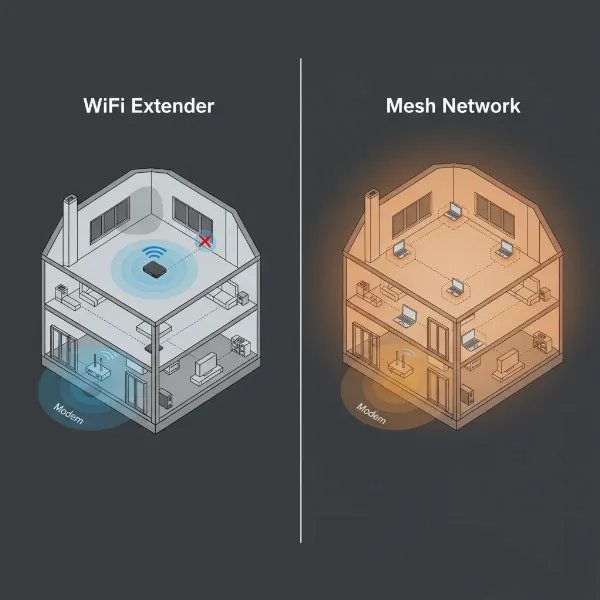
What’s the difference between a Wifi extender and a mesh system?
A Wi-Fi extender typically creates a separate network or extends an existing one, sometimes requiring manual switching between networks. A mesh Wi-Fi system, conversely, uses multiple interconnected nodes to create a single, seamless network across a large area, offering intelligent roaming and often more consistent speeds throughout your home without needing to switch SSIDs.
Can I use any Wifi extender with my router?
Most Wi-Fi extenders are designed to be universally compatible with any standard Wi-Fi router, regardless of brand. However, for optimal performance, it is recommended to choose an extender that supports the same Wi-Fi standard (e.g., Wi-Fi 6) as your main router. Some brands also offer extenders that integrate into their specific mesh ecosystems for enhanced features.
Where is the best place to put a Wifi extender?
The ideal placement for a Wi-Fi extender is approximately halfway between your main router and the area experiencing poor signal or “dead zones.” It should be close enough to the router to receive a strong signal (at least 50% strength) and away from physical obstructions or electronic interference to effectively rebroadcast the signal.
How do I know if my Wifi extender is working correctly?
Many Wi-Fi extenders feature LED indicators that signal their connection status and signal strength from the router. A steady green or blue light usually indicates a good connection. You can also test by connecting a device to the extended network in a previously problematic area and verifying improved signal strength and speed through a speed test.