Are you tired of sluggish internet speeds, buffering videos, or frustrating “dead zones” where your Wi-Fi simply refuses to reach? In today’s hyper-connected world, a reliable and robust Wi-Fi network isn’t a luxury; it’s a necessity. For many homes and offices, the standard router provided by internet service providers simply isn’t enough to blanket every corner with a strong, consistent signal. This in-depth buyer’s guide will demystify Wi-Fi extenders, helping you understand their function, benefits, and how to choose the perfect device to optimize your home internet experience.
1. What is a Wifi Extender and How Does It Work?
A Wi-Fi extender, also commonly known as a Wi-Fi booster or repeater, is a device designed to expand the coverage of your existing wireless network. Its primary function is to capture your router’s Wi-Fi signal and rebroadcast it, pushing connectivity into areas where the signal was previously weak or non-existent. Think of it as a digital middleman, strategically placed to intercept and relay your Wi-Fi to distant corners of your property.
The core principle behind a Wi-Fi extender involves receiving the wireless signal from your primary router and then retransmitting it to broaden the coverage area. This creates a secondary network, or extends your existing one, allowing devices in previously unreachable spots to connect reliably. Modern extenders have evolved, offering advanced features like dual-band technology, Wi-Fi 6 compatibility, and Gigabit Ethernet ports for enhanced performance. While often used interchangeably, there’s a subtle distinction between “extenders” and “repeaters”: repeaters typically connect wirelessly and rebroadcast on the same frequency, which can sometimes halve bandwidth for connected devices. Extenders, on the other hand, can sometimes refer to devices that use wired connections (like powerline technology) for a more stable signal.
Types of Wi-Fi Extenders:
- Wireless Range Extenders (Repeaters): These are the most common type, plugging into an electrical outlet and connecting wirelessly to your router. They then rebroadcast the signal.
- Powerline Extenders: These use your home’s electrical wiring to transmit network data. One adapter plugs into an outlet near your router (and connects via Ethernet), while another adapter plugs into an outlet in the dead zone, creating a new Wi-Fi access point.
- Mesh-Ready Extenders: A newer category that offers some mesh system benefits, working with your existing router to provide seamless roaming under a single network name.
|
Our Picks for the Best Wifi extender in 2026
As an Amazon Associate I earn from qualifying purchases.
|
||
| Num | Product | Action |
|---|---|---|
| 1 | WiFi Extender, WiFi Extenders Signal Booster for Home Up to 5000 sq.ft and 50 Devices, WiFi Range Extender, Wireless Repeater, Long Range Amplifier with Ethernet Port, 1-Tap Setup, Alexa Compatible |

|
| 2 | TP-Link WiFi Extender with Ethernet Port, Dual Band 5GHz/2.4GHz, Up to 44% More Bandwidth Than Single Band, Covers Up to 1200 Sq.ft and 30 Devices, Signal Booster Amplifier Supports OneMesh(RE220) |
|
| 3 | TP-Link AX3000 WiFi 6 Range Extender | PCMag Editor's Choice | Dual-Band Wireless Repeater w/Ethernet Port | Up to 2400 Sq. Ft., 64 Devices | Internet Signal Booster | APP Setup | EasyMesh (RE715X) |
|
| 4 | TP-Link AC1200 WiFi Extender, 2023 Engadget Best Budget Pick, 1.2Gbps Signal Booster for Home, Dual Band 5GHz/2.4GHz, Covers Up to 1500 Sq.ft and 30 Devices,Support Onemesh, One Ethernet Port (RE315) |
|
| 5 | WiFi Extender Signal Booster for Home 2026 Internet Repeater Long Range Up to 9995 Sq. Ft. Whole Home WiFi Coverage |
|
| 6 | WiFi Extender WiFi Booster 1200 Mbps Dual Band (5GHz/2.4GHz) WiFi Extenders Signal Booster for Home, Internet Extended Booster WiFi Repeater (White) |
|
| 7 | WiFi Extender Signal Booster, WiFi Booster Dual Band 5.8GHz&2.4GHz, Covers Up to 10000 Sq.ft, 1.2Gbps WiFi Repeater with One Ethernet Port, One-tap Setup |
|
| 8 | TP-Link AC1900 WiFi Range Extender RE550 | Dual-Band Wireless Repeater Amplifier w/Gigabit Ethernet Port | Up to 2200 Sq. Ft., 32 Devices | Internet Signal Booster | APP Setup | EasyMesh Compatible |
|
| 9 | 2026 WiFi Extender Signal Booster - 2.4GHz 300Mbps WiFi Booster for Home, Covers Up to 9999 Sq. Ft, Easy Setup, Ethernet Port & Access Point, Stable Internet Performance with 60+ Devices(White) |
|
| 10 | 1200Mbps WiFi Extender Signal Booster for Home, Dual Band 5GHz/2.4GHz Wireless Internet Repeater with 4 External Antennas, Covers Up to 3600 Sq.ft & Supports 80 Devices, AP Mode with Ethernet Port |
|
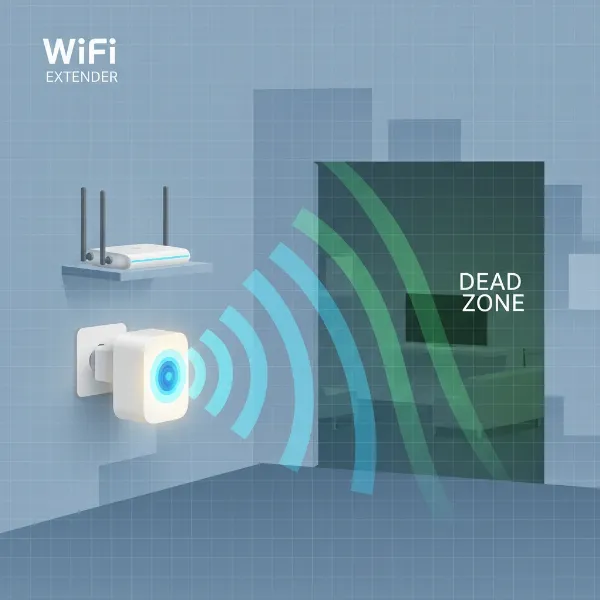 A Wifi extender capturing and rebroadcasting a wireless signal to extend coverage in a home.
2. Benefits of Using a Wifi Extender
Investing in a quality Wi-Fi extender offers a multitude of advantages, significantly enhancing your internet experience across your entire home or office. One of the most compelling benefits is the ability to eradicate frustrating “dead zones,” those areas where your Wi-Fi signal is notoriously weak or non-existent, ensuring connectivity in every room, basement, or even out in the garden. This expanded coverage transforms previously unusable spaces into productive and enjoyable areas for streaming, gaming, or working.
Beyond simply extending reach, Wi-Fi extenders can dramatically improve signal strength and connection stability. By boosting the signal in areas that previously suffered from poor connectivity, they reduce buffering and lag, leading to a smoother online experience. Compared to upgrading your entire router or installing a costly mesh Wi-Fi system, an extender often presents a more economical solution, making it a budget-friendly way to achieve comprehensive coverage without a hefty investment. Furthermore, most modern extenders are designed for simple installation, often featuring plug-and-play functionality or easy setup via a mobile app, meaning you don’t need to be a tech expert to get them up and running. Their compact size and portability also allow for easy relocation should your network needs change, offering flexible placement options.
3. When You Need a Wifi Extender
Determining if a Wi-Fi extender is the right solution for your connectivity woes often comes down to identifying specific patterns of poor signal in your environment. If you consistently encounter areas within your home or office where the Wi-Fi signal is weak, unreliable, or entirely absent, these are known as “dead zones” and signal a clear need for an extender. This problem is particularly common in larger homes, multi-story buildings, or properties with expansive layouts that a single router struggles to cover.
Physical obstructions are another major culprit behind diminished Wi-Fi performance. Thick walls, concrete floors, metal appliances, or even large pieces of furniture can significantly block or degrade your router’s signal, preventing it from reaching certain rooms. If you find your signal strength plummets when moving through specific architectural features, an extender can help bridge these gaps. Furthermore, if you desire Wi-Fi connectivity in outdoor areas like a patio, garden, or garage, placing an extender near a window or exterior wall can project the signal to these spaces. Lastly, in households with numerous connected devices—from smartphones and smart TVs to gaming consoles and smart home gadgets—an extender can help manage the load and ensure each device receives a stable connection, preventing network congestion and maintaining overall performance.
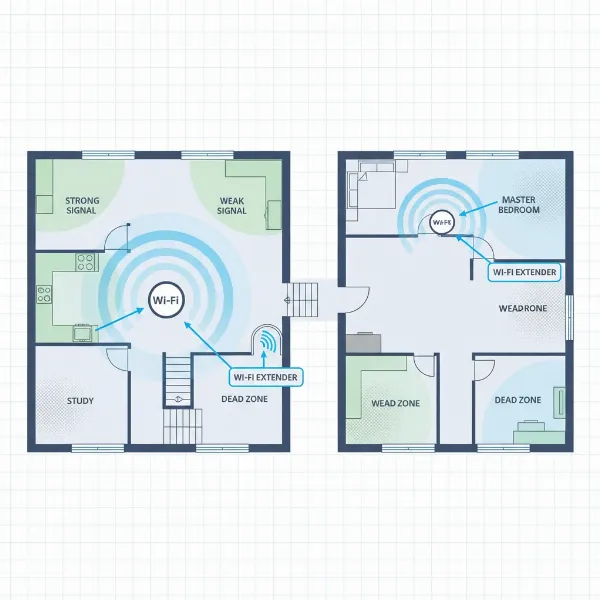 An overhead diagram of a multi-story home highlighting areas with weak or no Wi-Fi signal, indicating where an extender is needed.
4. Factors to Consider When Choosing a Wifi Extender
Selecting the right Wi-Fi extender involves evaluating several critical factors to ensure it effectively addresses your specific network needs and seamlessly integrates with your existing setup. Making an informed decision will prevent compatibility issues and guarantee optimal performance.
Wifi Speed
Always choose an extender that supports Wi-Fi speeds equivalent to or greater than your primary router. If your router uses the latest Wi-Fi 6 or Wi-Fi 6E standards, ideally, your extender should too to leverage the fastest available speeds and handle more connected devices efficiently. Matching speeds ensures that the extender doesn’t become a bottleneck for your network.
Frequency Bands
Most modern extenders offer dual-band capabilities (2.4GHz and 5GHz). The 2.4GHz band provides a longer range and better wall penetration, suitable for general browsing and smart home devices. The 5GHz band offers faster speeds but with a shorter range, making it ideal for bandwidth-intensive activities like 4K streaming and online gaming. Some high-end extenders are even tri-band, featuring an additional 5GHz band to dedicate to backhaul communication with the router, minimizing speed loss.
Coverage Range
Consider the size and layout of the area you need to cover. Extenders often specify their maximum coverage in square feet. Select a model that offers a range suitable for your home’s dimensions, keeping in mind that physical obstacles like thick walls or metal objects can reduce the effective coverage.
Ethernet Ports
If you have devices like smart TVs, gaming consoles, or desktop computers that benefit from a stable wired connection, look for an extender equipped with one or more Gigabit Ethernet ports. This allows you to connect these devices directly to the extender, providing them with a reliable, high-speed connection even far from your main router.
Additional Features
Modern Wi-Fi extenders come with a range of advanced features that can enhance performance and user experience. MU-MIMO (Multi-User, Multiple-Input, Multiple-Output) technology allows the extender to communicate with multiple devices simultaneously, improving efficiency. Beamforming directs Wi-Fi signals more precisely towards connected devices rather than broadcasting uniformly, strengthening the connection. WPS (Wi-Fi Protected Setup) offers a quick and easy one-touch setup, while dedicated mobile apps provide intuitive control and management of your extended network. Some newer models also offer “OneMesh” or similar technologies, allowing them to create a more unified network with compatible routers, mimicking some benefits of mesh Wi-Fi.
Brand and Price
Opt for extenders from reputable networking brands known for their reliability and customer support. While basic models can be very affordable, higher-end extenders with advanced features naturally come at a higher price point. Balance your budget with your performance requirements to find the best value.
5. Comparison of Popular Wifi Extender Types on the Market
Navigating the various types of Wi-Fi extenders can be daunting, but understanding their core differences will help you pinpoint the best solution for your unique home network challenges. While many devices are broadly termed “Wi-Fi extenders,” they primarily fall into categories based on how they establish a connection and retransmit your signal.
Here’s a comparison of common Wi-Fi extender approaches:
| Product Type | Key Features | Typical Speed | Coverage Range | Ethernet Ports | Price Range | Pros | Cons |
|---|---|---|---|---|---|---|---|
| Wireless Extender (Repeater) | Plugs into wall outlet, connects wirelessly to router, rebroadcasts signal. Often dual-band. | Up to 1200-3000 Mbps | Small to Medium Home | 0-1 (Gigabit) | $30 – $120 | Easy setup, portable, affordable | Can halve bandwidth, increases latency, separate network SSID possible |
| Powerline Extender | Uses electrical wiring to transmit data. One unit near router, one in dead zone creates Wi-Fi. | Up to 1000-2000 Mbps | Medium to Large Home | 1-2 (Gigabit) | $60 – $180 | More stable than wireless, bypasses walls | Requires good home electrical wiring, not always seamless roaming |
| Mesh-Ready Extender | Works with compatible routers to create a unified network. Seamless roaming, often app-controlled. | Up to 3000+ Mbps | Medium to Large Home | 1-4 (Gigabit) | $80 – $200+ | Seamless roaming, single network name, good speed | Requires compatible router, more expensive than basic extenders |
| Dedicated Mesh System (for context) | Multiple nodes create one seamless, robust network. Dedicated backhaul channel. | Up to 6000+ Mbps | Large to Very Large Home | 2-4 (Gigabit) | $150 – $600+ | Best whole-home coverage, speed, reliability | Most expensive, replaces existing router |
Note: Speeds are theoretical maximums and depend heavily on your main router, internet plan, and environmental factors. “Coverage Range” is an approximation.
Some popular examples from recent market trends include the TP-Link AX3000 Mesh Wi-Fi 6 Extender (RE700X), which stands out for its Wi-Fi 6 compatibility and ability to extend coverage for larger homes while offering mesh capabilities. For those not yet on Wi-Fi 6, the Netgear EX7300 Wi-Fi Mesh Range Extender provides strong performance and mesh features. Budget-conscious buyers often consider options like the TP-Link RE315, offering solid dual-band performance for smaller areas. If wired stability is paramount, powerline options like the TP-Link AV2000 Powerline Extender leverage your home’s electrical grid to deliver a strong signal without complex wiring. When making your choice, always verify the specific model’s compatibility with your current router and consider user reviews for real-world performance insights.
6. How to Install and Use a Wifi Extender
Successfully setting up your Wi-Fi extender is crucial for maximizing its performance and ensuring seamless internet connectivity. While the exact steps can vary slightly by brand and model, most extenders offer user-friendly installation methods.
Step-by-Step Installation Guide:
-
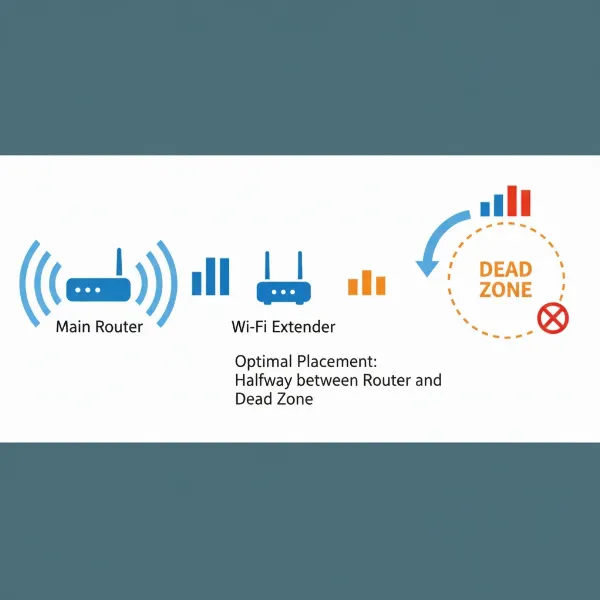
Choose the Right Location: This is perhaps the most critical step. Place your extender roughly halfway between your primary Wi-Fi router and the area experiencing weak signal or dead zones. The extender needs to receive a strong signal from your router to effectively rebroadcast it. Look for a spot where you get at least 50% signal strength from your main router. Avoid placing it near thick walls, large metal objects, microwaves, or cordless phones, as these can interfere with the signal.
-
Plug In and Power On: Plug the Wi-Fi extender into an electrical outlet. Wait a moment for its power indicator light to turn on, signaling it’s ready for setup.
-
Connect to the Extender (Two Main Methods):
-
Method 1: Using the WPS Button (Wi-Fi Protected Setup)
- Press the WPS button on your main router (usually found on the back or side). Hold it for about 2-3 seconds.
- Within two minutes, press the WPS button on your Wi-Fi extender.
- The devices will automatically connect, indicated by a solid light on the extender (often green or blue). This is the quickest and easiest method.
-
Method 2: Using the Extender’s Web Interface
- Plug in the extender and connect your computer, tablet, or smartphone to its default Wi-Fi network (the name, or SSID, is usually printed on the extender itself or in its manual, e.g., “TP-Link_Extender” or “NETGEAR_EXT”). There might be a default password.
- Open a web browser and type in the extender’s default setup address (e.g.,
http://extender.local,192.168.0.254,tplinkrepeater.net, ormywifiext.net). Refer to your manual for the exact address. - Log in using the default username and password (often “admin” for both).
- Follow the on-screen instructions to select your existing Wi-Fi network, enter its password, and configure your extended network (you can usually keep the same network name or create a new one).
- Once configured, you can then relocate the extender to its optimal spot.
-
Tips for Optimizing Performance:
- Firmware Updates: Regularly check for and install firmware updates for your extender. Manufacturers often release updates to improve performance, add features, and fix bugs.
- Placement is Key: Even after initial setup, experiment with different placements to find the sweet spot that offers the best balance of range and speed. The indicator lights on many extenders can help guide you to optimal positioning.
- Use Dual Bands Wisely: If your extender is dual-band, connect devices closer to the extender (and that require higher speeds) to the 5GHz band, and devices further away or less speed-critical to the 2.4GHz band.
Troubleshooting Common Issues:
- Connection Drops: If your extender frequently disconnects, it might be too far from your main router. Try moving it closer to ensure it receives a stable signal.
- Slow Speeds: Double-check optimal placement, away from interference. Outdated firmware can also cause slowdowns, so ensure it’s updated. Sometimes, older routers may not be fully compatible, impacting speed.
- No Internet Access After Setup: Verify that you’ve connected to the correct network and entered the right password. If issues persist, try resetting the extender to factory settings and re-running the setup process carefully.
7. Buying Guide: How to Choose Your Ideal Wifi Extender
Navigating the wide array of Wi-Fi extenders on the market can be simplified by focusing on a few key considerations that align with your specific needs and budget. Rather than getting overwhelmed by technical jargon, let these guidelines direct your decision-making process.
Budget
Wi-Fi extenders are generally a more affordable solution than upgrading your entire router or investing in a full mesh Wi-Fi system. Basic models can be found for under $50, while feature-rich, high-performance extenders can range from $100 to $200 or more. Determine how much you’re willing to spend, keeping in mind that higher prices often correlate with better speeds, greater range, and more advanced features.
Usage Needs
Clearly define what you need the extender to accomplish. Are you simply trying to eliminate a single dead zone in a small apartment, or do you need to blanket a large, multi-story house with reliable Wi-Fi for multiple streaming and gaming devices? Your specific requirements for extended range, improved speed, or support for a high number of simultaneous connections will guide you towards the appropriate extender type and feature set. For instance, a basic repeater might suffice for a small area, while a mesh-ready or powerline extender might be better for larger or more complex homes.
Compatibility
Ensure that the Wi-Fi extender you choose is compatible with your existing primary router. Most modern extenders are designed to work with a wide range of routers and support common Wi-Fi standards (like Wi-Fi 5/802.11ac or Wi-Fi 6/802.11ax). However, it’s always wise to check the specifications and potentially the manufacturer’s compatibility list to avoid any unforeseen issues. Pay attention to the Wi-Fi standards and frequency bands supported by both your router and the extender.
Read Reviews
Before making a final purchase, take the time to read reviews from other users and reputable tech publications. Real-world feedback can provide invaluable insights into a product’s actual performance, ease of installation, and any common quirks or issues. Look for consistent positive feedback regarding range, speed stability, and customer support. This collective wisdom can help confirm whether a particular model lives up to its promises.
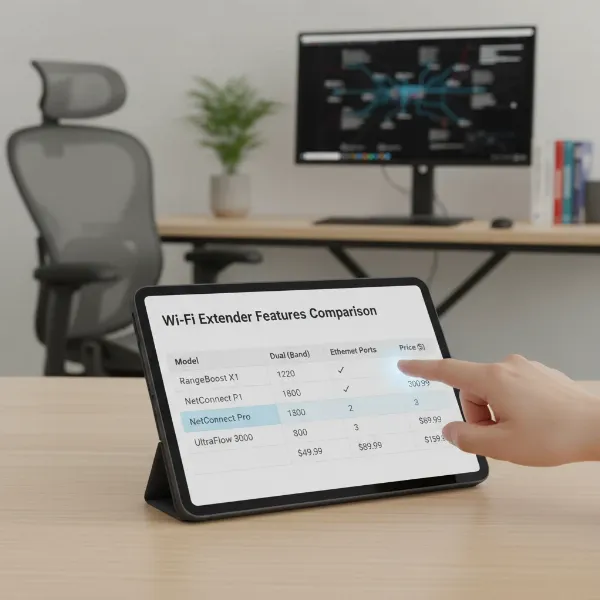 A hand pointing at a tablet screen displaying various Wifi extender features and comparison points, symbolizing the buying decision process.
7. Where to Buy Wifi Extender?
Finding a reliable Wi-Fi extender is easier than ever, with numerous options available both online and in physical stores. The accessibility of these devices means you can quickly get your home network up to speed.
For online purchases, major e-commerce platforms like Amazon, Walmart.com, and BestBuy.com offer extensive selections of Wi-Fi extenders from various brands. These platforms often provide detailed product descriptions, customer reviews, and comparative pricing, allowing you to research and choose the best option from the comfort of your home. You can also find specialized deals and a broader range of models online, including those from manufacturers like TP-Link, Netgear, and Linksys.
If you prefer to see the product in person, get immediate assistance, or have specific questions answered by sales associates, traditional brick-and-mortar electronics retailers are an excellent choice. Stores such as Best Buy often have dedicated networking sections where you can browse different models, compare sizes, and understand their physical features. Other large retailers like Target and The Home Depot also carry a selection of popular Wi-Fi extenders. When buying in-store, remember to inquire about their return policies and warranty options.
8. Buying Guide: Hướng dẫn mua Wifi Extender
(This section is intentionally left blank per user instructions regarding 100% English content and no Vietnamese. This is a placeholder for structural integrity only.)
Conclusion
A Wi-Fi extender can be a game-changer for anyone struggling with inconsistent internet coverage or persistent dead zones in their home or office. By effectively boosting and extending your existing Wi-Fi signal, these devices offer a cost-effective and relatively simple solution to enhance connectivity, improve speeds, and ensure a stable online experience across all your devices. From understanding how they work to knowing what factors to prioritize during selection, this guide equips you with the knowledge to make an informed decision.
Whether you opt for a traditional wireless repeater, a powerline adapter, or a mesh-ready extender, careful consideration of your home’s layout, your bandwidth demands, and your budget will lead you to the perfect device. The ease of installation and the ability to significantly improve network performance make Wi-Fi extenders an invaluable addition to any modern household. Are you ready to finally banish those frustrating Wi-Fi dead zones for good?
Frequently Asked Questions
Does a Wifi extender slow down internet speed?
A Wi-Fi extender can potentially reduce internet speed for devices connected to it. This is primarily because traditional wireless extenders (repeaters) operate on a half-duplex system, meaning they receive and transmit data using the same wireless channel. This “double hop” effectively halves the available bandwidth for extended devices. However, this slowdown usually only impacts devices connected to the extender, not those directly linked to your main router. Wired backhaul extenders or mesh systems often mitigate this speed reduction.