A stable and fast internet connection is no longer a luxury but a fundamental necessity, especially for those working from home. Yet, many home office setups are plagued by frustrating Wi-Fi dead zones or inconsistent signals, leading to dropped video calls, slow file transfers, and reduced productivity. A reliable Wifi extender can be the game-changer, transforming patchy connectivity into a robust and seamless online experience right where you need it most. This comprehensive guide will explore how Wi-Fi extenders work, their benefits for your home office, critical factors to consider when choosing one, and top recommendations to help you find the perfect solution for uninterrupted work.
1. What is a Wifi Extender and How Does It Work?
At its core, a Wifi extender is a device designed to expand the coverage area of your existing wireless network. Often referred to as a Wi-Fi booster or repeater, its primary function is to eliminate areas within your home or office where the Wi-Fi signal from your main router is weak or non-existent, commonly known as “dead zones.”
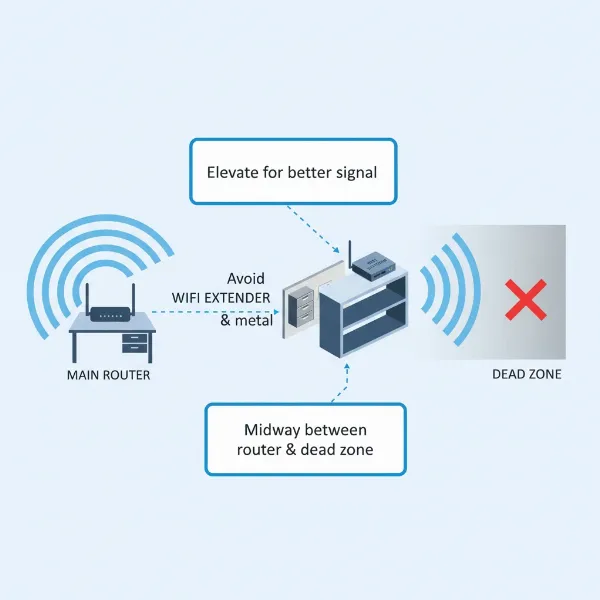
The operational principle of a Wifi extender is straightforward yet effective. The device contains two primary wireless antennas: one acts as a receiver to pick up the existing Wi-Fi signal from your main router, and the other acts as a transmitter to broadcast a new, boosted signal. This process effectively creates a bridge, extending the usable range of your Wi-Fi to previously unreachable areas. By strategically placing the extender about halfway between your main router and the area with a poor signal (like your home office workstation), you can significantly improve connectivity.
There are primarily two types of Wifi extenders. Plug-in models are compact and plug directly into a wall outlet, offering a convenient and unobtrusive way to enhance Wi-Fi coverage in smaller areas or specific dead spots. Desktop extenders are generally larger and often feature external antennas for better range and coverage, making them ideal for more extensive spaces or environments with significant signal interference.
2. Benefits of Using a Wifi Extender for Your Home Office
Integrating a quality Wifi extender into your home office setup offers several compelling advantages, directly impacting your productivity and overall work experience. The most immediate benefit is the elimination of frustrating dead zones, ensuring that your workstation, regardless of its location in your home, receives a strong and consistent Wi-Fi signal.
Beyond just extending coverage, a well-chosen Wifi extender can significantly improve the speed and stability of your connection. For critical tasks like high-definition video conferencing, seamless cloud collaborations, or transferring large files, a reliable link is paramount. By boosting the signal, extenders help mitigate packet loss and reduce latency, leading to smoother calls and faster data transfers. Furthermore, compared to upgrading your entire router or installing a complex mesh Wi-Fi system, a Wifi extender often presents a more cost-effective solution for addressing localized signal issues. Most modern extenders are also designed for simple, user-friendly installation, often involving just a few steps via a web interface or a dedicated smartphone app. This ease of setup, combined with the flexibility to relocate the device as your network needs evolve, makes extenders a practical choice for dynamic home office environments.
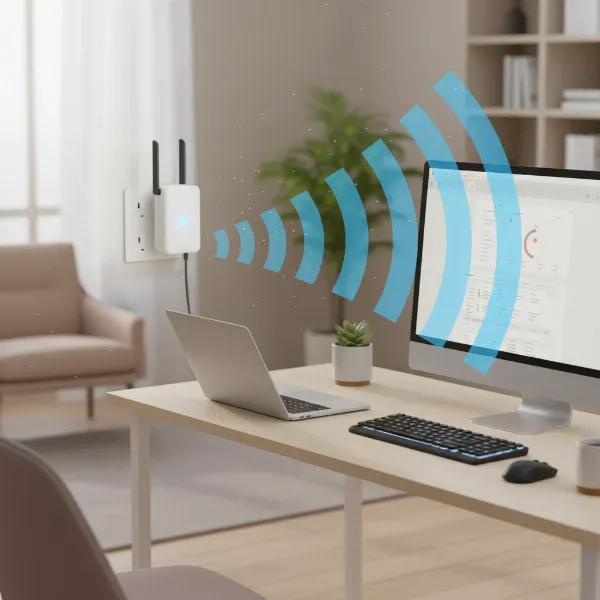 A Wifi extender boosting signal to a home office workstation with a laptop and monitor, showing strong Wi-Fi bars.
3. When Do You Need a Wifi Extender for Your Home Office?
Identifying the right time to invest in a Wifi extender is crucial for optimizing your home office connectivity. The most apparent indicator is experiencing persistent connectivity issues or “dead zones” specifically in the area where your workstation is located. If you find yourself constantly battling buffering during online meetings, struggling with slow downloads, or noticing frequent signal drops, an extender is likely a suitable solution.
Several common scenarios necessitate the use of a Wifi extender. Homes with multiple floors, large square footage, or thick walls often impede Wi-Fi signals, creating isolated areas with weak reception. If your home office is situated far from your main router, in a basement, an attic, or even a detached garage, a Wifi extender can bridge that distance. Moreover, in households with many devices simultaneously connected to the network—from smart home gadgets to streaming devices—your main router might be overwhelmed. An extender can help offload some of that traffic, improving overall network performance. For professionals who rely heavily on bandwidth-intensive applications such as continuous video conferencing, large data backups, or graphic-intensive cloud applications, ensuring a consistently strong signal via an extender can prevent significant work disruptions.
4. Key Factors to Consider When Choosing a Wifi Extender
Selecting the ideal Wifi extender for your home office requires evaluating several critical factors to ensure it meets your specific needs.
- Wi-Fi Speed & Standard: This is paramount for a productive home office. Look for an extender that supports at least Wi-Fi 6 (802.11ax), or even Wi-Fi 7 (802.11be) if your budget and existing router allow, to match or exceed your main router’s capabilities. Higher speeds (e.g., AX3000, AX6000) translate directly to faster downloads, uploads, and smoother online activities.
- Bands (Dual-Band vs. Tri-Band): Most modern extenders are dual-band, operating on both 2.4GHz (for broader range) and 5GHz (for higher speeds). A tri-band extender can offer a dedicated backhaul band for communication with the router, preventing the common speed reduction associated with traditional dual-band extenders, which use one band to communicate with the router and the other to communicate with your devices.
- Ethernet Ports: For a home office workstation, Gigabit Ethernet ports are invaluable. Connecting your computer directly via an Ethernet cable to the extender ensures the most stable, fastest, and lowest-latency connection possible, which is critical for demanding tasks and often superior to even the best wireless connection.
- Coverage Area: Consider the square footage you need to cover. Extenders vary widely in their range; some are suited for a single extra room (around 1,500 sq ft), while others can blanket larger multi-story homes.
- Mesh Compatibility: Many newer extenders are “mesh-ready” or part of a mesh system. If your main router is from the same brand and supports mesh, choosing a compatible extender can create a single, seamless Wi-Fi network (one SSID) across your home, allowing your devices to automatically switch to the strongest signal without manual intervention.
- Ease of Setup & Management: Look for extenders with user-friendly setup options, such as a WPS (Wi-Fi Protected Setup) button or a dedicated smartphone app (e.g., TP-Link Tether, Netgear Nighthawk app). These tools simplify installation, placement optimization, and ongoing network management.
- Brand and Price: Reputable brands like TP-Link, Netgear, and Asus consistently produce reliable extenders. While budget options are available, investing a bit more in a higher-performance model can significantly enhance your home office experience.
5. Top Wifi Extenders for Home Office Workstations: A Comparison
Choosing the right Wifi extender can significantly impact your home office productivity. Here’s a comparison of some highly-rated models that stand out for their performance and features relevant to remote work:
| Product Name | Brand | Wi-Fi Standard | Max Speeds | Bands | Ethernet Ports | Mesh Compatibility | Pros | Cons | Ideal For |
|---|---|---|---|---|---|---|---|---|---|
| RE715X AX3000 | TP-Link | Wi-Fi 6 | AX3000 (574+2402 Mbps) | Dual-Band | 1 Gigabit | OneMesh | Excellent speed & range, stable performance, easy setup via Tether app, affordable. | Signal drop-off at very long distances. | Balancing speed and value for typical home office needs. |
| RP-AX58 AX3000 | Asus | Wi-Fi 6 | AX3000 (574+2402 Mbps) | Dual-Band | 1 Gigabit | AiMesh | High upload speeds, great for video conferencing/cloud, sleek design, robust AiMesh integration. | Higher latency at far distances compared to some rivals. | Users prioritizing strong upload performance and Asus AiMesh ecosystem. |
| Nighthawk AX8 (EAX80) | Netgear | Wi-Fi 6 | AX6000 (1200+4800 Mbps) | Dual-Band | 4 Gigabit, 1 USB 3.0 | Nighthawk Mesh | Exceptional range and performance, multiple Ethernet ports for wired devices, robust software. | Higher price point, larger footprint, works best with Wi-Fi 6 router. | Large homes, multiple wired office devices, or heavy network users. |
| RE605X AX1800 | TP-Link | Wi-Fi 6 | AX1800 (574+1201 Mbps) | Dual-Band | 1 Gigabit | OneMesh | Cost-effective Wi-Fi 6 upgrade, easy setup, compact, good for extending a Wi-Fi 6 network. | Not as powerful as higher-end models, limited range for very large areas. | Budget-conscious users needing a reliable Wi-Fi 6 boost for a small to medium office space. |
6. Setting Up and Optimizing Your Wifi Extender for Best Performance
Proper setup and placement are critical to maximize your Wifi extender’s effectiveness for your home office.
Step-by-step Installation Guide:
- Unpack and Power On: Plug your extender into a power outlet near your main router initially.
- Connect: Most modern extenders offer two main setup methods:
- WPS Button: Press the WPS button on your router, then within two minutes, press the WPS button on your extender. The devices will automatically connect.
- App/Web Interface: Download the manufacturer’s dedicated app (e.g., TP-Link Tether, Netgear Nighthawk) or connect to the extender’s temporary Wi-Fi network from your computer/phone and follow the on-screen instructions to set it up via a web browser. You’ll typically choose your main Wi-Fi network and enter its password.
- Relocate: Once configured, unplug the extender and move it to an optimal location.
Optimal Placement Tips:
The “sweet spot” for your extender is typically about halfway between your main router and your home office workstation (the dead zone). Avoid placing it too close to the router (where it’s redundant) or too far (where it receives a weak signal to extend). Look for smart signal indicator lights on the extender itself—these usually change color (e.g., red for poor, green for good) to guide you to the best placement. Ensure there are minimal physical obstructions like thick walls, large appliances, or metal objects between the extender and both your router and your workstation.
Firmware Updates:
Always ensure your extender’s firmware is up to date. Manufacturers frequently release updates that improve performance, add features, and address security vulnerabilities. You can usually do this through the companion app or the extender’s web interface.
7. Where to Buy Your Wifi Extender
Finding the right Wifi extender for your home office is easier than ever, with numerous purchasing options available.
Online Retailers: Major online marketplaces such as Amazon, Best Buy, and Walmart are excellent starting points. They offer a vast selection of models from various brands, often with competitive pricing, detailed product descriptions, and extensive customer reviews. This allows you to compare specifications and read real-world feedback before making a decision. Keep an eye out for seasonal sales and deals.
Physical Stores: If you prefer to see the product in person or need immediate assistance, electronics retailers like Best Buy, Target, or even local computer stores are good options. Store associates can often provide personalized recommendations and answer specific questions about compatibility with your existing router.
Direct from Manufacturer: You can also purchase directly from the websites of brands like TP-Link, Netgear, or Asus. This ensures you receive authentic products and often gives you access to the latest models and direct customer support. When buying online, always verify the seller’s reputation and check the return policy, especially if you’re unsure about compatibility or coverage needs.
8. Buying Guide: Finding Your Ideal Home Office Wifi Extender
Navigating the array of Wifi extenders can be daunting, but a structured approach can help you pinpoint the best device for your home office.
1. Assess Your Current Network: Before buying, evaluate your existing Wi-Fi setup. What is your router’s Wi-Fi standard (e.g., Wi-Fi 5/AC, Wi-Fi 6/AX)? What internet speed do you subscribe to? Understanding these will help you choose an extender that complements, rather than bottlenecks, your current network.
2. Define Your Specific Needs: Clearly identify why you need an extender. Are you targeting a single dead zone in your office, or a broader area? Do you need gigabit speeds for wired devices, or is wireless extension sufficient? Prioritizing these needs will narrow down your options.
3. Budget Considerations: Wifi extenders range from budget-friendly options under $50 to high-performance models exceeding $150. While a basic extender might suffice for minor signal improvements, investing in a mid-to-high range Wi-Fi 6 extender with Ethernet ports will provide a more robust and future-proof solution for a dedicated home office workstation.
4. Read Reviews: Always consult professional reviews from reputable tech sites and user testimonials on retail platforms. Pay close attention to feedback regarding real-world performance, ease of setup, and long-term reliability for home office use cases.
5. Consider Mesh if Applicable: If your entire home suffers from poor Wi-Fi, and your budget allows, a mesh Wi-Fi system might be a more comprehensive solution than multiple extenders. However, for targeting specific dead zones like a home office, a capable extender (especially one compatible with your router’s mesh system like OneMesh or AiMesh) offers an excellent balance of performance and value.
“A well-placed Wifi extender can be the unsung hero of a productive home office, eliminating frustrating dead zones and ensuring your work never skips a beat.”
Conclusion
A reliable Wifi extender can significantly enhance your home office experience, transforming spotty connections into a dependable network essential for remote work. By effectively eliminating dead zones and boosting signal strength, these devices ensure seamless video calls, rapid data transfers, and uninterrupted productivity. Considering factors such as Wi-Fi speed, dual-band capabilities, Ethernet ports, and mesh compatibility will guide you to the perfect solution. With the right Wifi extender, your home office workstation can finally achieve the robust and stable internet connection it deserves, empowering you to work without limits. What connectivity challenges have you faced in your home office, and how do you plan to overcome them?
Frequently Asked Questions
Does a Wifi extender slow down internet speed?
|
Our Picks for the Best Wifi extender in 2026
As an Amazon Associate I earn from qualifying purchases.
|
||
| Num | Product | Action |
|---|---|---|
| 1 | TP-Link WiFi Extender with Ethernet Port, Dual Band 5GHz/2.4GHz, Up to 44% More Bandwidth Than Single Band, Covers Up to 1200 Sq.ft and 30 Devices, Signal Booster Amplifier Supports OneMesh(RE220) |

|
| 2 | TP-Link AC1900 WiFi Range Extender RE550 | Dual-Band Wireless Repeater Amplifier w/Gigabit Ethernet Port | Up to 2200 Sq. Ft., 32 Devices | Internet Signal Booster | APP Setup | EasyMesh Compatible |
|
| 3 | 2026 WiFi Extender Signal Booster - 2.4GHz 300Mbps WiFi Booster for Home, Covers Up to 9999 Sq. Ft, Easy Setup, Ethernet Port & Access Point, Stable Internet Performance with 60+ Devices(White) |
|
| 4 | 1200Mbps WiFi Extender Signal Booster for Home, Dual Band 5GHz/2.4GHz Wireless Internet Repeater with 4 External Antennas, Covers Up to 3600 Sq.ft & Supports 80 Devices, AP Mode with Ethernet Port |
|
| 5 | WiFi Extender Signal Booster for Home 2026 Internet Repeater Long Range Up to 9995 Sq. Ft. Whole Home WiFi Coverage |
|
| 6 | WiFi Extender, WiFi Extenders Signal Booster for Home Up to 5000 sq.ft and 50 Devices, WiFi Range Extender, Wireless Repeater, Long Range Amplifier with Ethernet Port, 1-Tap Setup, Alexa Compatible |
|
| 7 | TP-Link AX3000 WiFi 6 Range Extender | PCMag Editor's Choice | Dual-Band Wireless Repeater w/Ethernet Port | Up to 2400 Sq. Ft., 64 Devices | Internet Signal Booster | APP Setup | EasyMesh (RE715X) |
|
| 8 | WiFi Extender Signal Booster, WiFi Booster Dual Band 5.8GHz&2.4GHz, Covers Up to 10000 Sq.ft, 1.2Gbps WiFi Repeater with One Ethernet Port, One-tap Setup |
|
| 9 | WiFi Extender WiFi Booster 1200 Mbps Dual Band (5GHz/2.4GHz) WiFi Extenders Signal Booster for Home, Internet Extended Booster WiFi Repeater (White) |
|
| 10 | TP-Link AC1200 WiFi Extender, 2023 Engadget Best Budget Pick, 1.2Gbps Signal Booster for Home, Dual Band 5GHz/2.4GHz, Covers Up to 1500 Sq.ft and 30 Devices,Support Onemesh, One Ethernet Port (RE315) |
|
A Wifi extender can sometimes cause a slight speed reduction because it retransmits the signal, effectively using bandwidth to communicate with both the router and your devices. However, modern dual-band or tri-band extenders, especially those with dedicated backhaul or Wi-Fi 6 technology, are designed to minimize this impact, providing a strong and stable connection that often feels faster in previously weak areas.
What is the best placement for a Wifi extender?
The optimal placement for a Wifi extender is roughly halfway between your main Wi-Fi router and the “dead zone” where you need improved signal (e.g., your home office). It needs to receive a strong enough signal from the router to effectively rebroadcast it. Many extenders have LED indicators that help you find the best spot by changing color to signify signal strength.
Can a Wifi extender replace a Mesh Wifi system?
No, a Wifi extender cannot entirely replace a Mesh Wifi system. While both extend network coverage, a mesh system creates a unified, seamless network with multiple nodes communicating intelligently, offering consistent speeds and automatic device switching across a large area. An extender typically creates a separate network and is best suited for targeted signal boosts in specific, localized dead zones.
Is a Wifi 6 extender necessary for a home office?
A Wi-Fi 6 extender is highly recommended for a home office. It offers significantly faster speeds, lower latency, and improved efficiency compared to older standards, especially in environments with many connected devices. If your main router is Wi-Fi 6 compatible, an extender with the same standard ensures you maximize performance for demanding work tasks like video conferencing and large file transfers.