Experiencing frustrating internet dead zones or slow Wi-Fi speeds in certain areas of your home? It’s a common modern dilemma, whether you’re working remotely, streaming 4K content, or gaming online. A reliable Wi-Fi signal is no longer a luxury but a necessity for most households. While upgrading your internet plan or replacing your main router are options, they often come with significant costs or complexities. This comprehensive guide will explore Wi-Fi extenders, offering a detailed review of their pros, cons, and how they can provide a cost-effective solution to expand and enhance your home network. Discover how these devices work, when they are most effective, and what factors to consider when selecting the perfect one for your specific needs.
1. What is a WiFi Extender and How Does It Work?
A Wi-Fi extender, often interchangeably called a Wi-Fi booster or repeater, is a network device designed to expand the coverage of your existing wireless network. Its primary function is to eliminate “dead zones” – areas where your router’s signal is weak or non-existent – by rebroadcasting the Wi-Fi signal to extend its reach. Essentially, it acts as a middleman, picking up the signal from your main router and then amplifying and retransmitting it further into your home or office.
The process is quite straightforward. The extender connects wirelessly to your primary router, capturing its signal. Once connected, it creates a secondary network, often with the same or a slightly modified network name (SSID), which then broadcasts the amplified signal. This boosted signal can then be picked up by devices that were previously too far from your main router, providing them with a stronger, more reliable connection. While the terms “extender,” “booster,” and “repeater” are frequently used interchangeably, they all generally refer to devices that help broaden your Wi-Fi’s physical range. Some advanced extenders can even integrate with certain routers to form a seamless mesh-like network, ensuring a consistent signal as you move between rooms.
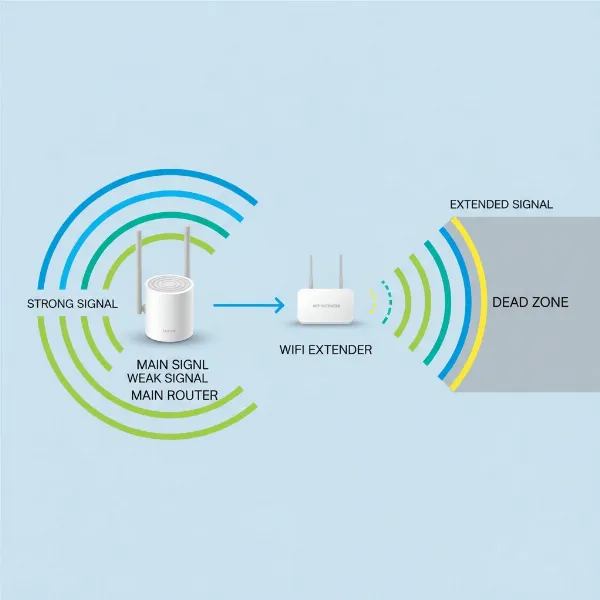 A diagram showing how a WiFi extender works, extending coverage to a dead zone
2. Benefits of Using a WiFi Extender
Integrating a Wi-Fi extender into your home network offers several compelling advantages, making it a popular choice for improving connectivity. The most immediate benefit is the elimination of Wi-Fi dead zones, extending coverage to previously unreachable areas like basements, upstairs bedrooms, or distant corners of your house. This means consistent internet access throughout your entire property.
Beyond just extending reach, extenders can significantly improve signal strength in areas with weak connectivity, leading to more stable connections and faster speeds for your devices. Compared to purchasing a new, more powerful router or implementing a full mesh Wi-Fi system, extenders are typically a much more affordable solution. Their installation is usually simple, often involving a plug-and-play setup or a quick WPS button press, requiring minimal technical expertise. Many models are also compact and portable, allowing for easy repositioning to find the optimal spot for maximum coverage. By offloading some devices to the extended network, you can also reduce congestion on your main router, potentially improving overall network performance.
3. When Do You Need a WiFi Extender?
Deciding if a Wi-Fi extender is the right solution for you often comes down to identifying specific connectivity pain points within your environment. If you live in a large home, particularly one with multiple floors or an expansive layout, your router’s signal might struggle to cover every area. Similarly, homes with thick walls, concrete structures, or other physical obstructions can severely impede Wi-Fi signals, creating isolated spots with poor or no reception.
An extender becomes particularly useful if you frequently use Wi-Fi in outdoor areas like a garden, patio, or detached garage, where the main router’s signal might not naturally reach. Furthermore, in households with numerous connected devices, such as smart home gadgets, streaming devices, and gaming consoles, an extender can help distribute the network load. If your current router is older and not equipped to handle modern demands, an extender can provide a significant boost in coverage and sometimes even introduce newer Wi-Fi standards without the need for a full router replacement. Ultimately, if you constantly find yourself searching for a stronger signal or experiencing dropped connections in certain spots, a Wi-Fi extender is a strong indicator that you need one.
 A person frustrated with a weak WiFi signal in a corner of their large home
4. Factors to Consider When Choosing a WiFi Extender
Selecting the right Wi-Fi extender involves evaluating several key specifications to ensure it effectively meets your network’s demands.
- WiFi Speed and Standards: It’s crucial to choose an extender that supports Wi-Fi standards (e.g., Wi-Fi 5/802.11ac or Wi-Fi 6/802.11ax, or even Wi-Fi 7 for future-proofing) compatible with or ideally superior to your main router. This ensures you can leverage your internet speed fully. Look for advertised speeds in Mbps, but remember real-world performance will vary.
- Frequency Bands: Dual-band extenders (supporting both 2.4GHz and 5GHz) are highly recommended. The 2.4GHz band offers greater range and better penetration through walls, while the 5GHz band provides faster speeds for bandwidth-intensive tasks over shorter distances. Some advanced models offer tri-band configurations, adding a dedicated backhaul band for communication with the router, further reducing speed degradation.
- Coverage Range: Consider the square footage the extender claims to cover and match it to the size of the area you need to extend. Overstated ranges are common, so factor in real-world obstacles like walls.
- Number of Ethernet Ports: If you have wired devices like smart TVs, gaming consoles, or desktop PCs in the extended area, an extender with one or more Gigabit Ethernet ports is essential for optimal performance.
- Additional Features: Modern extenders offer various enhancements. MU-MIMO (Multi-User, Multiple-Input, Multiple-Output) improves efficiency by allowing the extender to communicate with multiple devices simultaneously. Beamforming directs the Wi-Fi signal more precisely towards connected devices. Features like WPS (Wi-Fi Protected Setup) simplify pairing, while companion apps offer easy setup and management. Some even include security features or parental controls.
- Brand and Price: Opt for reputable brands known for network equipment (e.g., TP-Link, Netgear, Asus). Prices vary widely, so define your budget and look for the best features within that range.
- Compatibility: While most extenders are universally compatible, some “mesh-ready” extenders (like TP-Link OneMesh or Asus AiMesh compatible devices) are designed to work seamlessly with specific router brands to create a unified network experience. Check if your router supports these features if you desire a single network name.
5. Comparing Popular WiFi Extenders on the Market
The market offers a diverse range of Wi-Fi extenders, each catering to different needs and budgets. Here’s a look at some popular options and their general characteristics based on recent reviews:
- TP-Link AX3000 Mesh Wi-Fi 6 Extender (RE715X): Often praised as a top overall choice, this Wi-Fi 6 extender delivers speedy performance on both 2.4GHz and 5GHz bands. It’s easy to set up and manage, supports 160MHz channels, and is OneMesh ready, allowing it to form a unified network with compatible TP-Link routers. However, its bulky design and lack of a pass-through outlet can be minor drawbacks.
- Netgear EAX17 AX3000: This model is frequently highlighted for its high level of compatibility across a wide range of routers, making it a versatile choice. It offers solid Wi-Fi 6 performance, contributing to a more stable connection.
- TP-Link RE220 AC750: For those on a tighter budget, the RE220 AC750 is an excellent entry-level option. While it won’t provide extensive range, it’s effective for extending Wi-Fi to an adjacent room or reaching smart home devices that are just out of your router’s reach. It’s a cost-effective way to solve small-scale coverage issues.
- ASUS RP-AX58 AX3000: This powerful Wi-Fi 6 extender stands out for its impressive range and strong connection speeds, especially when devices are closer to the extender. It’s an ideal companion for ASUS AiMesh routers, enabling a true mesh network with smart roaming capabilities. Its design can be large, but it often includes additional software features like AiProtection Pro security.
- TP-Link RE655BE (Wi-Fi 7): Representing the cutting edge, this is one of the first Wi-Fi 7 extenders available. It delivers exceptional speeds, especially at closer distances, making it suitable for extending a Wi-Fi 7 router’s signal to eliminate dead zones in demanding environments. However, its high price point makes it a significant investment, often costing more than many standalone routers.
These examples illustrate that while budget options can solve basic dead zones, more advanced Wi-Fi 6 or 7 extenders provide higher speeds and better integration for modern, high-bandwidth homes.
6. How to Install and Optimize Your WiFi Extender
Installing and optimizing a Wi-Fi extender is generally a straightforward process that can significantly improve your network’s reach.
Installation Guide:
- Unpack and Power On: Unbox your extender and plug it into a power outlet near your main Wi-Fi router for the initial setup.
- Connect to Your Network: Most modern extenders offer a few setup methods:
- WPS (Wi-Fi Protected Setup): Press the WPS button on your main router, then within two minutes, press the WPS button on your extender. The indicator light on the extender should turn solid, signifying a successful connection.
- Via Web Browser/App: If your router doesn’t have WPS or you prefer more control, connect your computer or smartphone to the extender’s temporary Wi-Fi network (usually printed on the device or in the manual). Then, open a web browser and navigate to the setup address (e.g.,
tplinkrepeater.netormywifiext.net). Follow the on-screen instructions to select your main Wi-Fi network and enter its password. Many brands also offer dedicated mobile apps for an even easier setup.
Our Picks for the Best Wifi extender in 2026As an Amazon Associate I earn from qualifying purchases.Num Product Action 1 WiFi Extender WiFi Booster 1200 Mbps Dual Band (5GHz/2.4GHz) WiFi Extenders Signal Booster for Home, Internet Extended Booster WiFi Repeater (White) 
2 TP-Link AC1200 WiFi Extender, 2023 Engadget Best Budget Pick, 1.2Gbps Signal Booster for Home, Dual Band 5GHz/2.4GHz, Covers Up to 1500 Sq.ft and 30 Devices,Support Onemesh, One Ethernet Port (RE315)
3 TP-Link AX3000 WiFi 6 Range Extender | PCMag Editor's Choice | Dual-Band Wireless Repeater w/Ethernet Port | Up to 2400 Sq. Ft., 64 Devices | Internet Signal Booster | APP Setup | EasyMesh (RE715X)
4 TP-Link AC1900 WiFi Range Extender RE550 | Dual-Band Wireless Repeater Amplifier w/Gigabit Ethernet Port | Up to 2200 Sq. Ft., 32 Devices | Internet Signal Booster | APP Setup | EasyMesh Compatible
5 2026 WiFi Extender Signal Booster - 2.4GHz 300Mbps WiFi Booster for Home, Covers Up to 9999 Sq. Ft, Easy Setup, Ethernet Port & Access Point, Stable Internet Performance with 60+ Devices(White)
6 1200Mbps WiFi Extender Signal Booster for Home, Dual Band 5GHz/2.4GHz Wireless Internet Repeater with 4 External Antennas, Covers Up to 3600 Sq.ft & Supports 80 Devices, AP Mode with Ethernet Port
7 WiFi Extender, WiFi Extenders Signal Booster for Home Up to 5000 sq.ft and 50 Devices, WiFi Range Extender, Wireless Repeater, Long Range Amplifier with Ethernet Port, 1-Tap Setup, Alexa Compatible
8 WiFi Extender Signal Booster, WiFi Booster Dual Band 5.8GHz&2.4GHz, Covers Up to 10000 Sq.ft, 1.2Gbps WiFi Repeater with One Ethernet Port, One-tap Setup
9 WiFi Extender Signal Booster for Home 2026 Internet Repeater Long Range Up to 9995 Sq. Ft. Whole Home WiFi Coverage
10 TP-Link WiFi Extender with Ethernet Port, Dual Band 5GHz/2.4GHz, Up to 44% More Bandwidth Than Single Band, Covers Up to 1200 Sq.ft and 30 Devices, Signal Booster Amplifier Supports OneMesh(RE220)
- Reposition the Extender: Once connected, unplug the extender and move it to a location roughly halfway between your main router and the Wi-Fi dead zone. Ensure the extender still receives a strong signal from the main router. Most extenders have an LED indicator to help you find the optimal placement—green or blue usually indicates a good connection.
Tips to Optimize Performance:
- Optimal Placement is Key: The placement halfway between your router and the dead zone is crucial. If it’s too close to the router, it won’t extend far enough. If it’s too far, it won’t receive a strong enough signal to rebroadcast effectively, leading to slow speeds.
- Avoid Interference: Place the extender away from devices that emit electromagnetic interference, such as microwaves, cordless phones, Bluetooth devices, and large metal objects or thick concrete walls.
- Elevate the Extender: Position the extender at a similar height to your router, if possible, for better signal propagation. Avoid placing it on the floor or hidden behind furniture.
- Firmware Updates: Regularly check for and install firmware updates for your extender. Manufacturers often release updates to improve performance, security, and add new features.
Troubleshooting Common Issues:
- No Power/No Lights: Check if the power outlet is working by plugging in another appliance. Ensure the outlet isn’t controlled by a wall switch that is off.
- Extender Out of Range: If the extender’s indicator light shows a weak signal (e.g., red or amber), move it closer to your main router.
- Slow Speeds: This can often be due to poor placement or interference. Try repositioning the extender or checking for nearby interfering devices. If your extender creates a separate SSID, ensure your devices are connecting to the extender’s network when in range.
- Connectivity Drops: Resetting the extender to factory defaults (usually via a small reset button) and reconfiguring it can often resolve persistent connection issues. You may also try restarting both your router and the extender.
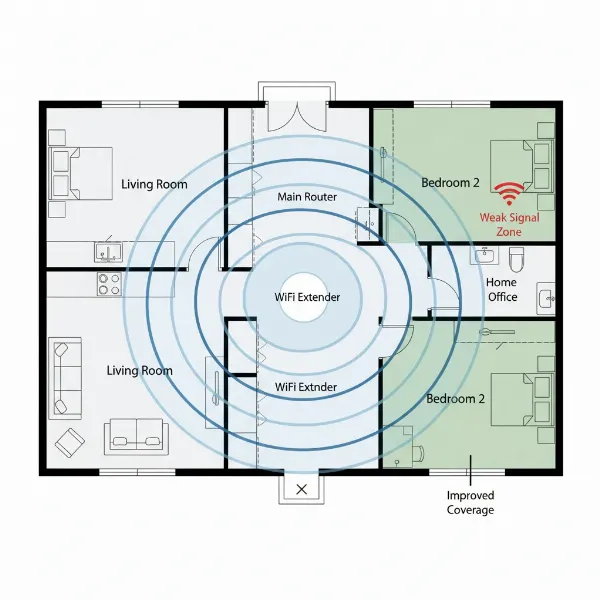 Optimal placement of a WiFi extender in a home to maximize signal range
7. Where to Buy WiFi Extenders?
Finding a Wi-Fi extender is relatively easy, as they are widely available through various retail channels, both online and in physical stores.
For online purchases, major e-commerce platforms like Amazon, Newegg, and Best Buy are excellent starting points. They offer a vast selection from numerous brands, often with competitive pricing, detailed product specifications, and extensive customer reviews that can help inform your decision. Many manufacturers also sell directly from their official websites, which can be beneficial for specific brand compatibility or warranty information.
If you prefer to see the devices in person or need immediate assistance, brick-and-mortar electronics retailers such as Best Buy, Walmart, or Target typically stock a range of popular Wi-Fi extender models. These stores allow you to compare sizes, check port availability, and speak with sales associates if you have questions. Additionally, some internet service providers (ISPs), like AT&T, offer their own branded Wi-Fi extenders or coverage services, which can sometimes provide seamless integration with your existing ISP equipment and specialized support. When purchasing online, always ensure you’re buying from a reputable seller and verify the return policy, especially if you’re unsure about compatibility or performance.
8. Buying Guide: Choosing the Right WiFi Extender
Navigating the options for Wi-Fi extenders can feel overwhelming, but a systematic approach based on your specific needs will simplify the process.
- Determine Your Budget: Wi-Fi extenders vary significantly in price, from under $50 for basic models to over $200 for high-performance, Wi-Fi 6E/7 compatible devices. Knowing your budget upfront will narrow down your choices considerably.
- Identify Your Usage Needs: Clearly define why you need an extender. Are you simply trying to eliminate a single dead zone in a small apartment, or do you need to cover a large, multi-story home with numerous devices? Do you require high speeds for gaming or 4K streaming in the extended area, or is basic browsing sufficient? These needs will dictate the required speed, band support (dual-band or tri-band), and overall power of the extender.
- Check Router Compatibility: While most extenders are universally compatible, some brands offer “mesh-ready” extenders (e.g., TP-Link OneMesh, Asus AiMesh) that integrate more smoothly with their respective routers, creating a single network name and easier management. If you value this seamless experience, check if your current router supports such features.
- Read Customer Reviews: Don’t underestimate the value of real-world user experiences. Customer reviews on retail websites or tech forums can provide insights into actual performance, ease of setup, reliability, and common issues that might not be apparent from product specifications alone. Look for consistent feedback regarding signal strength, stability, and speed.
- Consider a Mesh System as an Alternative: If your home is very large (over 2,000 sq ft), has complex layouts, or if you consistently face dead zones across multiple areas and desire a truly seamless, high-performance whole-home Wi-Fi solution, a mesh Wi-Fi system might be a better (though more expensive) long-term investment. They offer superior coverage and consistent speeds by creating a single, unified network.
“A Wi-Fi extender can be a game-changer for homeowners struggling with inconsistent internet, offering a smart way to boost coverage without a complete overhaul of their existing setup.” – A Network Specialist
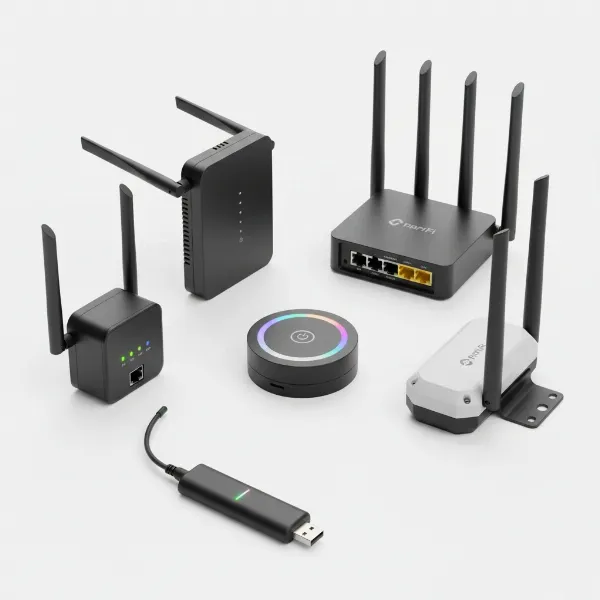 Various WiFi extenders with different features like ports and antennas
Conclusion
Wi-Fi extenders present a viable and often cost-effective solution for addressing the common frustration of inconsistent wireless coverage and dead zones in your home or office. By understanding how these devices capture and rebroadcast your existing Wi-Fi signal, you can effectively expand your network’s reach and improve signal strength where it’s needed most. While not a replacement for a fundamentally weak internet connection or an outdated main router, a well-chosen and correctly placed extender can significantly enhance your digital experience.
From eliminating frustrating dead spots to improving speeds for streaming and gaming in distant rooms, the benefits are clear. Remember to consider factors like speed standards, frequency bands, and your specific coverage needs when making a purchase. With numerous reputable brands offering various models, there’s likely a Wi-Fi extender perfectly suited to your requirements and budget. Are you ready to finally banish those Wi-Fi dead zones and enjoy seamless connectivity throughout your entire space?
Frequently Asked Questions
Do WiFi extenders reduce internet speed?
Yes, Wi-Fi extenders can often lead to a reduction in internet speed. This typically happens because the extender has to receive the signal from your main router and then rebroadcast it, creating a “hop” that can introduce latency and bandwidth limitations. Dual-band or tri-band extenders with dedicated backhaul bands can mitigate this effect by using a separate frequency to communicate with the router, preserving more speed for your devices.
What’s the difference between a WiFi extender and a mesh system?
A Wi-Fi extender captures and rebroadcasts your existing Wi-Fi signal, often creating a separate network name you might need to manually switch to. A mesh Wi-Fi system, on the other hand, uses multiple interconnected nodes to create a single, seamless network across your entire home, automatically switching your devices to the strongest signal without interruption. Mesh systems generally offer superior coverage and consistent speeds but are typically more expensive than single extenders.
Where is the best place to put a WiFi extender?
The optimal placement for a Wi-Fi extender is roughly halfway between your main router and the area experiencing weak Wi-Fi coverage or a dead zone. It needs to be close enough to your router to receive a strong, stable signal to effectively rebroadcast it. Most extenders include LED indicators to help you identify the best location, often showing green for a good connection and red/amber for a weak one.
Can a WiFi extender connect to any router?
Generally, most Wi-Fi extenders are designed to be universally compatible with any standard wireless router, regardless of brand. They connect using common Wi-Fi standards (like 802.11n, 802.11ac, or Wi-Fi 6/AX). However, for specific advanced features like forming a unified mesh network (e.g., TP-Link OneMesh or ASUS AiMesh), the extender and router often need to be from the same brand and support those specific technologies.
Are WiFi 6 extenders worth it?
Yes, Wi-Fi 6 extenders are generally worth the investment, especially if you already have a Wi-Fi 6 compatible router and devices. Wi-Fi 6 offers significant improvements in speed, efficiency, and capacity for handling multiple devices simultaneously compared to older Wi-Fi standards. A Wi-Fi 6 extender can help bring these benefits to your entire home, future-proofing your network and providing a more robust and responsive connection in extended areas.